








FAQ | Label Printers, Disc Title Printer and Stamp Maker
Category : Externaldevice Bluetooth Connection
Connecting to a Smartphone.
Follow the steps below.
* Features such as the display content differ depending on the OS version.
Please select your device.
iOS
1. Press "ON/Stand-by"key to turn the printer on.
· The LED indicator on the printer turns on.

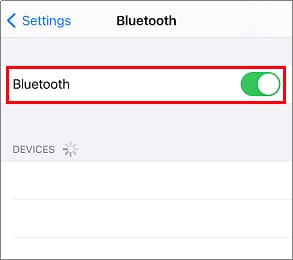
2. Tap "Settings">"Bluetooth".
· Activate Bluetooth on your smartphone.
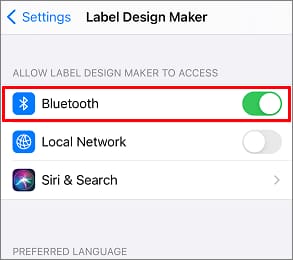
3. Tap "Settings">"LABEL DESIGN MAKER".
· Activate Bluetooth on.
4. Tap (···) in the Settings tab.
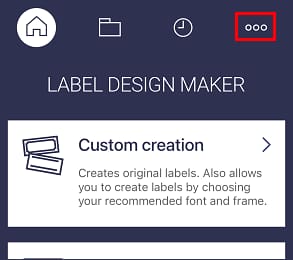
5. Tap "Model".
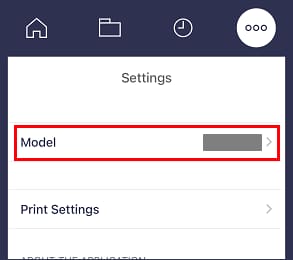
6. Select “KL-BT1” and tap “Back”.
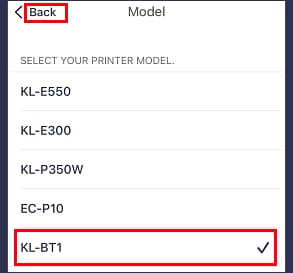
7. Tap “Print Settings”.
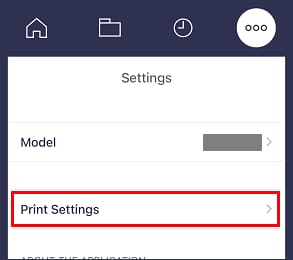
8. Tap the printer icon.
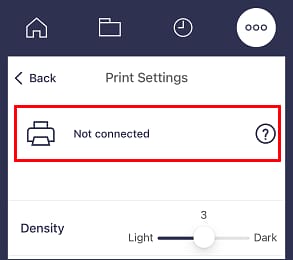
9. Tap the “KL-BT1_******” printer name to select this printer.
· When this printer is selected, the LED indicator on the printer flashes several times.
Android
1. Press "ON/Stand-by"key to turn the printer on.
· The LED indicator on the printer turns on.
2. Swipe down from the top of the screen.
Activate Bluetooth on your smartphone.
3. Swipe down from the top of the screen.
Activate Location on your smartphone.
4. On your phone, open the "Settings" app.
5. Tap "Apps & notifications">"APP info">"LABEL DESIGN MAKER">"Permissions">"Location".
6. Tap [All the time (Location only)] or [Only while using the app].
· To use BLE (Bluetooth Low Energy) with Android 6.0 or later, access to location information must be both enabled and permitted.
7. Tap (···) in the Settings tab.
8. Tap "Model".
9. Select “KL-BT1” and tap “Back”.
10. Tap “Print Settings”.
11. Tap the printer icon.
12. Tap the “KL-BT1_******” printer name to select this printer.
· When this printer is selected, the LED indicator on the printer flashes several times.
* Features such as the display content differ depending on the OS version.
Please select your device.
iOS
1. Press "ON/Stand-by"key to turn the printer on.
· The LED indicator on the printer turns on.
2. Tap "Settings">"Bluetooth".
· Activate Bluetooth on your smartphone.
3. Tap "Settings">"LABEL DESIGN MAKER".
· Activate Bluetooth on.
4. Tap (···) in the Settings tab.
5. Tap "Model".
6. Select “KL-BT1” and tap “Back”.
7. Tap “Print Settings”.
8. Tap the printer icon.
9. Tap the “KL-BT1_******” printer name to select this printer.
· When this printer is selected, the LED indicator on the printer flashes several times.
Android
1. Press "ON/Stand-by"key to turn the printer on.
· The LED indicator on the printer turns on.
2. Swipe down from the top of the screen.
Activate Bluetooth on your smartphone.
3. Swipe down from the top of the screen.
Activate Location on your smartphone.
4. On your phone, open the "Settings" app.
5. Tap "Apps & notifications">"APP info">"LABEL DESIGN MAKER">"Permissions">"Location".
6. Tap [All the time (Location only)] or [Only while using the app].
· To use BLE (Bluetooth Low Energy) with Android 6.0 or later, access to location information must be both enabled and permitted.
7. Tap (···) in the Settings tab.
8. Tap "Model".
9. Select “KL-BT1” and tap “Back”.
10. Tap “Print Settings”.
11. Tap the printer icon.
12. Tap the “KL-BT1_******” printer name to select this printer.
· When this printer is selected, the LED indicator on the printer flashes several times.


