Skip to content

FAQ | Calculators

Scientific calculator features and usage

Other

Is there anything I need to keep in mind when performing calculations that involve trigonometric functions or angles?

Yes. The calculator has three angle modes, and you need to check to make sure that the currently selected angle mode is the correct one for the type of calculation you are trying to perform. If it isn't, you need to change it. Determining the Current Angle Mode Setting The current angle mode setting is indicated on the calculator's display by one of the indicators described below. Degree: If "D" or "DEG" is on the display, it means that the current angle mode is Degree. A degree is 1/360 of the circumference of a circle. One degree is represented as 1゜. The following shows a calculation that uses degrees. sin90°= cos 0°=1 Radian: If "R" or "RAD" is on the display, it means that the current angle mode is Radian. A radian is 1/2πr of the circumference of a circle. Measurement of angles using radians called the "radian system of angular measurement". 1 radian = 360゜/(2π) The following are calculations that use radians. sin(π/2) =1 cos (2π)=1 Grad: If "G" or "GRA" is on the display, it means that the current angle mode is Grad. A grad is 1/400 of the circumference of a circle. The following are calculations that use grads. sin100 grads=cos 400 grads=1 The following shows the relationship between the three angle modes. 90°=π/2 radians=100grads Degree is the initial default angle mode for a standard scientific calculator and a programmable scientific calculator. Changing the Angle Mode S-V.P.A.M., V.P.A.M., fx-4800P, fx-5500LA, fx-3650P, fx-3950P etc. : Press [MODE] to cycle through screens on the display until the angle mode selection screen is appears. Input the number that corresponds to the angle mode you want to select. Standard and programmable scientific calculators other than those indicated above: Press the [MODE] key in combination with the number key that corresponds to the angle mode you want to select. The plate below the display shows which number key you need to press.

How does the [MODE] key work?

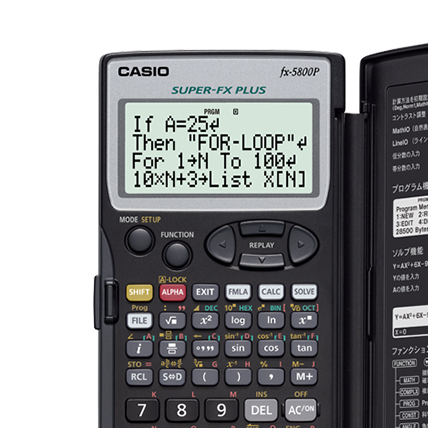
The [MODE] key can be used to select the modes described below. Important! The following is a general explanation of Scientific Calculator modes. Note that your calculator may not include all of the modes described here. 1) Calculation Modes Before performing a calculation, you first need to select the appropriate calculation mode. COMP: Basic arithmetic calculations (arithmetic operations, trigonometric functions, etc.) CMPLX: Complex number calculations STAT: Statistical calculations SD: Single-variable statistical calculations (sample standard deviation, etc.) LR or REG: Paired-variable statistical calculations (linear regression statistical calculations, etc.) BASE or BASE-n: Binary, octal, decimal, hexadecimal number system calculations MAT or MATRIX : Matrix calculations (determinants, etc.) VCT or VECTOR : Vector calculations EQN : nth degree equations, simultaneous equations TABLE : Generate a number table based on one or two functions 2) Display Settings Use these settings to control how calculation results are displayed. Note that changing the Fix and Sci settings does not affect internal calculation results. Norm: Exponential display format and cancels the currently configured Fix and Sci settings. Fix: Specifies a fixed number of digits to the right of the decimal place. Sci: Specifies a fixed number of significant digits. 3) Angle Unit Setting (90°=π/2 radians=100 grads) Deg: Degrees Rad: Radians Gra: Grads 4) Engineering Mode Use this mode when you want to input and perform calculations using engineering symbols.

Is it possible to accomplish calculations of complex numbers specially in polar form with scientific calculators?

Yes. At the following model,the arithmetic operations on complex numbers can be easily managed using the Calculators. The models: fx-991MS / fx-115MS / fx-912MS / fx-3650P / fx-3950P These kinds of calculations, which are used often in physical and technical fields, are explained here as a supplement to the calculator manual. The complex numbers can be represented in two different forms: Rectangular or Cartesian form: z = x+iy (In some notation j may be used instead of i.) Polar or Phasor form: z = r∠θ or z = |z|e^θi. (In some notations φ may be used instead of θ.) Example 1: Convert the complex number (z = -4+3i) into polar form. 1. In the COMPLEX Mode, set the angle unit to Degree (Deg). [MODE] [2](COMPLEX) [MODE]...[1](Deg) 2. Input the complex numbers z=-4+3i. [(-)][4][+][3][ENG](i)[=] 3. The result in rectangular form. The value of real part: -4 The value of imaginary part after pressing [SHIFT][=] (Re<->Im): 3 (i) 4. The display change of the value of rectangular form is carried out at polar form. The absolute value of the number in polar form after pressing [SHFT][+](>r∠θ)[=]: 5 The angle value after pressing [SHFT][=] (Re<->Im): 143.1301024 The result in polar form :5∠143.1301024 (Angle unit:Deg) Example2: Convert the complex number (2∠60゜) into rectangular form. 1. In the COMPLEX Mode, set the angle unit to Degree (Deg). [MODE] [2](COMPLEX) [MODE]...[1](Deg) 2. Input the complex numbers 2∠60. [2][SHIFT][(-)](∠)[6][0][=] 3. The result in rectangular form. The value of real part: 1 The value of imaginary part after pressing [SHIFT][=] (Re<->Im): 1.732050808 (i) The result in rectangular form: 1+1.732050808i It is possible to work with the angle unit Radian. When angle mode is set as Radian, the angle values can input as pi-Multipliers. (180゜ =π radian.) Above Example2 is calculated in Radian. 1. In the COMPLEX Mode, set the angle unit to Radian(Rad). [MODE][2](COMPLEX) [MODE]...[2](Rad) 2.Input the complex numbers 2∠π/3. (60゜=π/3 radian.) [2][SHIFT][(-)](∠)[SHIFT] [EXP](π)[ab/c] [3][=] 3. The result in rectangular form. The value of real part: 1 The value of imaginary part after pressing [SHIFT][=] (Re<->Im): 1.732050808 (i) Complex Numbers – Calculation (Addition / Subtraction) The two rectangular form complex numbers z1 and z2 are given. : z1 = 4+2i, z2 = -1+5i Example 3: Addition z1+z2=3+7i 1. In the COMPLEX Mode, set the angle unit to Degree (Deg). [MODE] [2](COMPLEX) [MODE]...[1](Deg) 2. Input the value. z1+z2. Displayed Result: The value of real part: 3 The value of imaginary part after pressing [SHIFT] [=](Re<->Im): 7 (i) Example4: Subtraction z1-z2=5-3i 1. In the COMPLEX Mode, set the angle unit to Degree (Deg). [MODE] [2](COMPLEX) [MODE]...[1](Deg) 2. Input the value. z1-z2. Displayed Result: The value of real part: 5 The value of imaginary part after pressing [SHIFT] [=](Re<->Im): -3 (i) Complex Number – Calculation (Multiplication / Division) The two polar form complex numbers z1 and z2 are given.(Angle unit:Degree): z1 =5∠70, z2 = 3∠45 Example 5: Multiplication z1*z2=15∠115 1. Set the complex mode, the polar form for display of complex number calculation results and the angle unit Degree in setting. [MODE][2](COMPLEX) [MODE]...[1](Disp)[right cursor key][2](r∠θ) [MODE]...[1](Deg) 2.Input the value. z1*z2 Displayed Result: The absolute value of the number in polar form : 15 The angle value after pressing [SHFT][=] (Re<->Im): 115 Example6: Division z1/z2= 1.666666667∠ 25 1. Set the complex mode, the polar form for display of complex number calculation results and the angle unit Degree in setting. [MODE][2](COMPLEX) [MODE]...[1](Disp)[right cursor key][2](r∠θ) [MODE]...[1](Deg) 2.Input the value. z1/z2 Displayed Result: The absolute value of the number in polar form : 1.666666667 The angle value after pressing [SHFT][=] (Re<->Im): 25 3.The display change of the value of polar form is carried out at rectangular form. The value of real part after pressing [SHIFT][-](>a+bi)[=]: 1.510512978 The value of imaginary part after pressing [SHIFT][=](Re<->Im): 0.704363769 (i)

Is there anything I need to remember when performing BASE-N and logical operations?

Yes. In addition to decimal values,calculations can be performed using binary, octal and hexadecimal values. Calculation results in the BASE-N Mode are always displayed using the currently selected number system. You can change the number system setting to change a value to another number system. You can also perform negative value calculations and logical operations. Note: When inputting hexadecimal values, use the keys marked with red or green alphabetic letters to input A, B, C, D, E, and F. In this case, you do not need to press the [ALPHA] key before pressing the letter key. Converting from BASE-N to Decimal Number system Base example (Decimal number 28) Result Binary 2 1x 2 4 + 1x 2 3 + 1x 2 2 + 0x 2 1 + 0x2 0 11100 Octal 8 3x 8 1 + 4x 8 0 34 Decimal 10 2x 10 1 + 8x 10 0 28 Hexadecimal 16 1x 16 1 + 12x 16 0 1C The following are calculations using the fx-991MS. Operation on other scientific calculator models (fx-115MS, fx-115WA, fx-991WA, fx-3650P, etc.) is similar. Example: To convert the decimal value 28 to its binary equivalent. 1.In the BASE Mode, specify decimal as the default number base setting. [MODE] [MODE] [3](BASE) [X 2 ](Dec) 2.Input the decimal value 28. [2] [8] [=] 3. Specify binary as the desired number base. [log](BIN) Displayed Result: 11100 Logical operations Logical operations display the results of the bitwise logical product (and), logical sum (or), exclusive logical sum (Xor,Exor), and exclusive negative logical sum (Xnor). In the case of negative binary, octal, and decimal values, the two's complement of the binary equivalent of the value is taken and then result is returned to its original number base value. With the decimal number base, negative values are displayed with a minus sign. Truth Table A B A And B A Or B A Nand B A Nor B A Xor B 0 0 0 0 1 1 0 0 1 0 1 1 0 1 1 0 0 1 1 0 1 1 1 1 1 0 0 0 A Nand B is equivalent to: Not (A and B) A Nor B is equivalent to: Not (A or B) A Xor B is equivalent to : (A Or B) And (Not(A)Or Not(B)) Examples: To take the bitwise Or and Xor of the hexadecimal values 19 and 1A, and convert the results to binary values. Or Operation: 19 Or 1A 1.In the BASE Mode, specify hexadecimal as the default number base setting. [MODE] [MODE] [3](BASE) [^](Hex) 2. Input the hexadecimal value 19. [1] [9] 3. Input the logical operator. [x -1 ](LOGIC) [2](or) 4. Input the hexadecimal value 1A, which will display the hexadecimal result. [1] [( - )](A) [=] Displayed Result: 1b 5. Specify binary as the desired number base. [log](BIN) Displayed Result: 11011 Xor Operation: 19 Xor 1A 1.In the BASE Mode, specify hexadecimal as the default number base setting. [MODE] [MODE] [3](BASE) [^](Hex) 2. Input the hexadecimal value 19. [1] [9] 3. Input the logical operator. [x -1 ](LOGIC) [x -1 ](LOGIC) [1](xor) 4. Input the hexadecimal value 1A, which will display the hexadecimal result. [1] [( - )](A) [=] Displayed Result: 3 5. Specify binary as the desired number base. [log](BIN) Displayed Result: 11


How does the [MODE] key work?

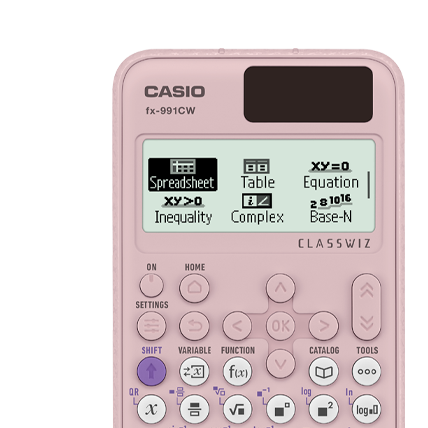
The [MODE] key can be used to select the modes described below. Important! The following is a general explanation of Scientific Calculator modes. Note that your calculator may not include all of the modes described here. 1) Calculation Modes Before performing a calculation, you first need to select the appropriate calculation mode. COMP: Basic arithmetic calculations (arithmetic operations, trigonometric functions, etc.) COMPLEX: Complex number calculations STAT: Statistical calculations BASE-N: Binary, octal, decimal, hexadecimal number system calculations MATRIX : Matrix calculations (determinants, etc.) VECTOR : Vector calculations EQN : nth degree equations, simultaneous equations TABLE : Generate a number table based on one or two functions 2) MthIO/LineIO Settings Specifies the display format. MthIO-MathO or MthIO displays input and calculation results using the same format as they are written on Paper. MthIO-LineO displays input the same way as MathO, but calculation results are displayed in linear format. (ES PLUS Series only) LineIO causes fractions and other expressions to be displays in a single line. 3) Display Settings Use these settings to control how calculation results are displayed. Note that changing the Fix and Sci settings does not affect internal calculation results. Norm: Exponential display format and cancels the currently configured Fix and Sci settings. Fix: Specifies a fixed number of digits to the right of the decimal place. Sci: Specifies a fixed number of significant digits. 4) Angle Unit Setting (90°=π/2 radians=100 grads) Deg: Degrees Rad: Radians Gra: Grads

Is there anything I need to remember when performing BASE-N and logical operations?

Yes. In addition to decimal values,calculations can be performed using binary, octal and hexadecimal values. Calculation results in the BASE-N Mode are always displayed using the currently selected number system. You can change the number system setting to change a value to another number system. You can also perform negative value calculations and logical operations. Note: When inputting hexadecimal values, use the keys marked with red or green alphabetic letters to input A, B, C, D, E, and F. In this case, you do not need to press the [ALPHA] key before pressing the letter key. Converting from BASE-N to Decimal Number system Base example (Decimal number 28) Result Binary 2 1x 2 4 + 1x 2 3 + 1x 2 2 + 0x 2 1 + 0x2 0 11100 Octal 8 3x 8 1 + 4x 8 0 34 Decimal 10 2x 10 1 + 8x 10 0 28 Hexadecimal 16 1x 16 1 + 12x 16 0 1C The following are calculations using the fx-991ESPLUS. Example: To convert the decimal value 28 to its binary equivalent. 1.In the BASE Mode, specify decimal as the default number base setting. [MODE] [4](BASE-N) [X 2 ](Dec) 2.Input the decimal value 28. [2] [8] [=] 3. Specify binary as the desired number base. [log](BIN) Displayed Result: 0000000000011100 (Bin) Logical operations Logical operations display the results of the bitwise logical product (and), logical sum (or), exclusive logical sum (Xor,Exor), and exclusive negative logical sum (Xnor). In the case of negative binary, octal, and decimal values, the two's complement of the binary equivalent of the value is taken and then result is returned to its original number base value. With the decimal number base, negative values are displayed with a minus sign. Truth Table A B A And B A Or B A Nand B A Nor B A Xor B 0 0 0 0 1 1 0 0 1 0 1 1 0 1 1 0 0 1 1 0 1 1 1 1 1 0 0 0 A Nand B is equivalent to: Not (A and B) A Nor B is equivalent to: Not (A or B) A Xor B is equivalent to : (A Or B) And (Not(A)Or Not(B)) Examples: To take the bitwise Or and Xor of the hexadecimal values 19 and 1A, and convert the results to binary values. Or Operation: 19 Or 1A 1.In the BASE Mode, specify hexadecimal as the default number base setting. [MODE] [4](BASE-N) [^] (Hex) 2. Input the hexadecimal value 19. [1] [9] 3. Input the logical operator. [SHIFT] [3](BASE) [2](or) 4. Input the hexadecimal value 1A, which will display the hexadecimal result. [1] [( - )](A) [=] Displayed Result: 1B (Hex) 5. Specify binary as the desired number base. [log](BIN) Displayed Result: 0000000000011011 Xor Operation: 19 Xor 1A 1.In the BASE Mode, specify hexadecimal as the default number base setting. [MODE] [4](BASE-N) [^] (Hex) 2. Input the hexadecimal value 19. [1] [9] 3. Input the logical operator. [SHIFT] [3](BASE) [3] (xor) 4. Input the hexadecimal value 1A, which will display the hexadecimal result. [1] [( - )](A) [=] Displayed Result: 3 (Hex) 5. Specify binary as the desired number base. [log](BIN) Displayed Result: 0000000000000011(Bin)

Is there anything I need to keep in mind when performing calculations that involve trigonometric functions or angles?

Yes. The calculator has three angle modes, and you need to check to make sure that the currently selected angle mode is the correct one for the type of calculation you are trying to perform. If it isn't, you need to change it. Determining the Current Angle Mode Setting The current angle mode setting is indicated on the calculator's display by one of the indicators described below. Degree: If "D" is on the display, it means that the current angle mode is Degree. A degree is 1/360 of the circumference of a circle. One degree is represented as 1゜. The following shows a calculation that uses degrees. sin90°= cos 0°=1 Radian: If "R" is on the display, it means that the current angle mode is Radian. A radian is 1/2πr of the circumference of a circle. Measurement of angles using radians called the "radian system of angular measurement". 1 radian = 360゜/(2π) The following are calculations that use radians. sin(π/2) =1 cos (2π)=1 Grad: If "G" is on the display, it means that the current angle mode is Grad. A grad is 1/400 of the circumference of a circle. The following are calculations that use grads. sin100 grads=cos 400 grads=1 The following shows the relationship between the three angle modes. 90°=π/2 radians=100grads Degree is the initial default angle mode for a standard scientific calculator. Changing the Angle Mode Press [SHIFT] [MODE] key in combination with the number key that corresponds to the angle mode you want to select.

Select a location