















Unable to receive incoming call notifications
▼If you are not receiving notifications on your watch, please follow the steps below to check the settings on your smartphone or in the app.
(Only for watches that support the notification feature)
Note: Please note that the names and layout of the settings menu may vary depending on your smartphone model, OS version, and app version.
Note: The content on this page is based on the “CASIO WATCHES APP”.
▼Please select your smartphone
(The instructions will change based on your selection.)
- iPhone
- Android
Current selection::iPhone
How to check your settings
👉“CASIO WATCHES APP” Settings
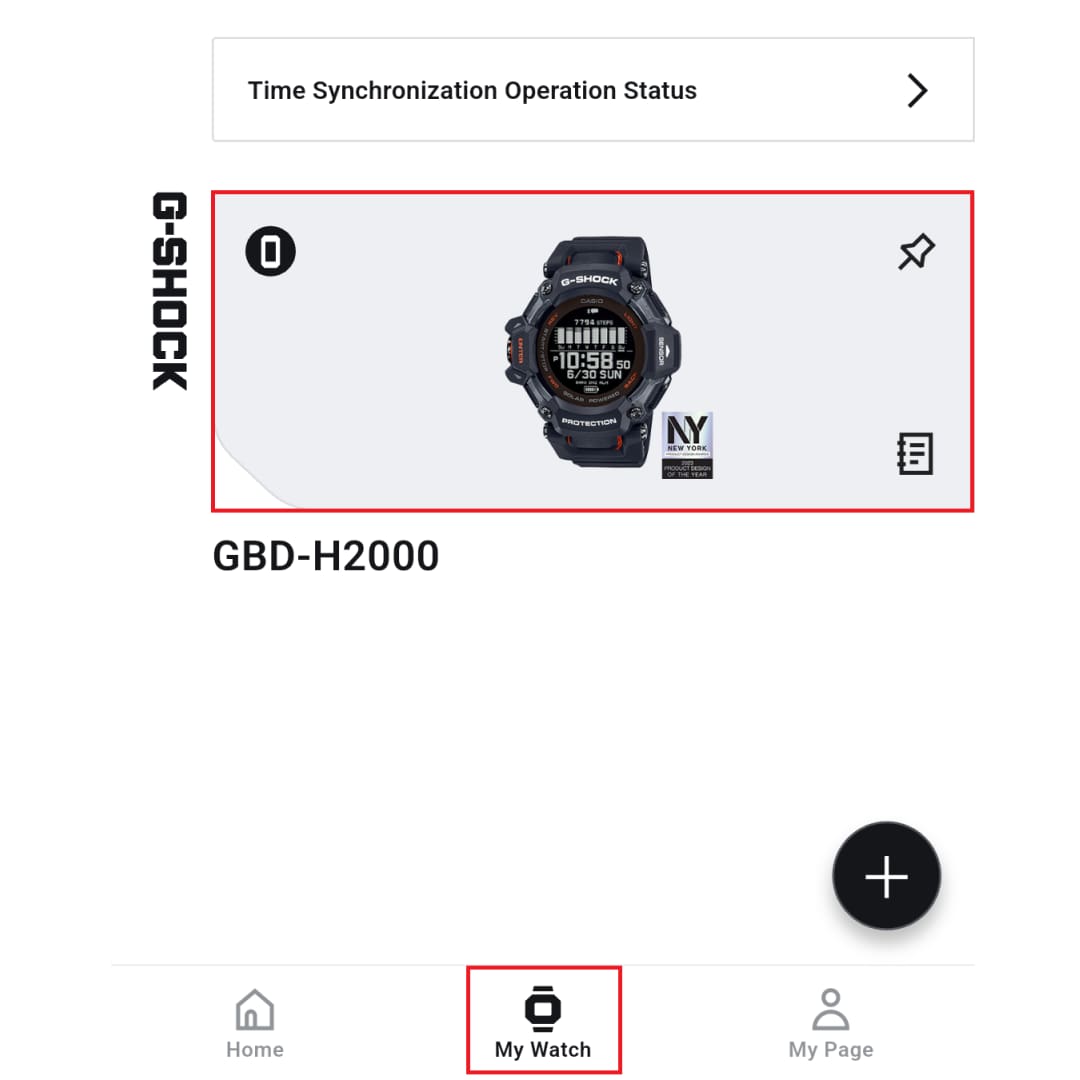
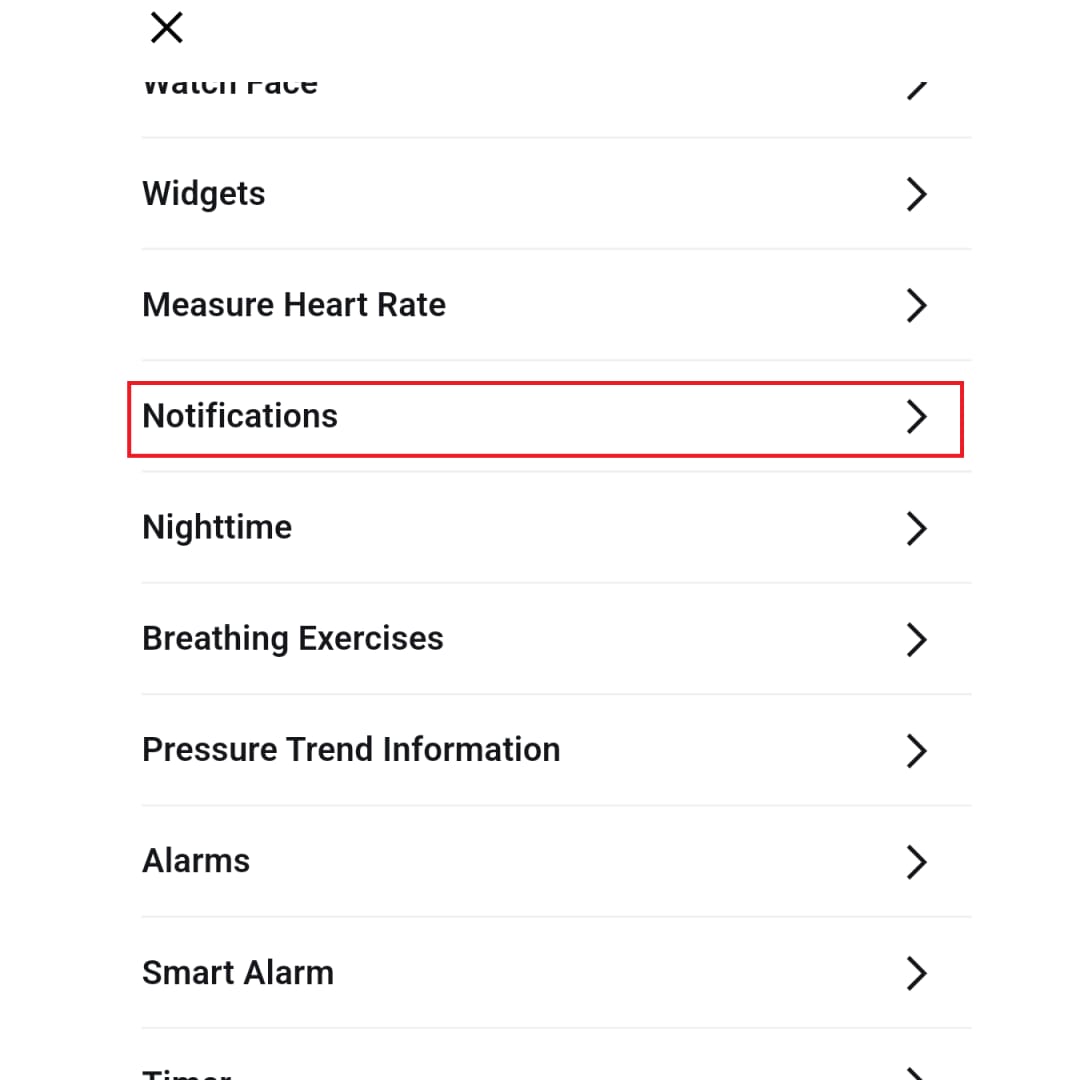
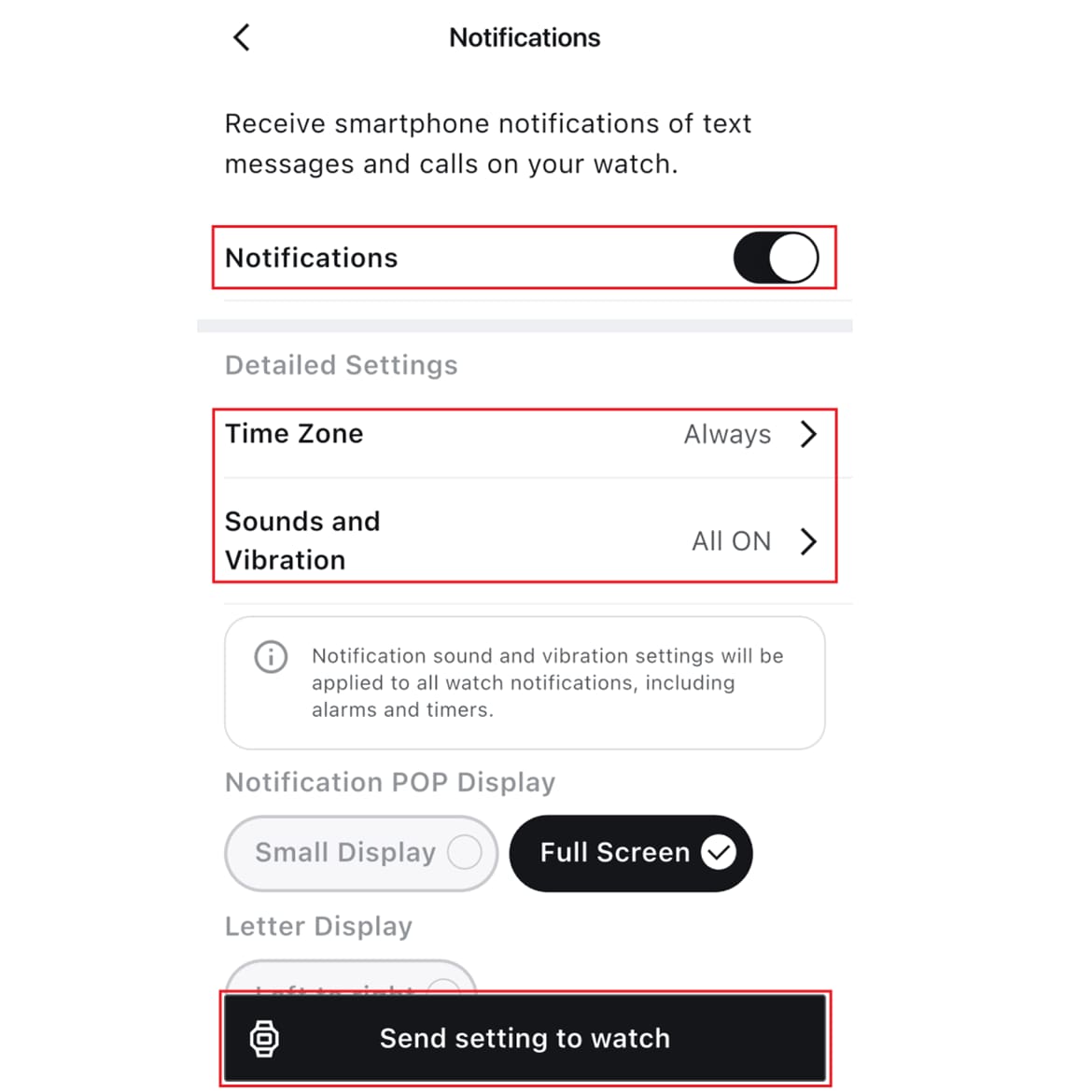
On the My Watch screen of the app, confirm that notifications are turned on for your watch.
(You can customize the time period, notification sound, and vibration settings according to your preferences.)▼You can move the image left and right
👉Smartphone settings
Ensure that notifications for the app you want to receive on your watch are enabled.
<Setup instructions>
・On your smartphone, go to [Settings] > [Notifications] > [Show Previews] and set it to [Always] or [When Unlocked].
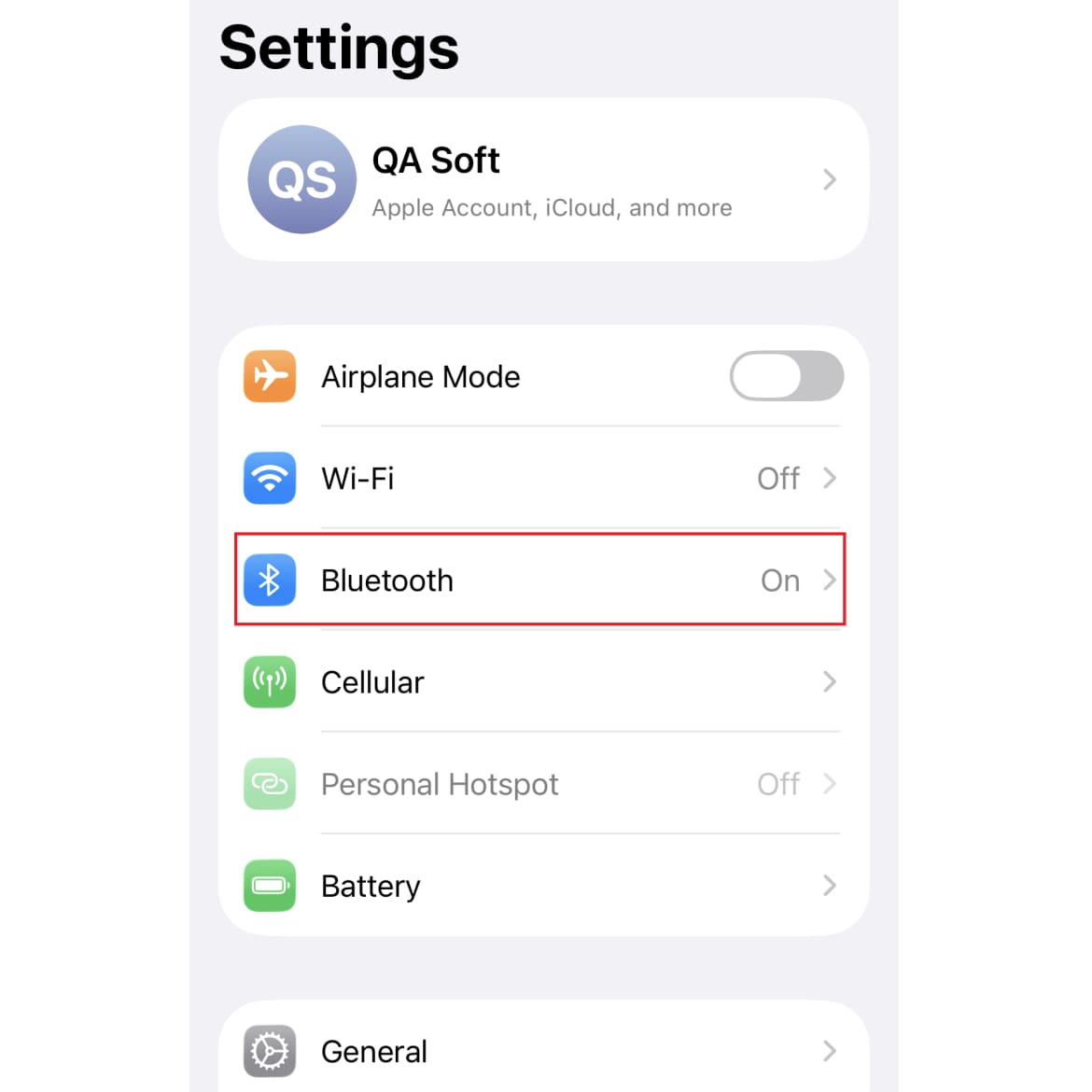
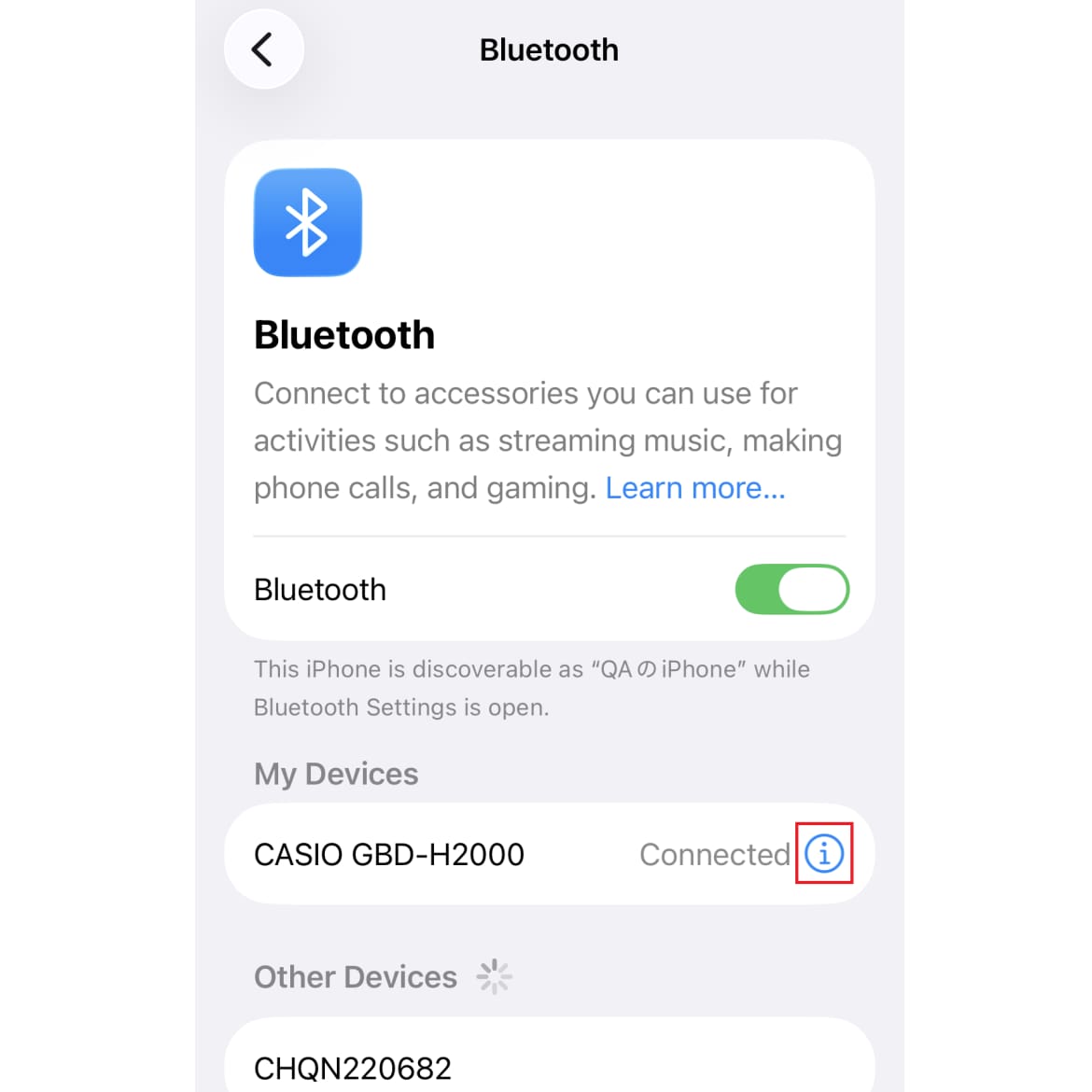
On your smartphone, go to [Settings] > [Bluetooth] > [Share System Notifications] for the corresponding watch and turn it on.
e.g. Watch GBD-H2000▼You can move the image left and right
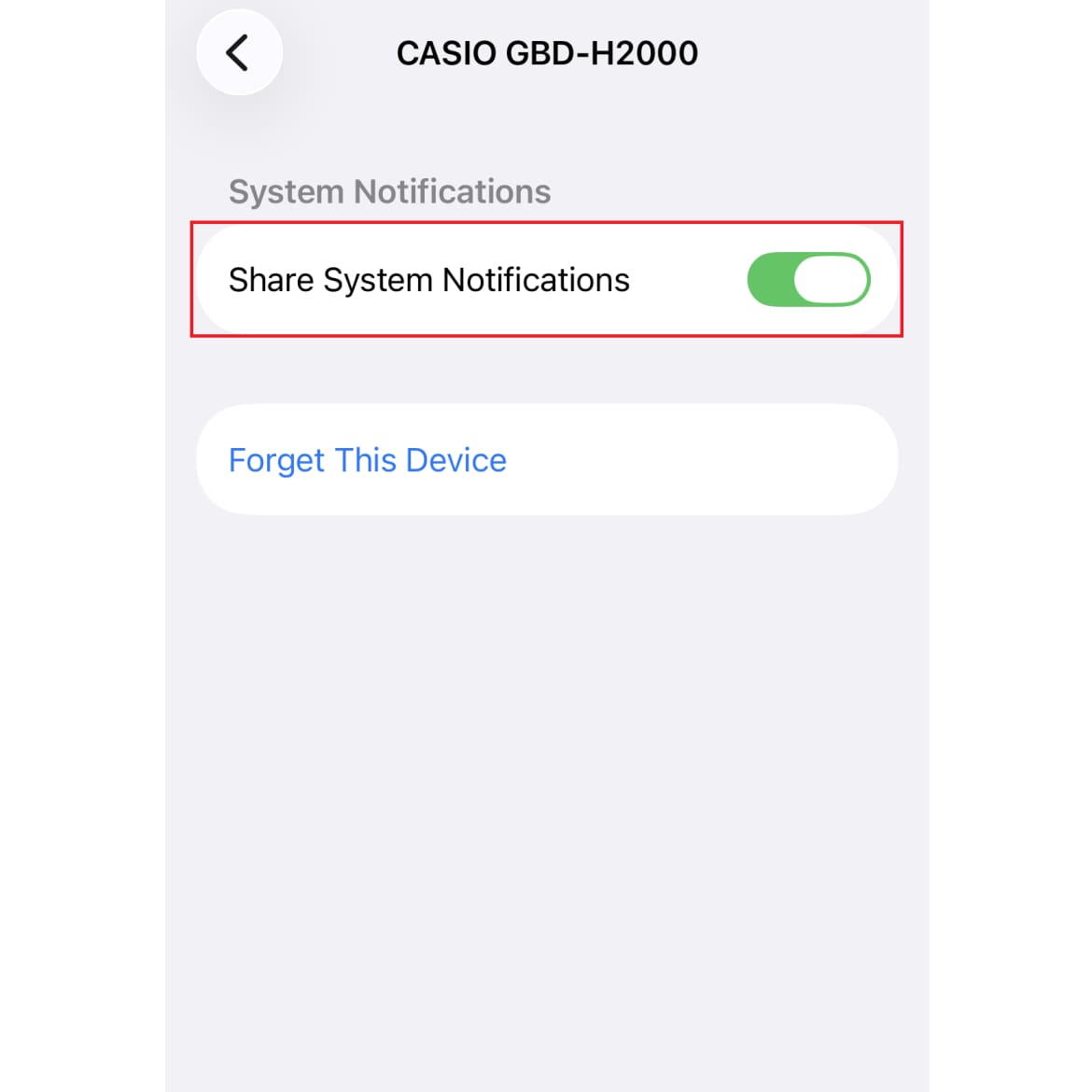
・Enable notifications for each desired app, and make sure all three alert types (Lock Screen, Notification Center, Banners) are checked.
e.g. For the Mail app, go to your smartphone's [Settings] > the relevant [Mail] App > [Notifications], allow notifications, and check all three options: [Lock Screen], [Notification Center], and [Banners]
・For each app you want to receive notifications from, set the [Show Previews] for its notifications to [Always] or [When Unlocked].
e.g. For the Mail app, go to your smartphone's [Settings] > [Notifications] > the relevant [Mail] App > [Show Previews] and set it to [Always] or [When Unlocked]
・Open the app you want to enable notifications for and make sure its notification settings are turned on.
e.g. For the SNS app, SNS app home screen > [Settings] > [Notifications] > Turn on the items you want to receive notifications for
Current selection::Android
How to check your settings
👉“CASIO WATCHES APP” Settings
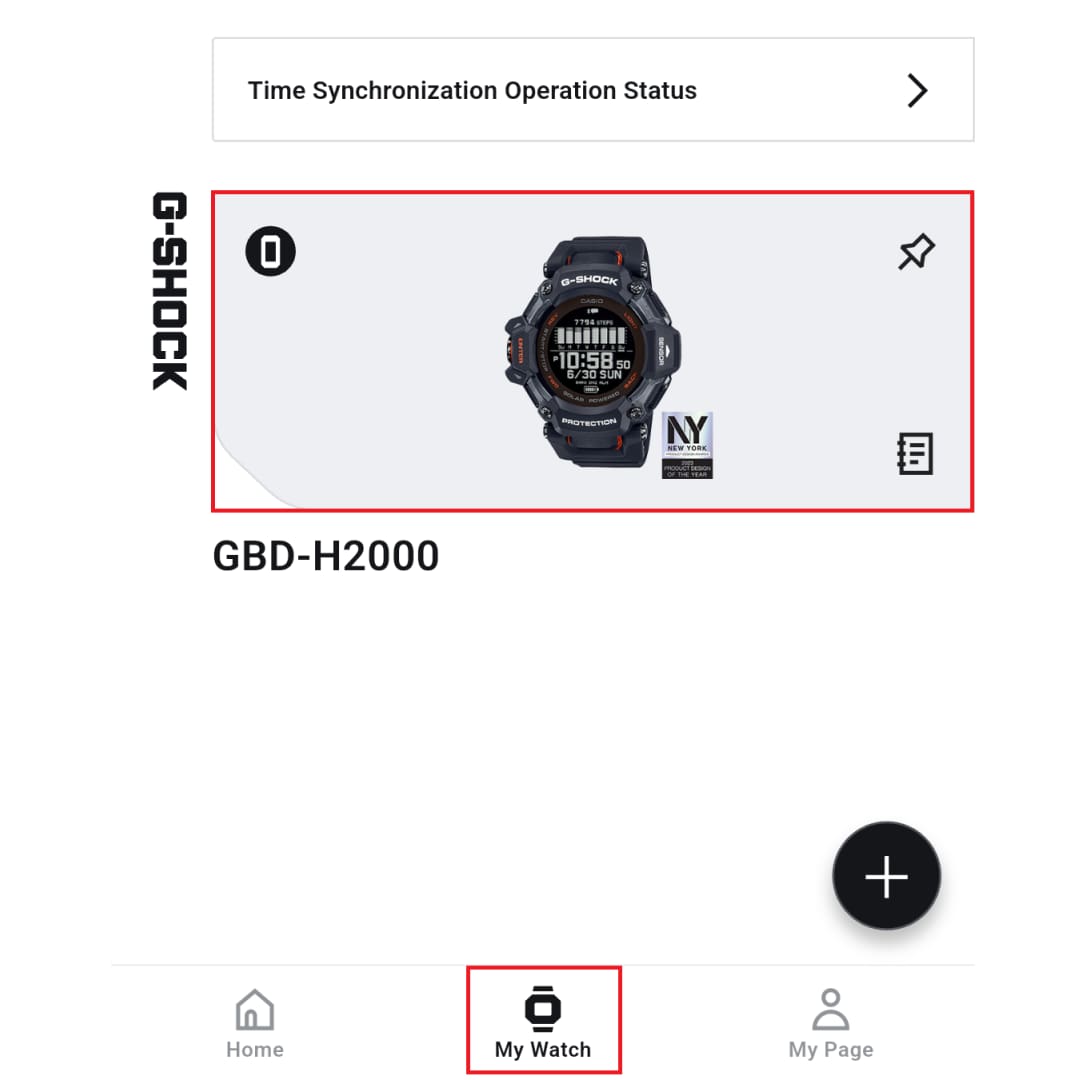
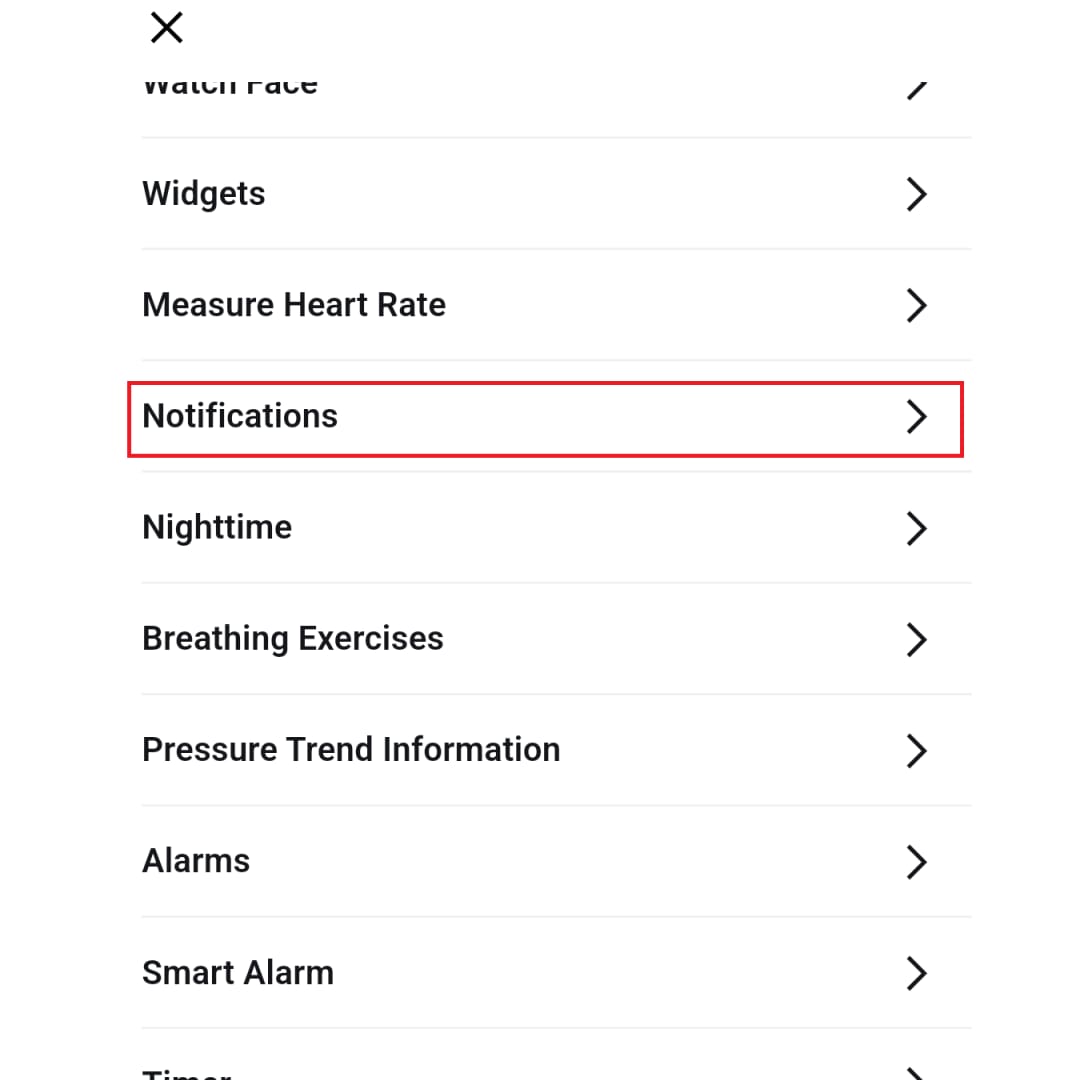
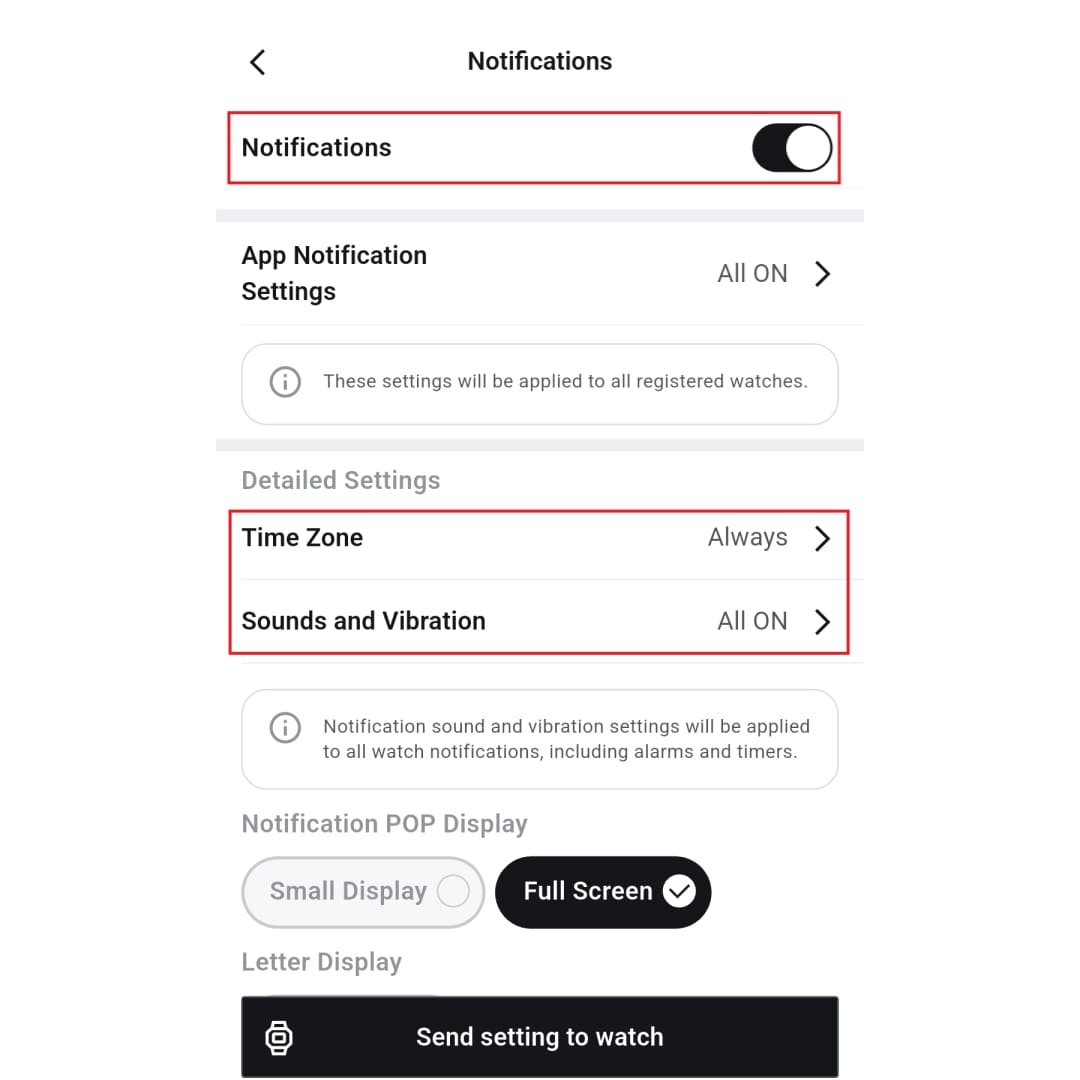
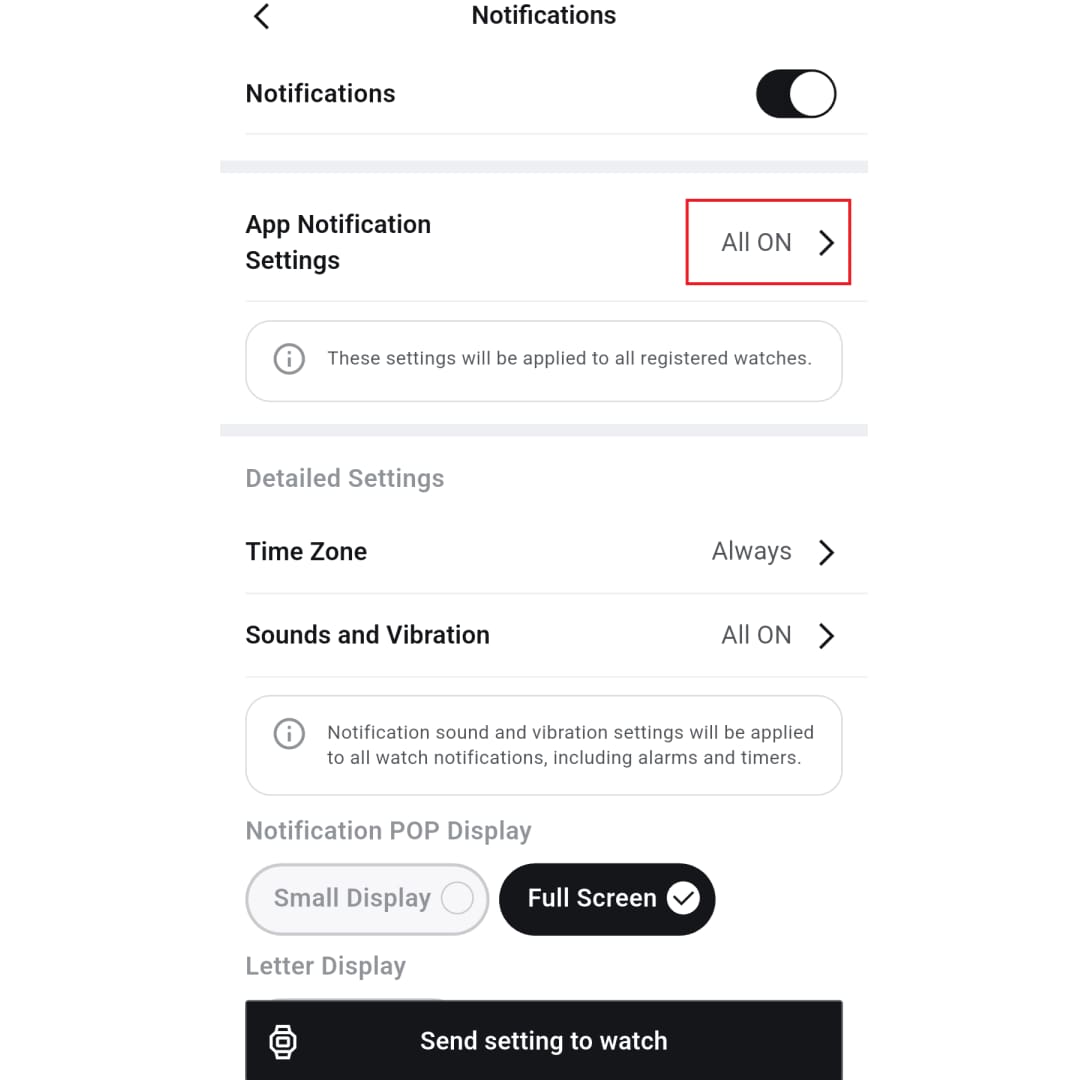
On the My Watch screen of the CASIO WATCHES app, select your watch and turn on "Allow Watch Notifications."
e.g. Google Pixel 7 (Android 16)▼You can move the image left and right
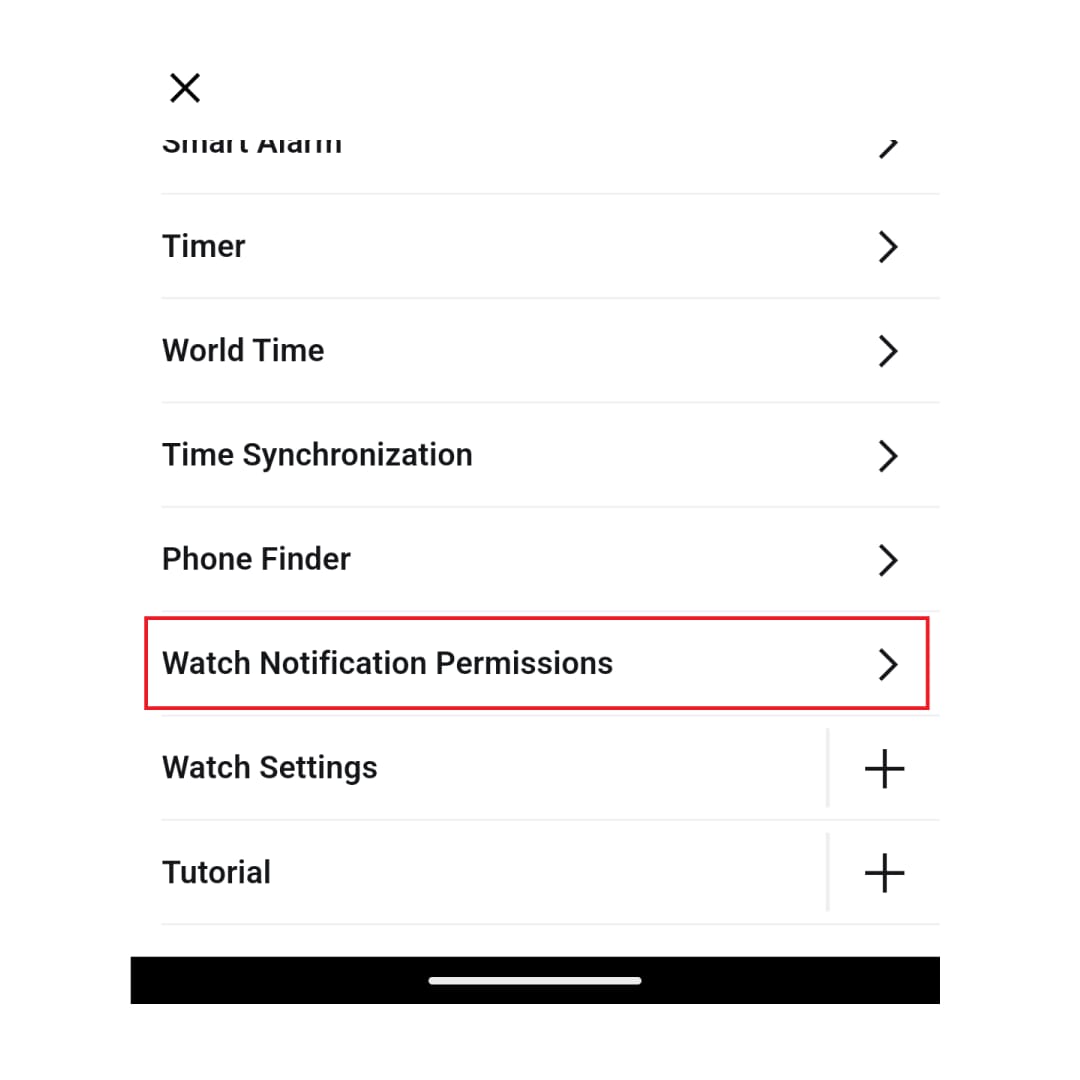
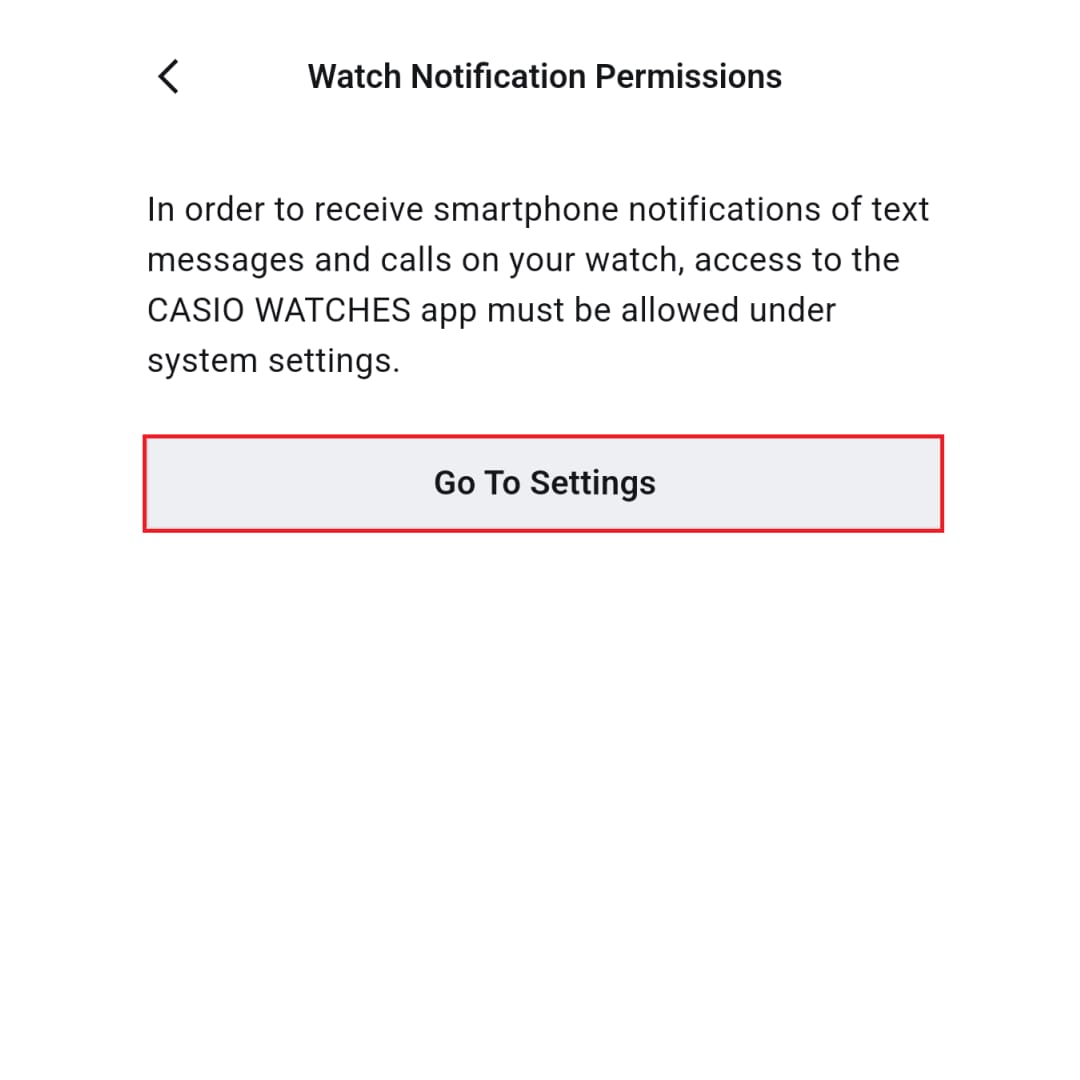
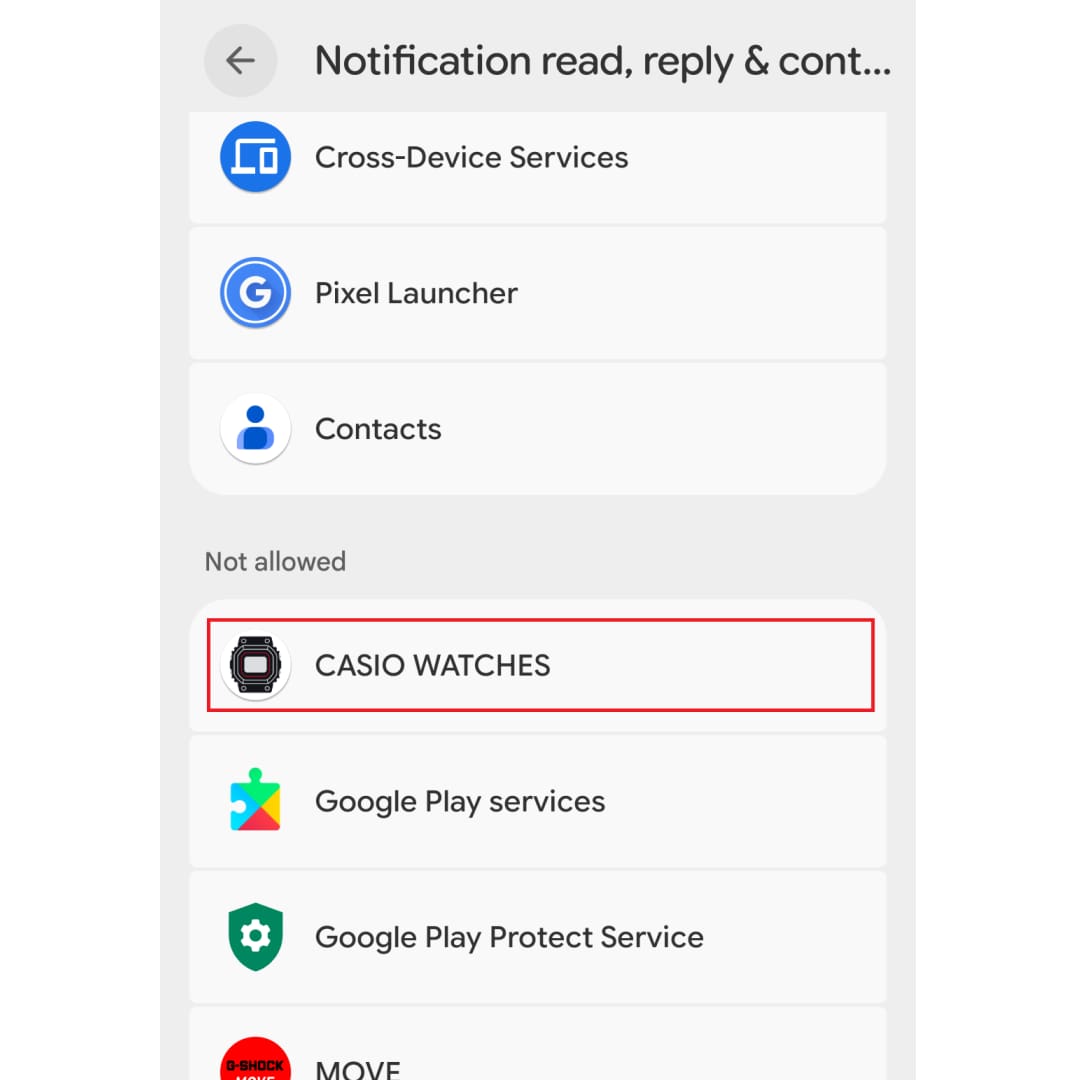
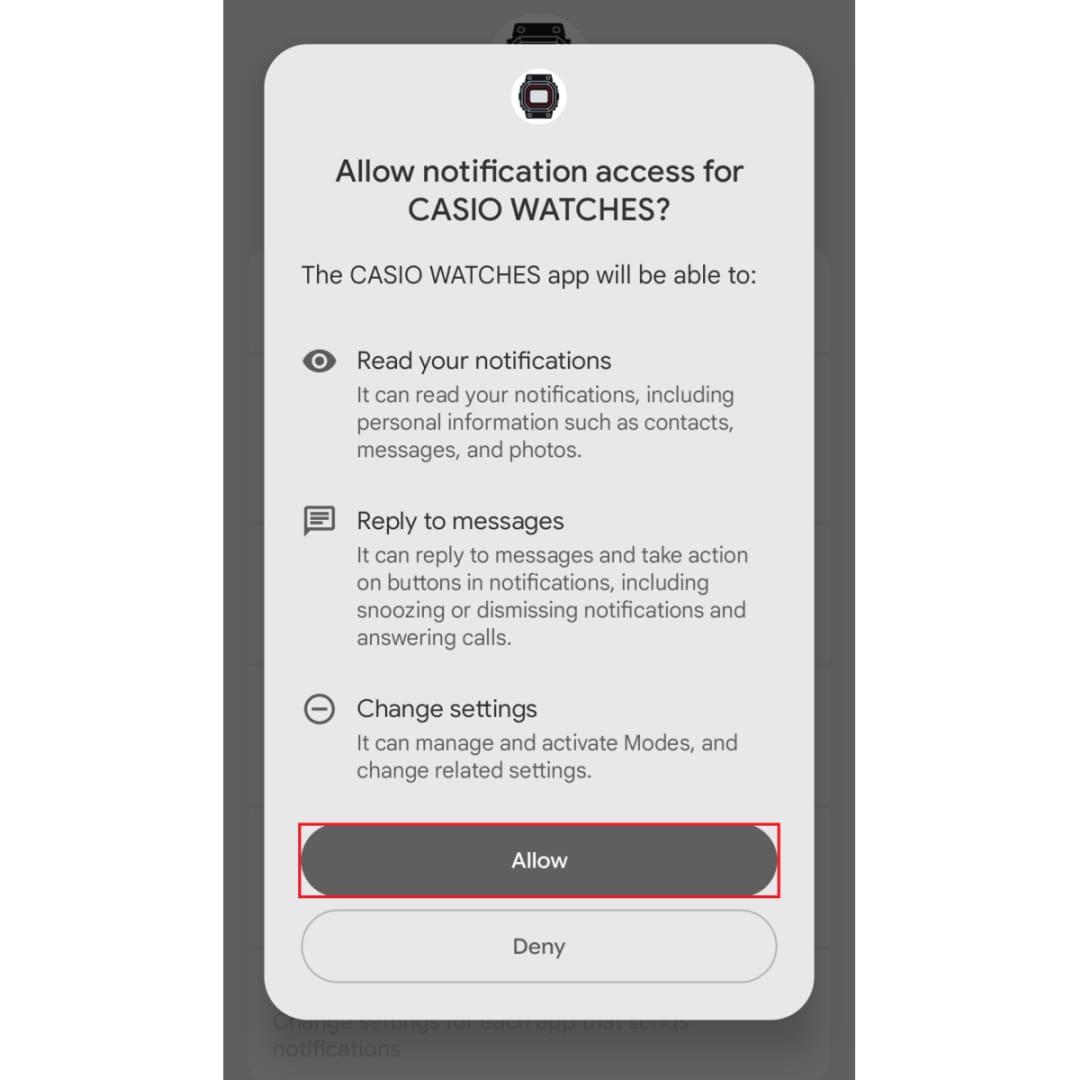
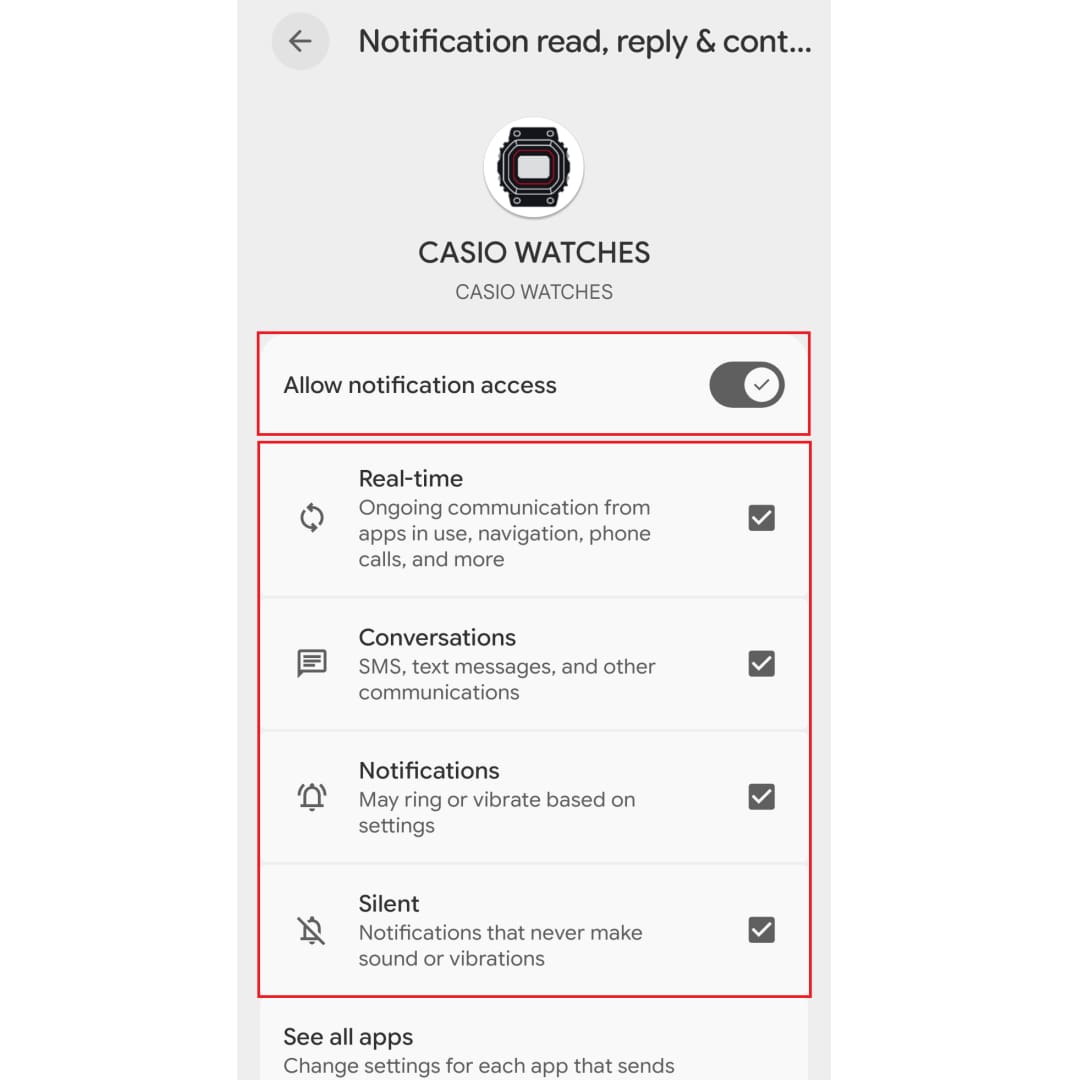
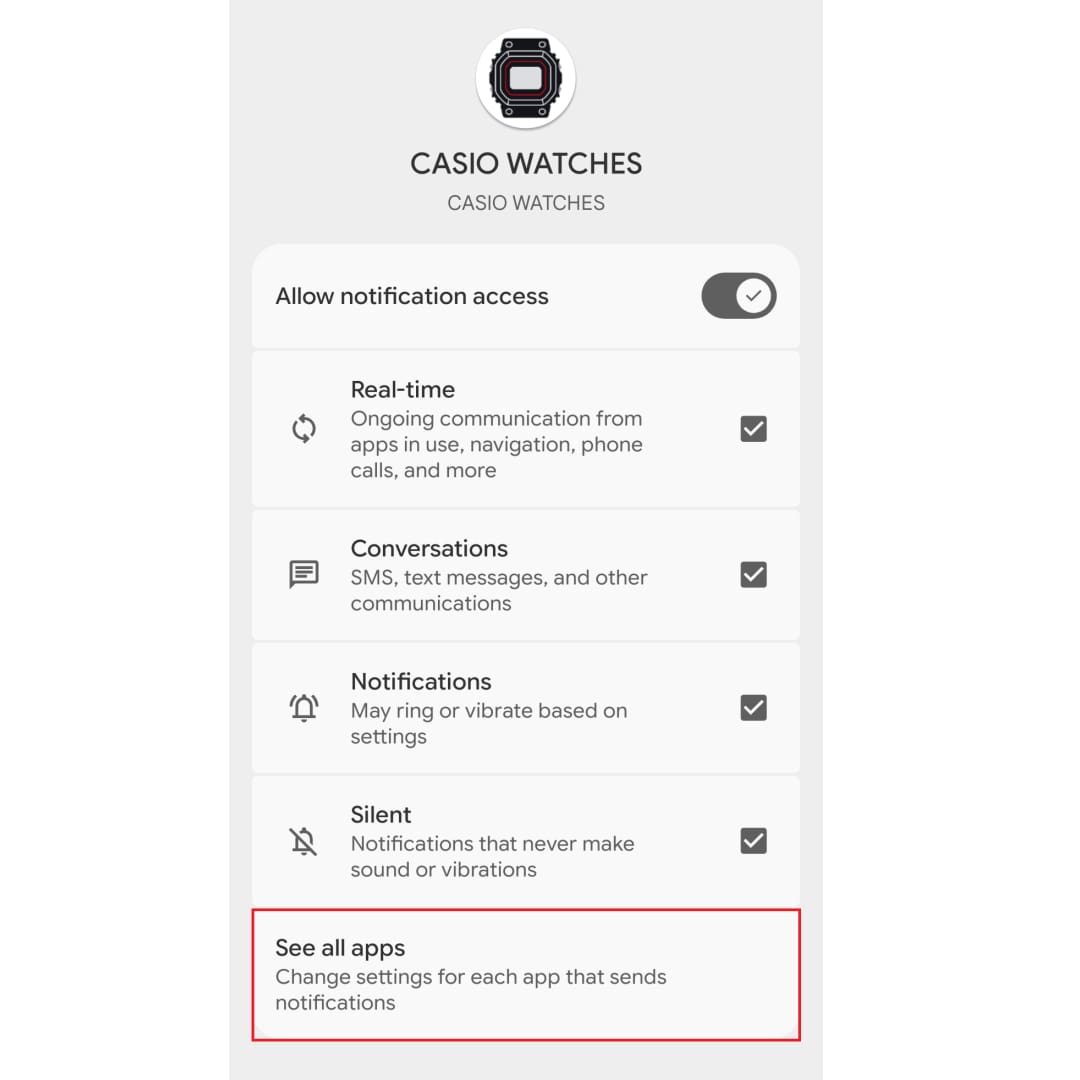
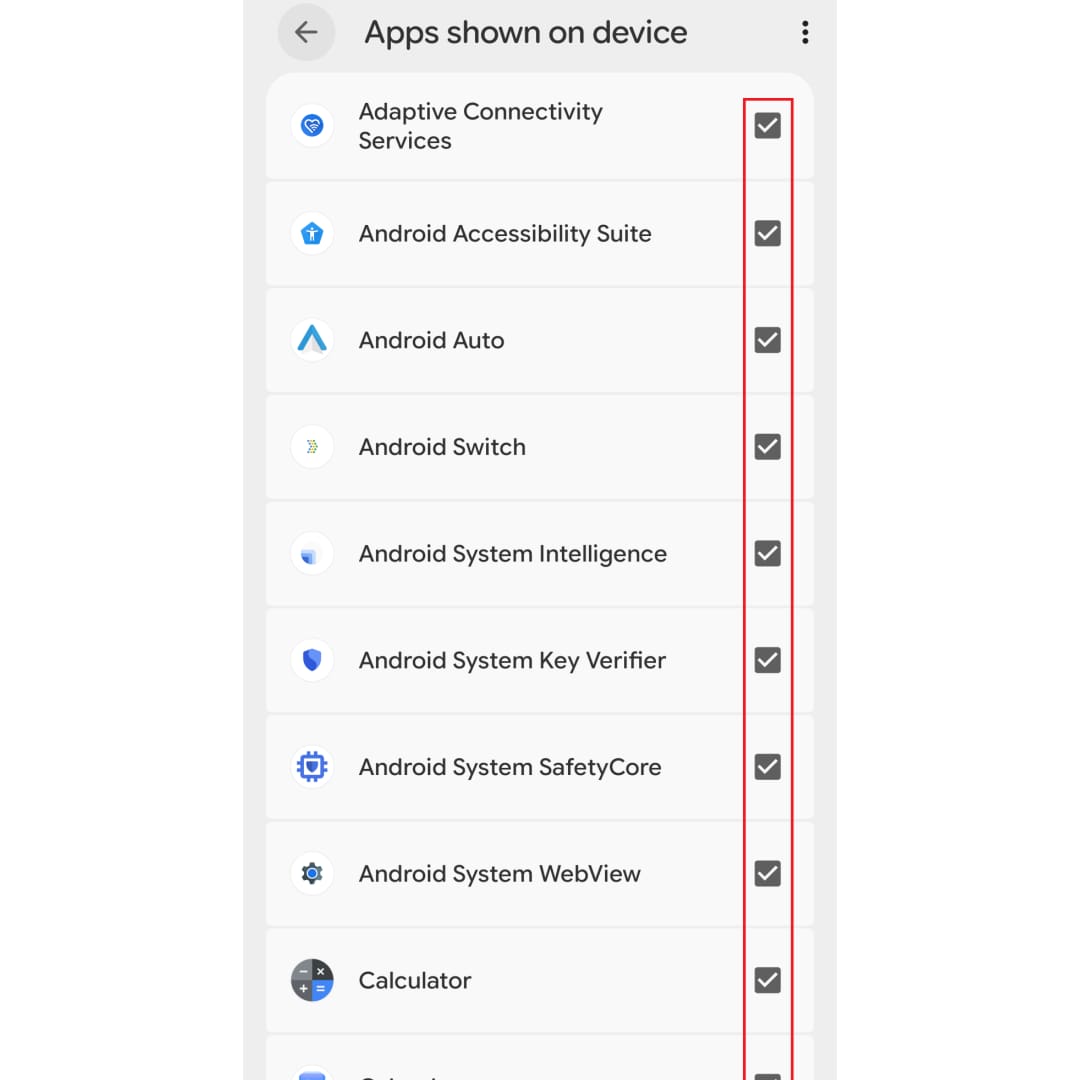
On the My Watch screen in the app, please make sure that notifications for that watch are turned on.
(Please set the time, notification sound, and vibration according to your preferences.)▼You can move the image left and right
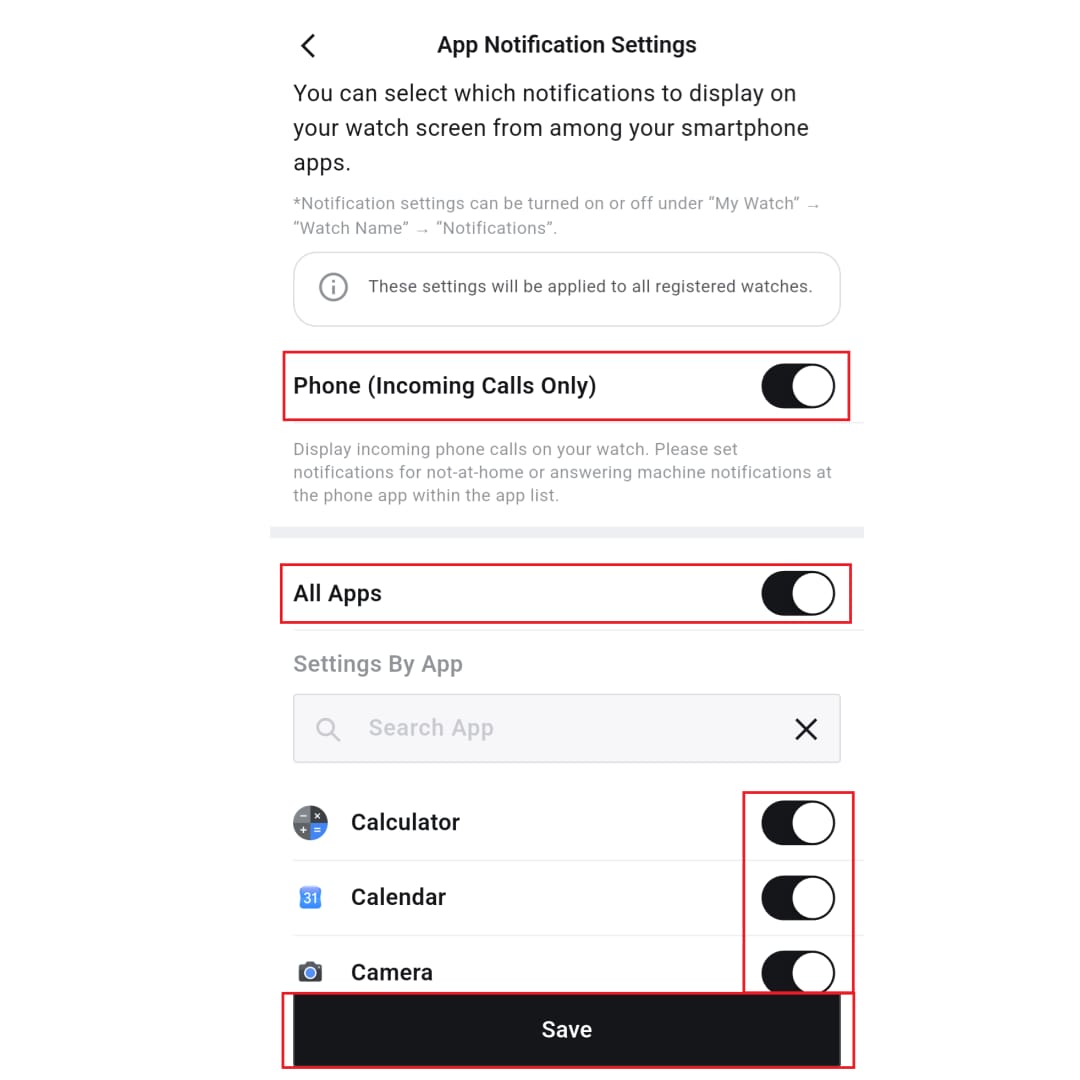
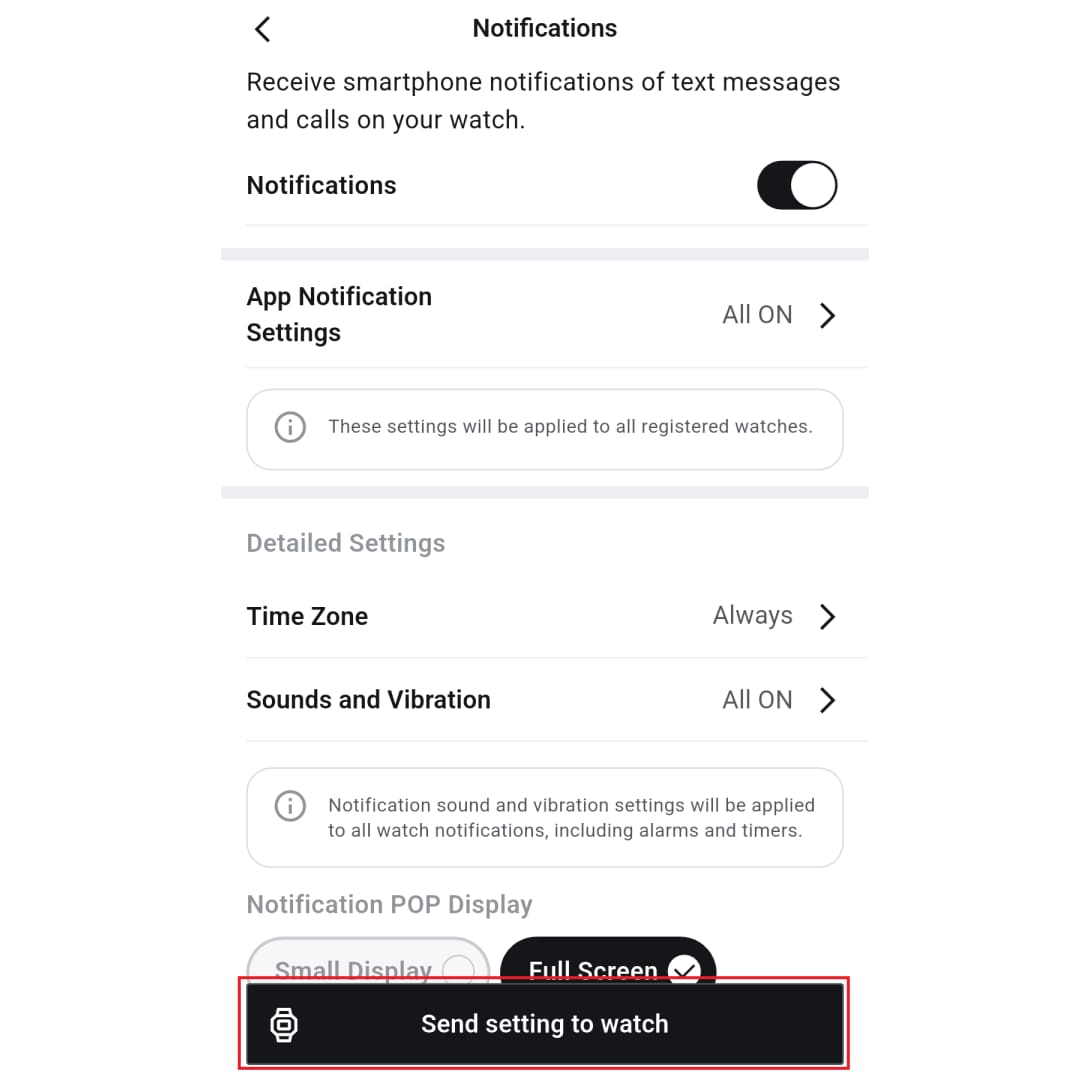
👉Smartphone settings
Ensure that notifications for the app you want to receive on your watch are enabled.
<Setup Instructions>
・Allow notifications for each app you want to receive notifications from, and turn on the items you want to receive notifications for.
e.g. For the Mail app, go to your smartphone's [Settings] > [Apps] > the relevant [Mail] App > [Notifications] > Allow notifications and turn on the items you want to receive notifications for.
・Open the app you want to enable notifications for and make sure its notification settings are turned on.
e.g. For the SNS app, SNS app home screen > [Settings] > [Notifications] > Turn on the items you want to receive notifications for
For Android phone apps, enabling the following permissions may help ensure call notifications are correctly displayed on your watch.
[Settings] > [Apps] > [CASIO WATCHES] > [Permissions]
Turn on the following permissions:
・Notifications
・Contacts
・Call logs
Note: If the above does not resolve the issue
・Make sure that your watch and phone are connected.
・Make sure CASIO WATCHES app is not closed (running in the background)
・Restart your phone.
・Depending on the settings of your phone and other factors, the connection to your watch may be unstable.
Please try following the instructions in the “Troubleshooting Connection Issues” section or adjusting the settings on your smartphone (specific to your manufacturer), as this may improve performance and stability.
If neither of these methods resolves the issue, please contact our support desk.