















App Issues|Connection
▼If you are unable to pair or connect your watch, please check the items below.
Note: For information on the initial setup required after purchasing your watch, go here.
Note: Depending on your smartphone model and OS version, the names and structure of the settings menu may vary from those shown here.
Note: The information on this page is based on the “CASIO WATCHES APP”.
Troubleshooting steps if you cannot connect
▼Please select your smartphone
(The instructions will change based on your selection.)
- iPhone
- Android
Note: Current selection::iPhone
👉STEP1:Check the watch status
1. Ensure that the watch has sufficient remaining battery power.
2. Put your watch into the Timekeeping Mode.
3. If your watch has an airplane mode, disable it.
4. Stop all ongoing stopwatch or timer operations on your watch.
5. Place your watch near your phone (within about 2 meters)
6. To avoid signal interference, move away from nearby Wi-Fi devices and home appliances.
👉STEP2:Check the smartphone status and settings
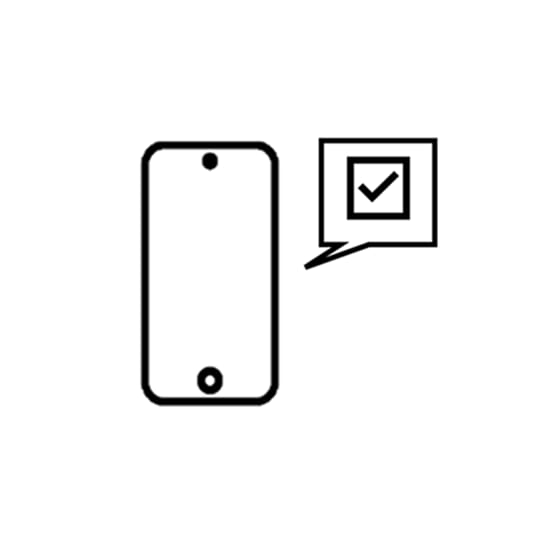
<Smartphone status>
1. If your phone's battery charge is low, charge it.
2. If your phone is in airplane mode, disable it.
3. Turn off your phone's Bluetooth once, then back on.
4. If there are any notifications in your smartphone's notification center, delete them all
5. Restart your phone.
<Smartphone settings>
1. Enable your phone’s location services.
2. Go to [Settings] > [Apps] > [CASIO WATCHES] > [Location], and set location access to "Always."
3. Go to [Settings] > [Apps] > [CASIO WATCHES] > [Location], and turn on "Precise Location."
4. Go to [Settings] > [Battery], and turn off "Low Power Mode."
👉STEP3: Re-pairing
If you are unable to pair or connect the device, deleting the pairing information may resolve the issue.
Please follow the steps below to delete the pairing information from each of the three devices: the watch, the app, and the smartphone.
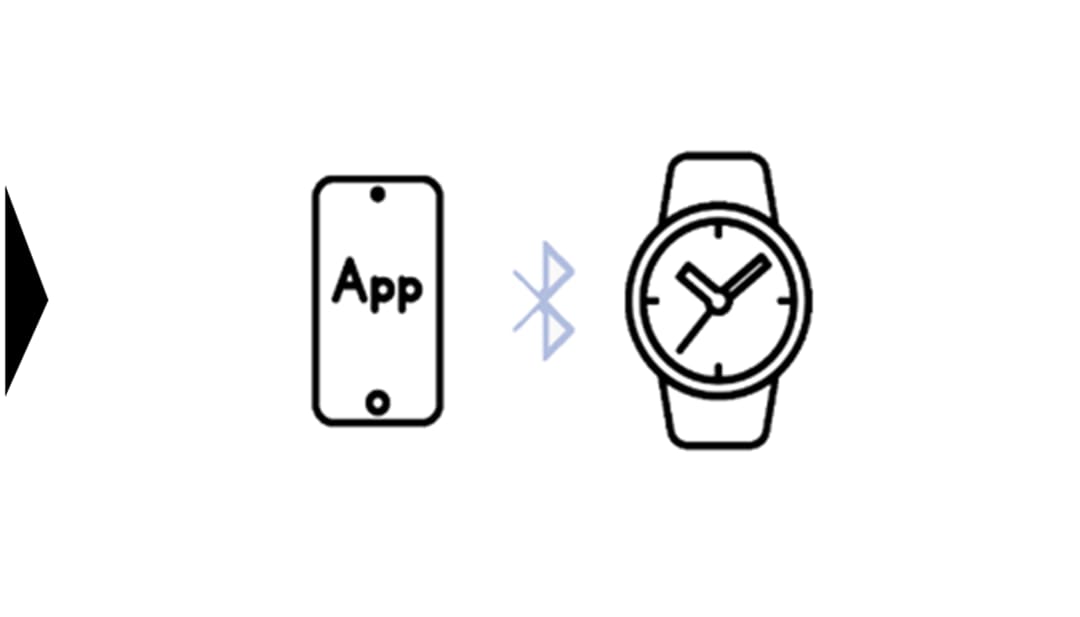
After completing these steps, try pairing again.
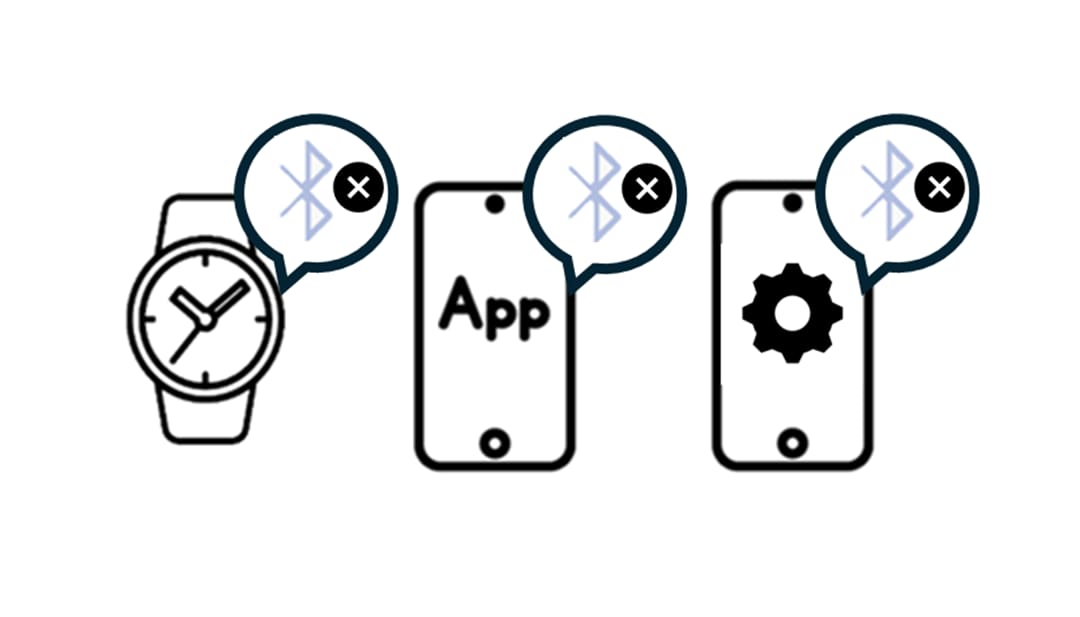
Delete All Pairing Information
Pair Again
■Procedure

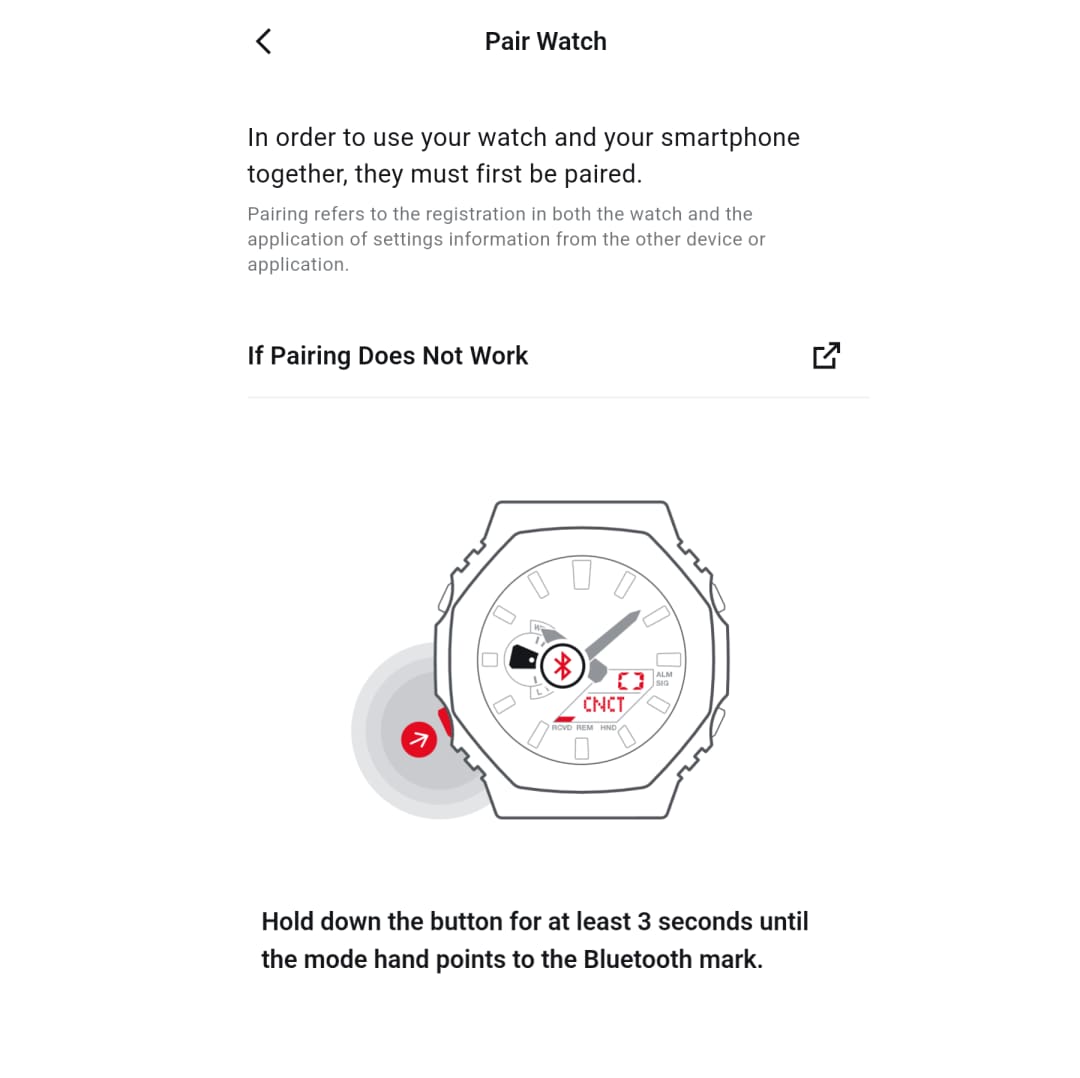
Use the watch itself to delete the pairing information stored on the watch.
Note: For operating instructions, please refer to the sections titled “Deleting the Watch’s Pairing Information” or “Troubleshooting” in the watch’s user manual.
Example: For the GA-B2100-1A (5689)

Use the app to unpair the device.
▼You can move the image left and right


If the watch is shown in your phone’s Bluetooth connected devices list, delete all instances of it.
e.g. [Settings] > [Bluetooth] > Delete the information for the relevant watch
Note: Some watches may not appear in the list.▼You can move the image left and right


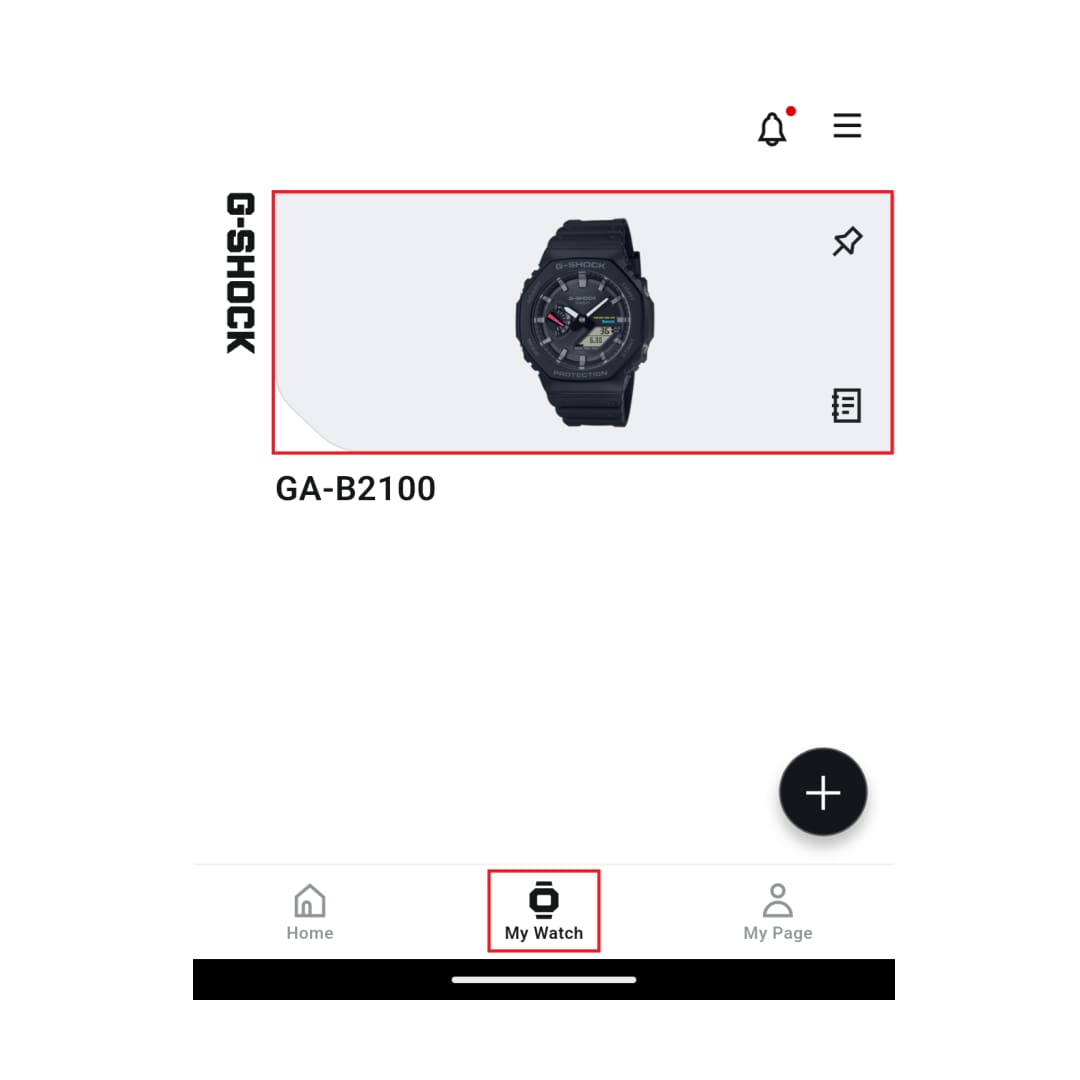
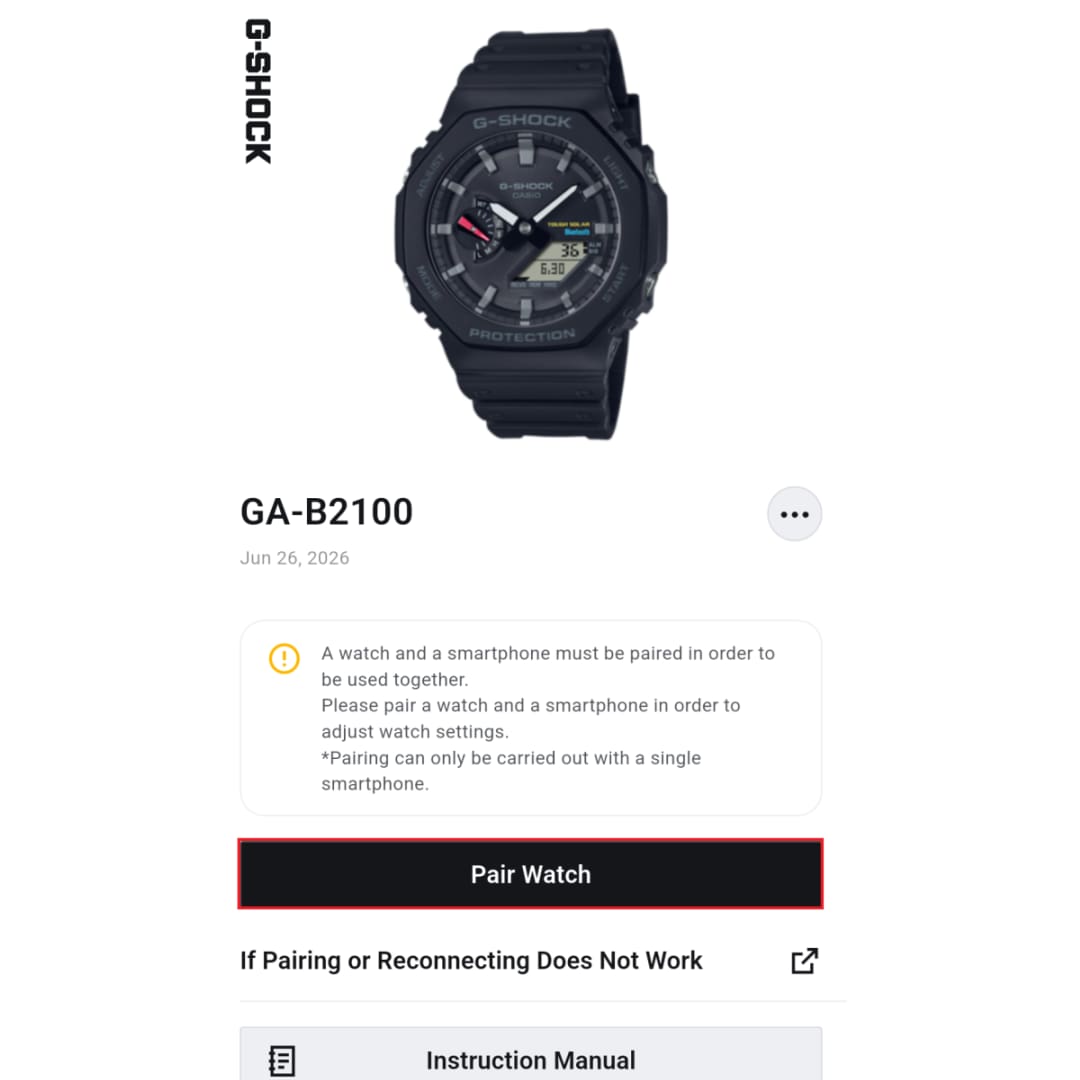
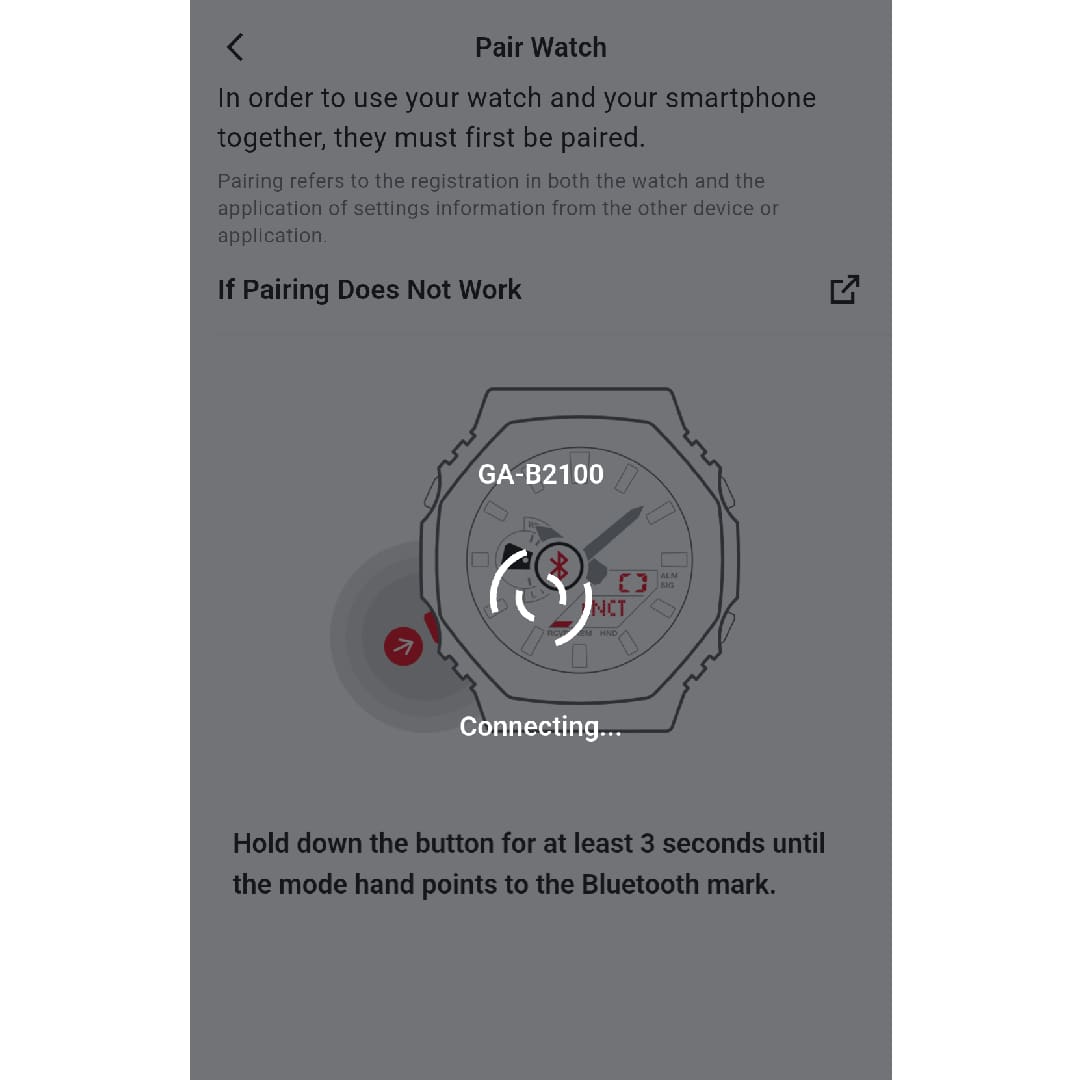
On the My Watch screen, tap "Pairing" and complete the pairing process.
Note: If pairing does not succeed on the first attempt, please try the pairing operation several times.▼You can move the image left and right


Note: Current selection::Android
👉STEP1:Check the watch status
1. Ensure that the watch has sufficient remaining battery power.
2. Put your watch into the Timekeeping Mode.
3. If your watch has an airplane mode, disable it.
4. Stop all ongoing stopwatch or timer operations on your watch.
5. Place your watch near your phone (within about 2 meters)
6. To avoid signal interference, move away from nearby Wi-Fi devices and home appliances.
👉STEP2:Check the smartphone status and settings
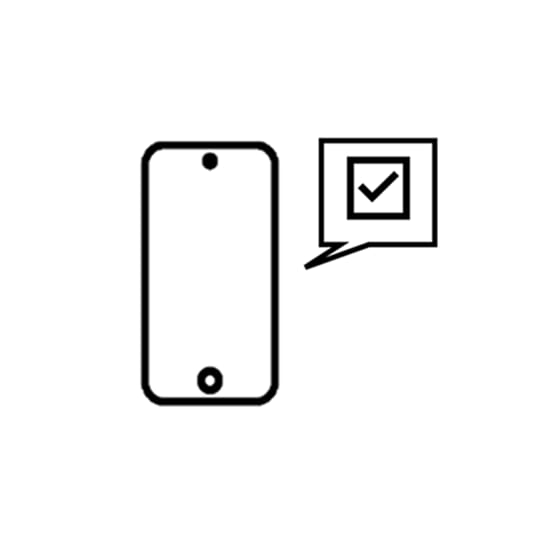
<Smartphone status>
1. If your phone's battery charge is low, charge it.
2. If your phone is in airplane mode, disable it.
3. Turn off your phone's Bluetooth once, then back on.
4. Restart your smartphone
<Smartphone settings>
1. Turn on your phone’s location services.
2. Go to [Settings] > [Apps] > [CASIO WATCHES] > [Permissions] > [Location], and allow location access.
3. Go to [Settings] > [Apps] > [CASIO WATCHES] > [Permissions] > [Location], and turn on "Use Precise Location. “
4. Go to [Settings] > [Apps] > [CASIO WATCHES] > [Permissions] > [Nearby Devices], and allow access (for Android 12 and later).
5. Go to [Settings] > [Apps] > [CASIO WATCHES] > [Alarms & Reminders], and allow access (only if this setting is available).
6. Go to [Settings] > [Apps] > [CASIO WATCHES] > [App Battery Usage], and set it to "Unrestricted" or "Allowed."
7. Turn off "Developer Options" (only if previously enabled)
👉STEP 3: Re-Pairing
If you are unable to pair or connect the device, deleting the pairing information may resolve the issue.
Please follow the steps below to delete the pairing information from each of the three devices: the watch, the app, and the smartphone.
After completing these steps, try pairing again.
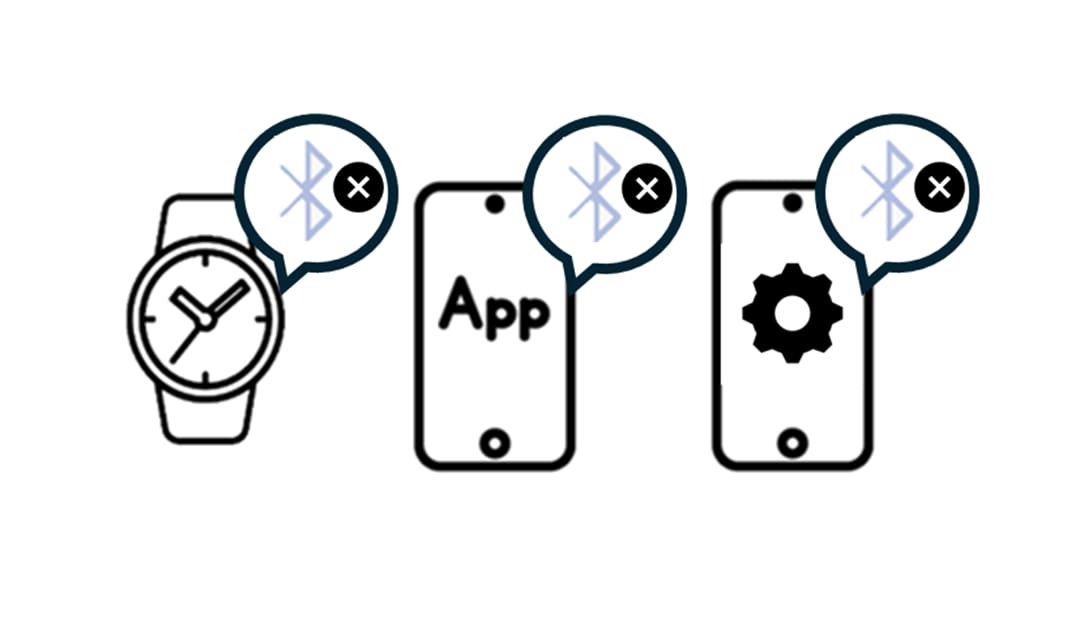
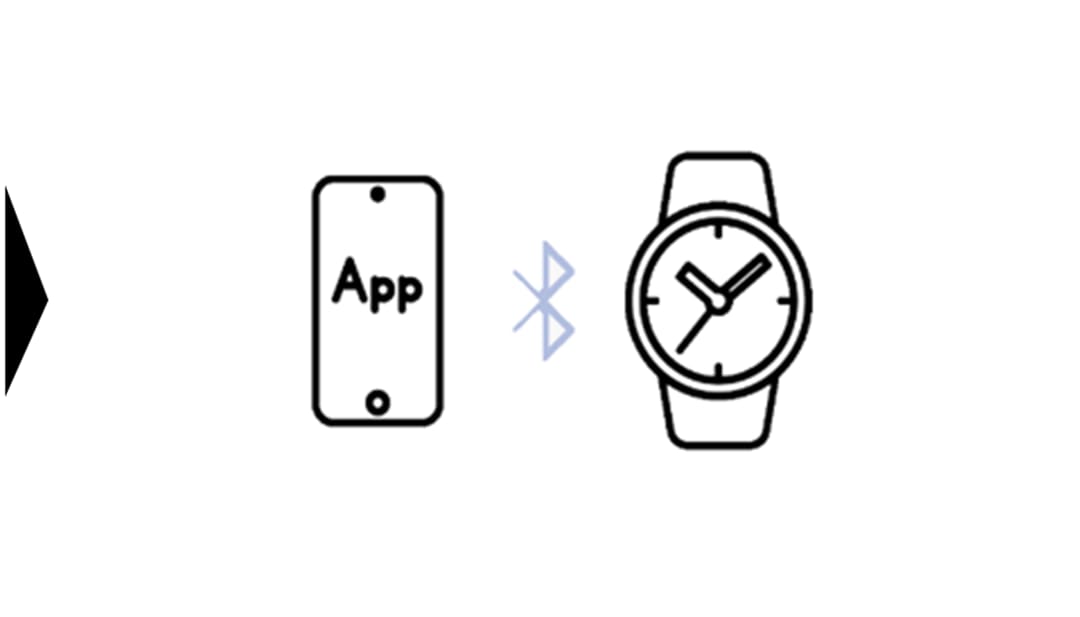
Delete All Pairing Information
Pair Again
■Procedure
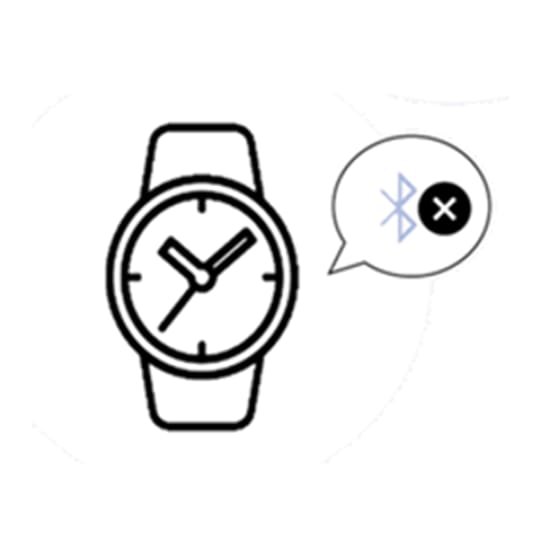
Use the watch itself to delete the pairing information stored on the watch.
Note: For operating instructions, please refer to the sections titled “Deleting the Watch’s Pairing Information” or “Troubleshooting” in the watch’s user manual.
Example: For the GA-B2100-1A (5689)
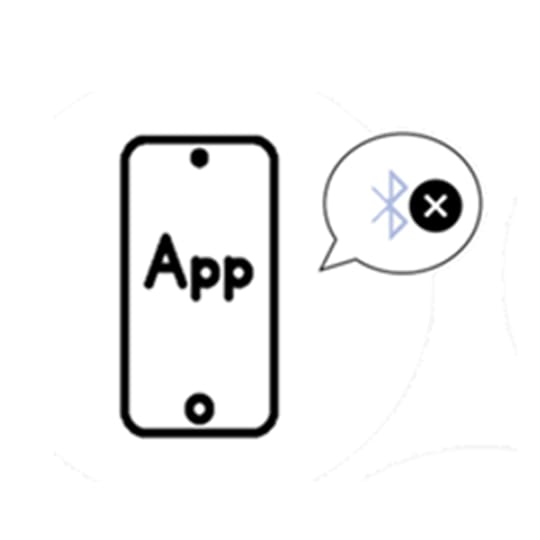
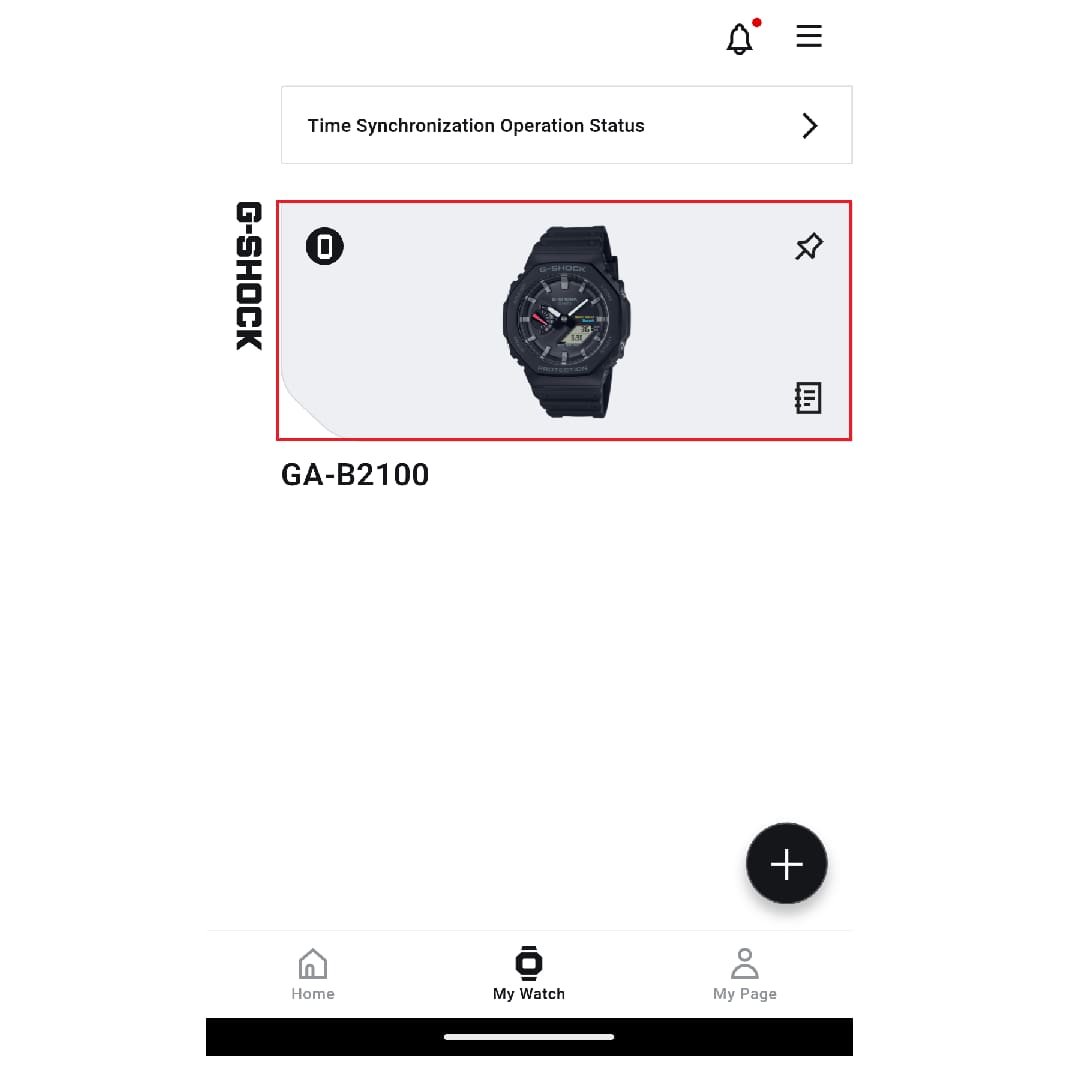
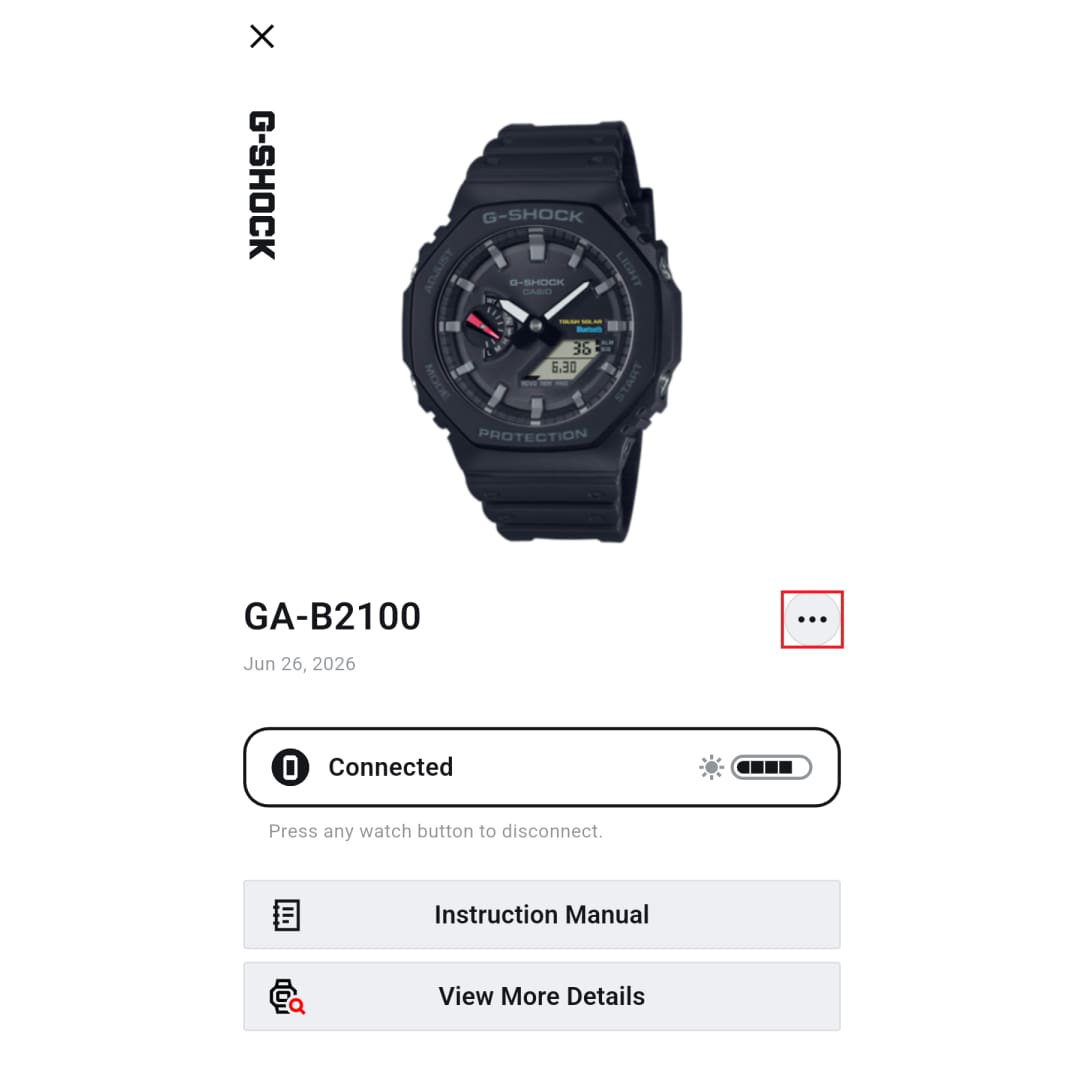
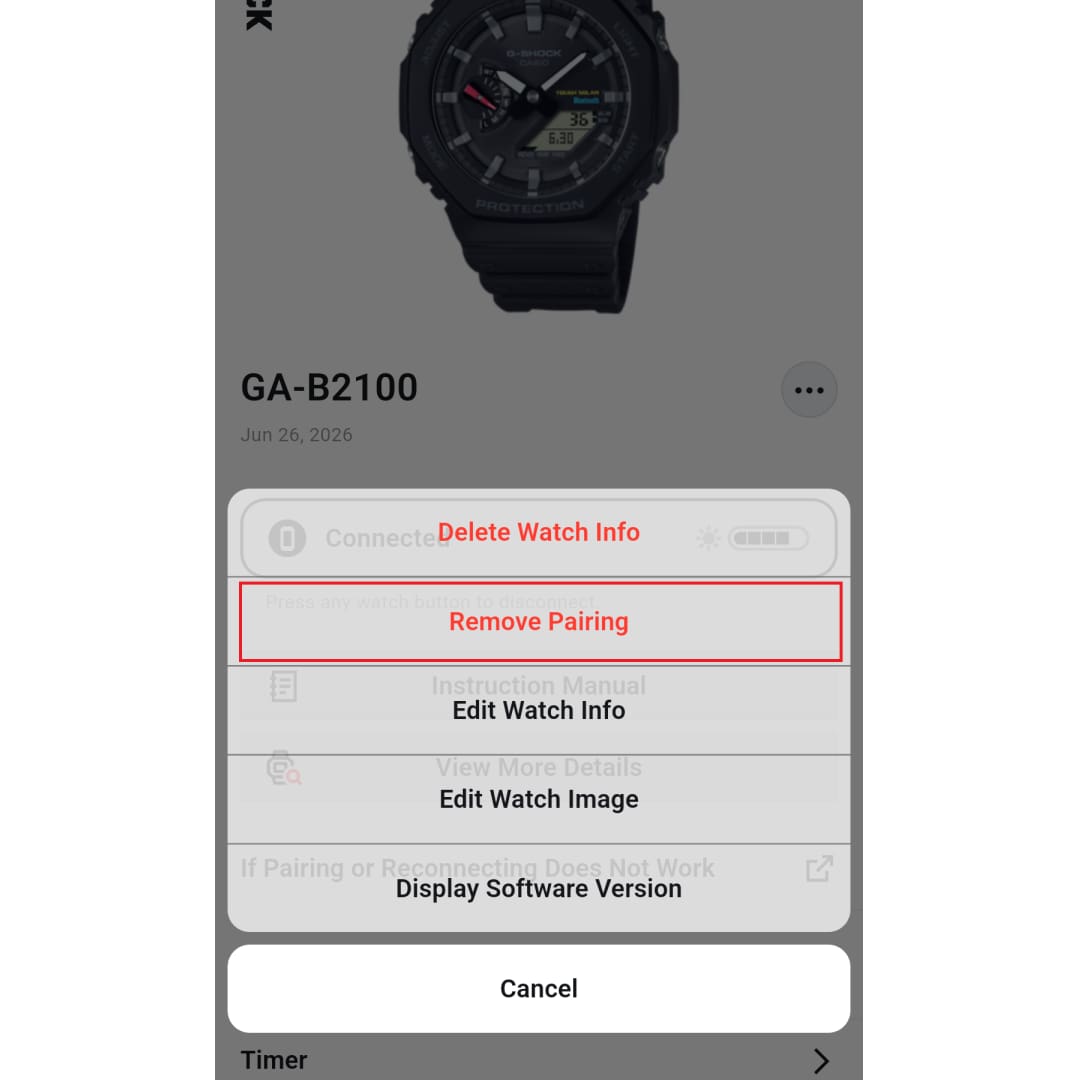
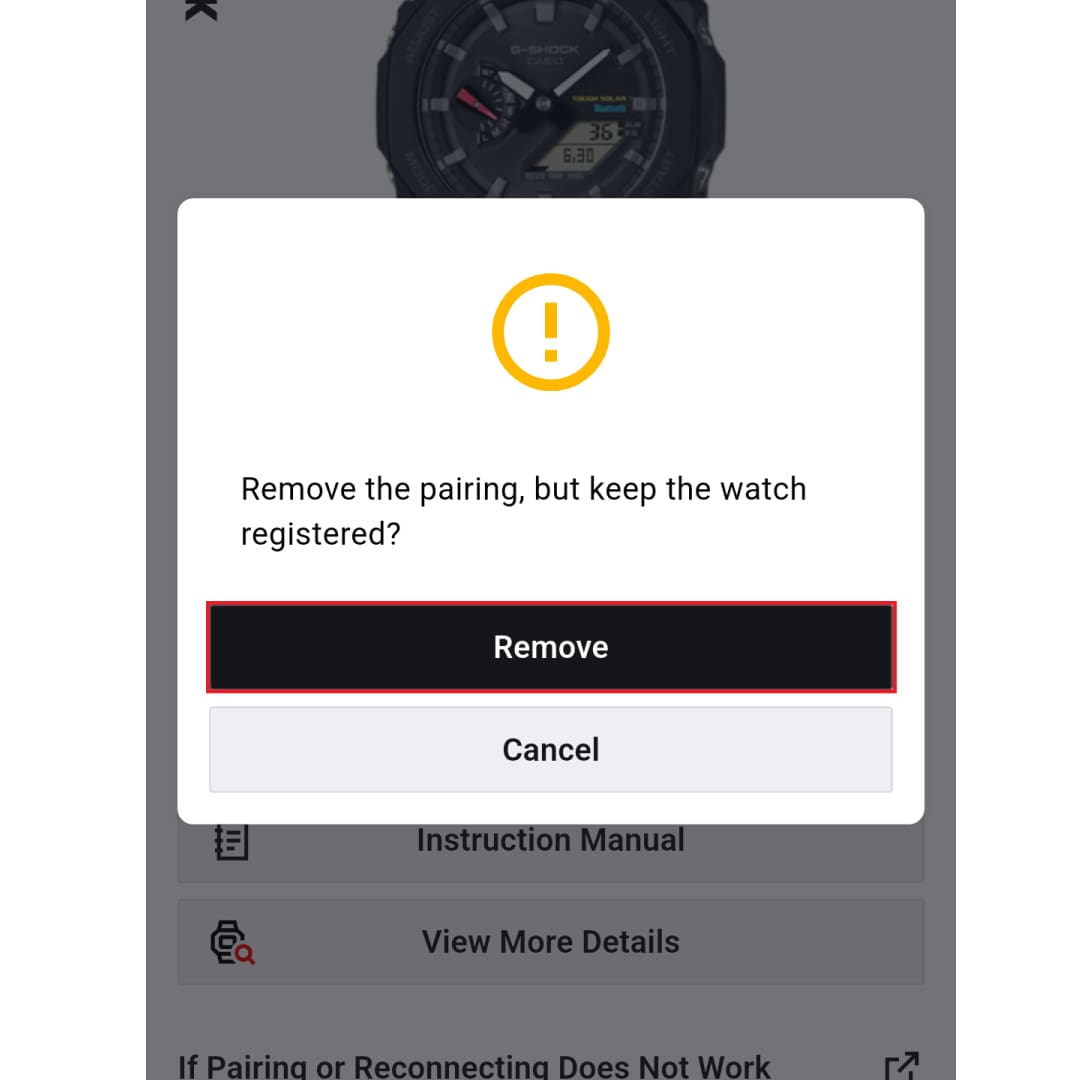
Use the app to unpair the device.
▼You can move the image left and right
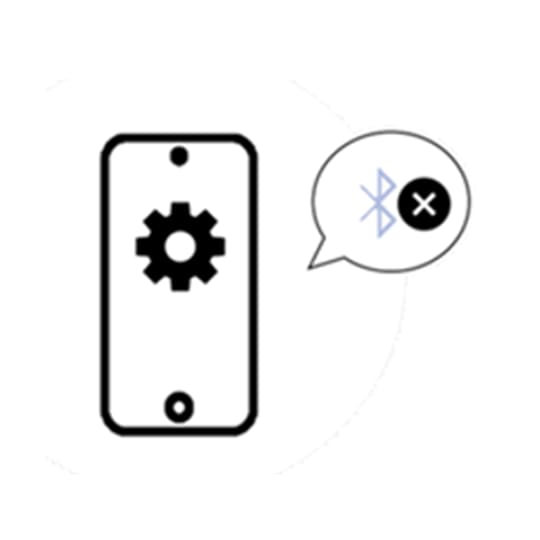
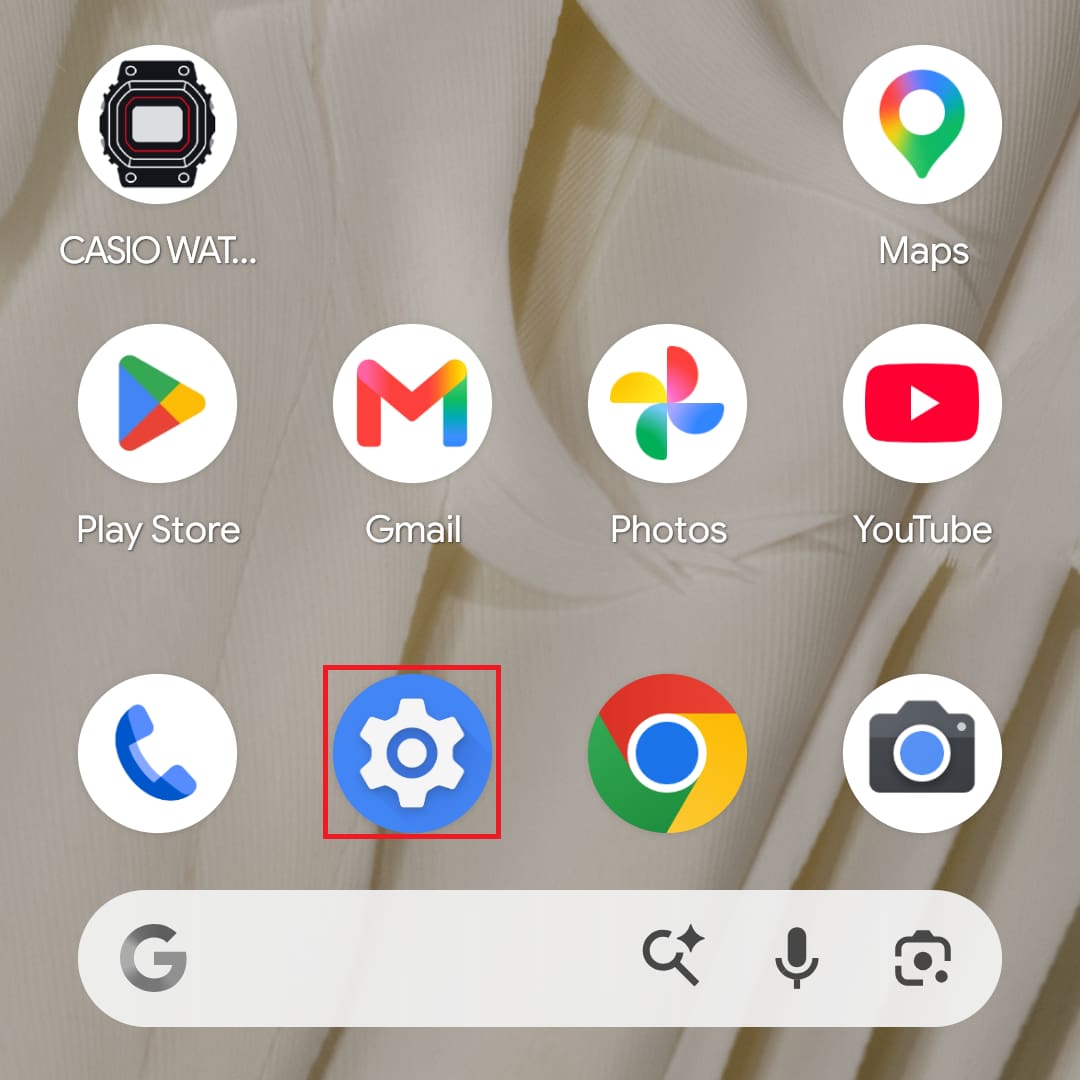
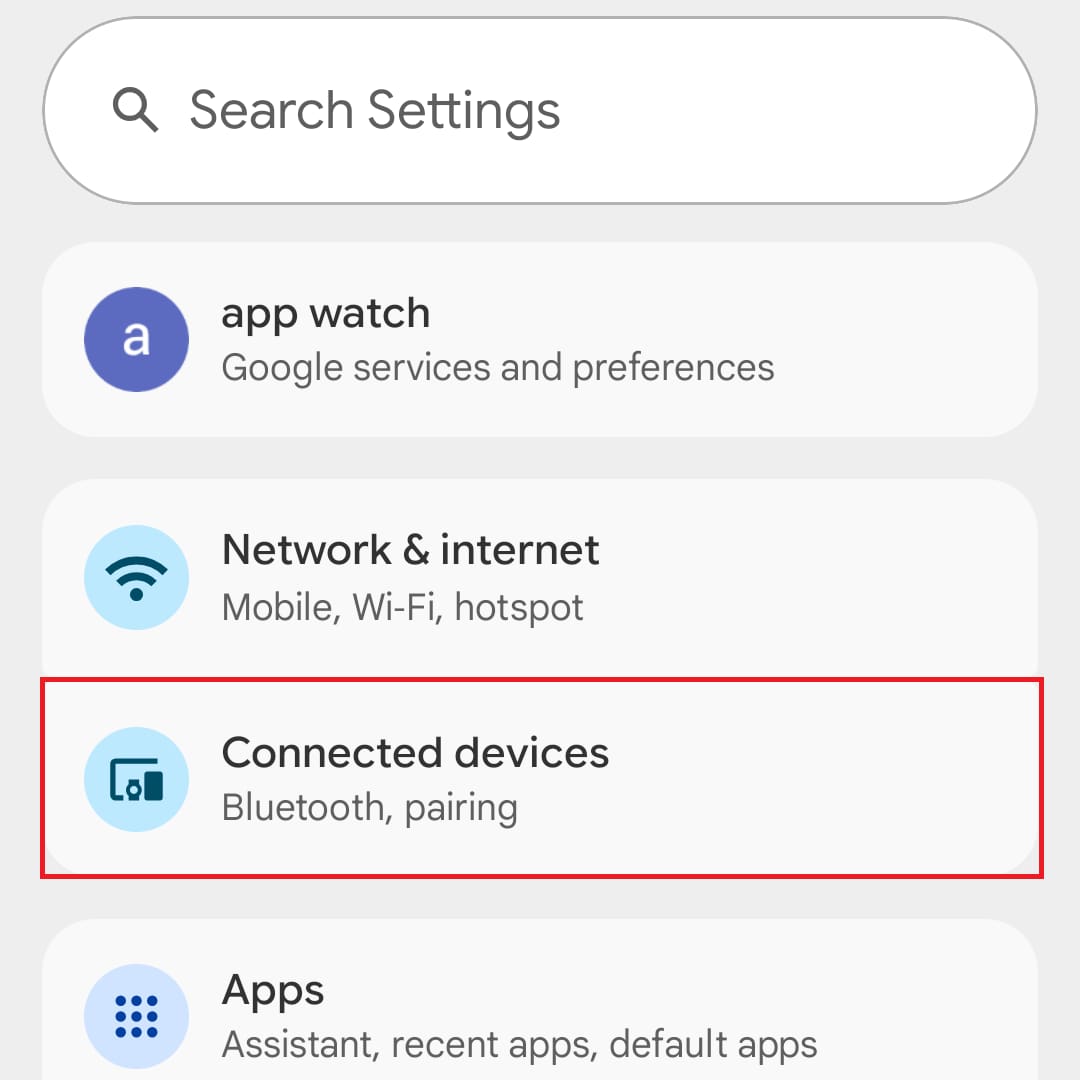
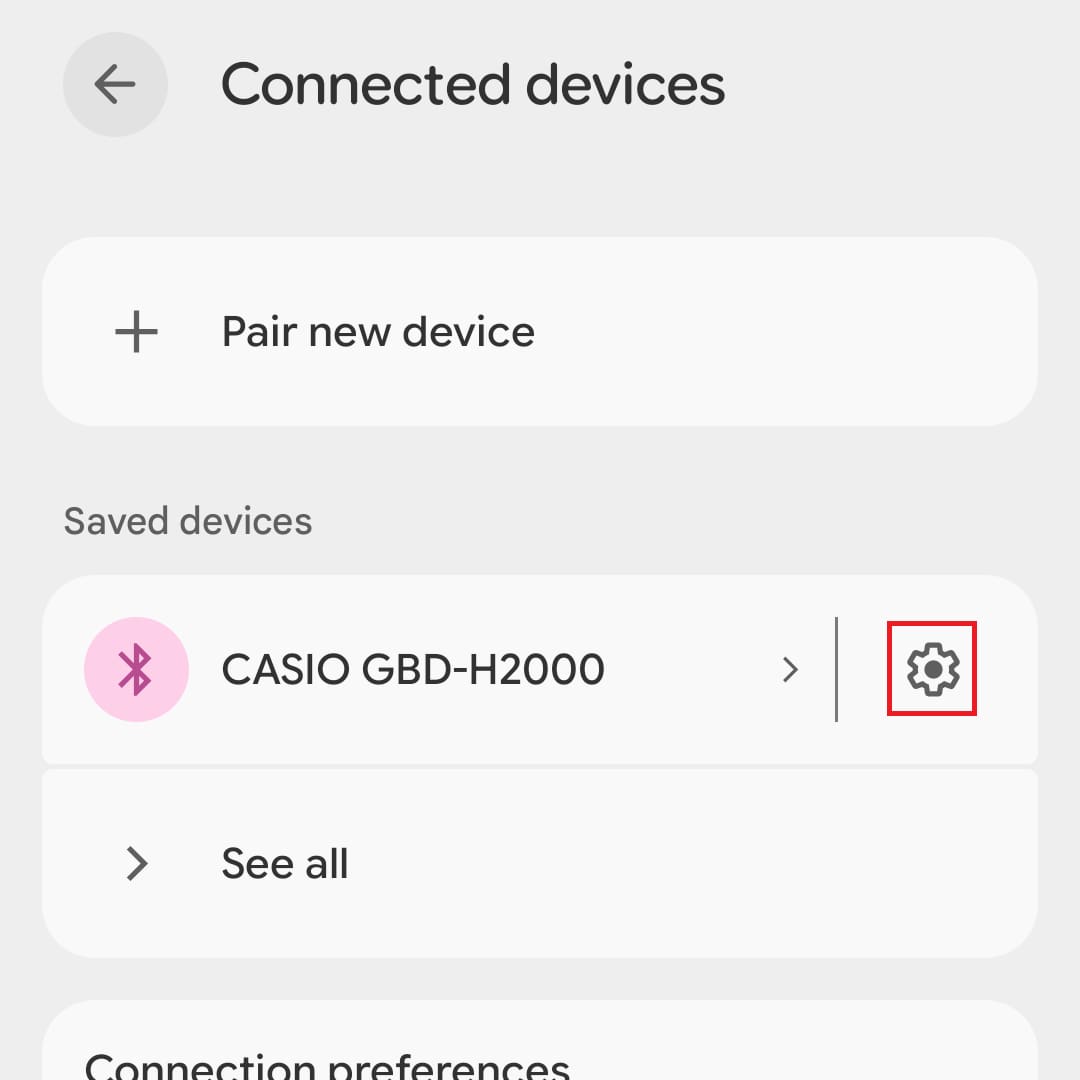
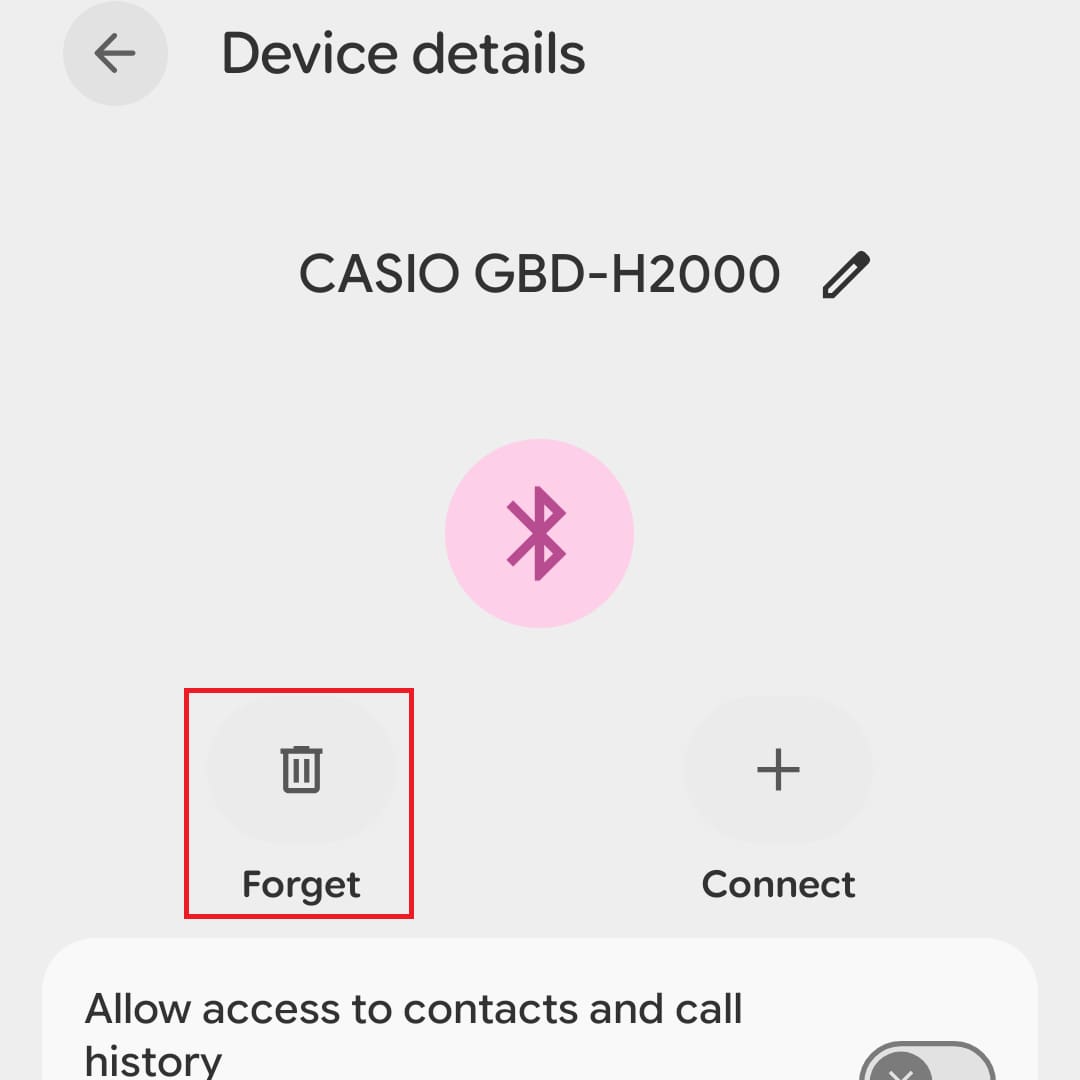
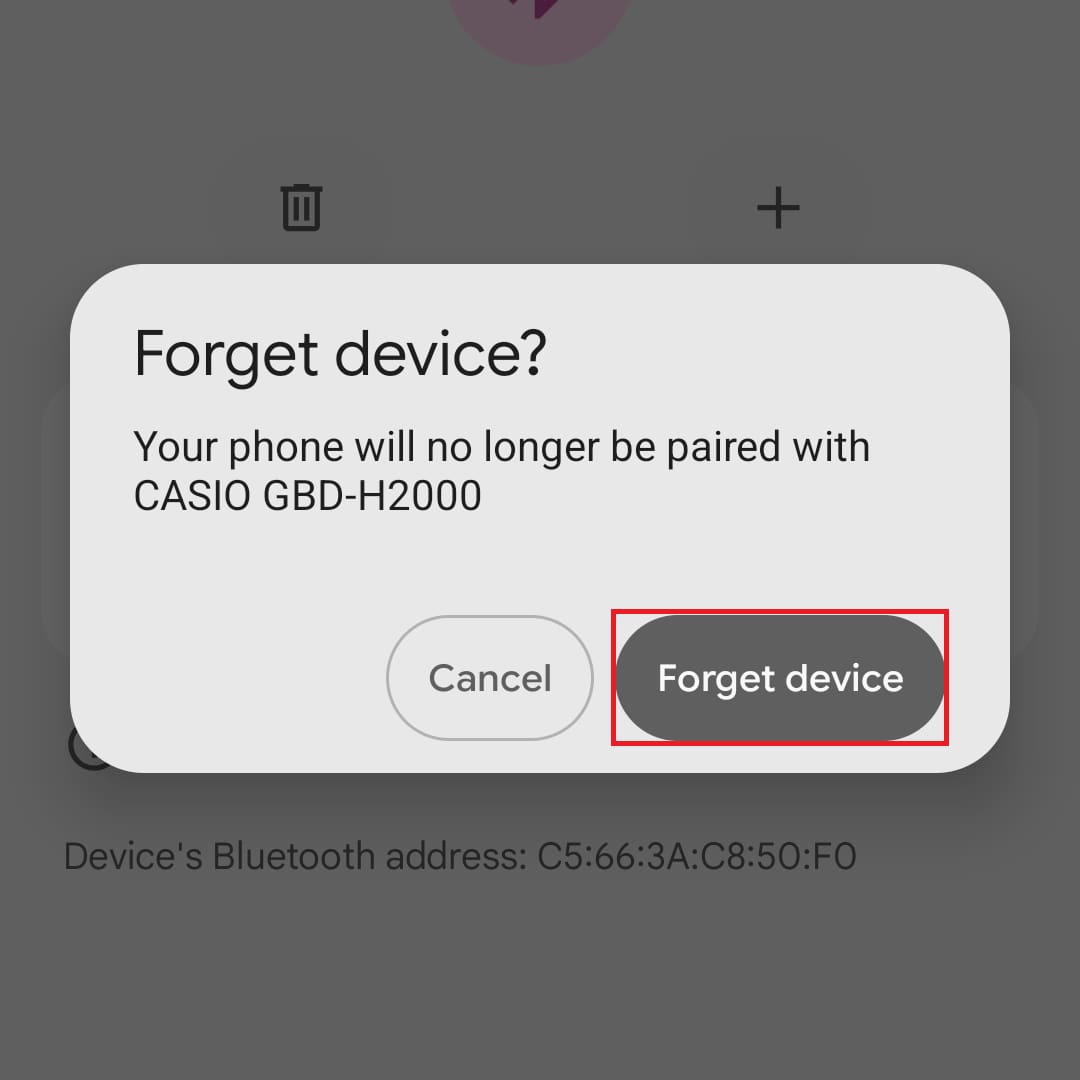
If the watch is shown in your phone’s Bluetooth connected devices list, delete all instances of it.
e.g. [Settings] > [Bluetooth] > Delete the information for the relevant watch
Note: Some watches may not appear in the list.▼You can move the image left and right
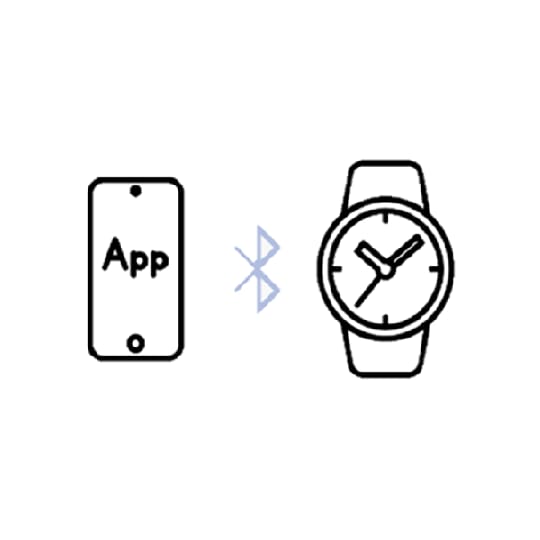
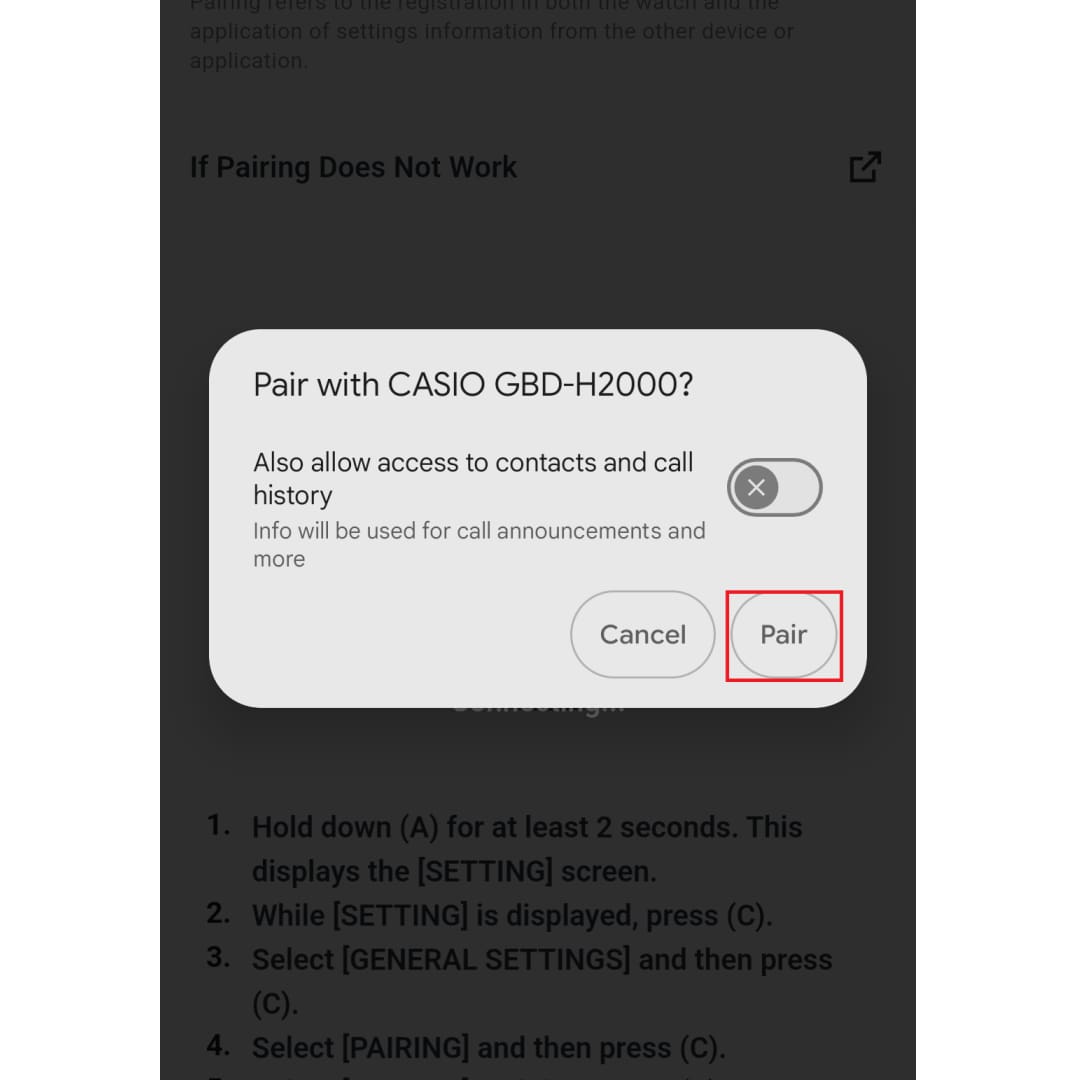
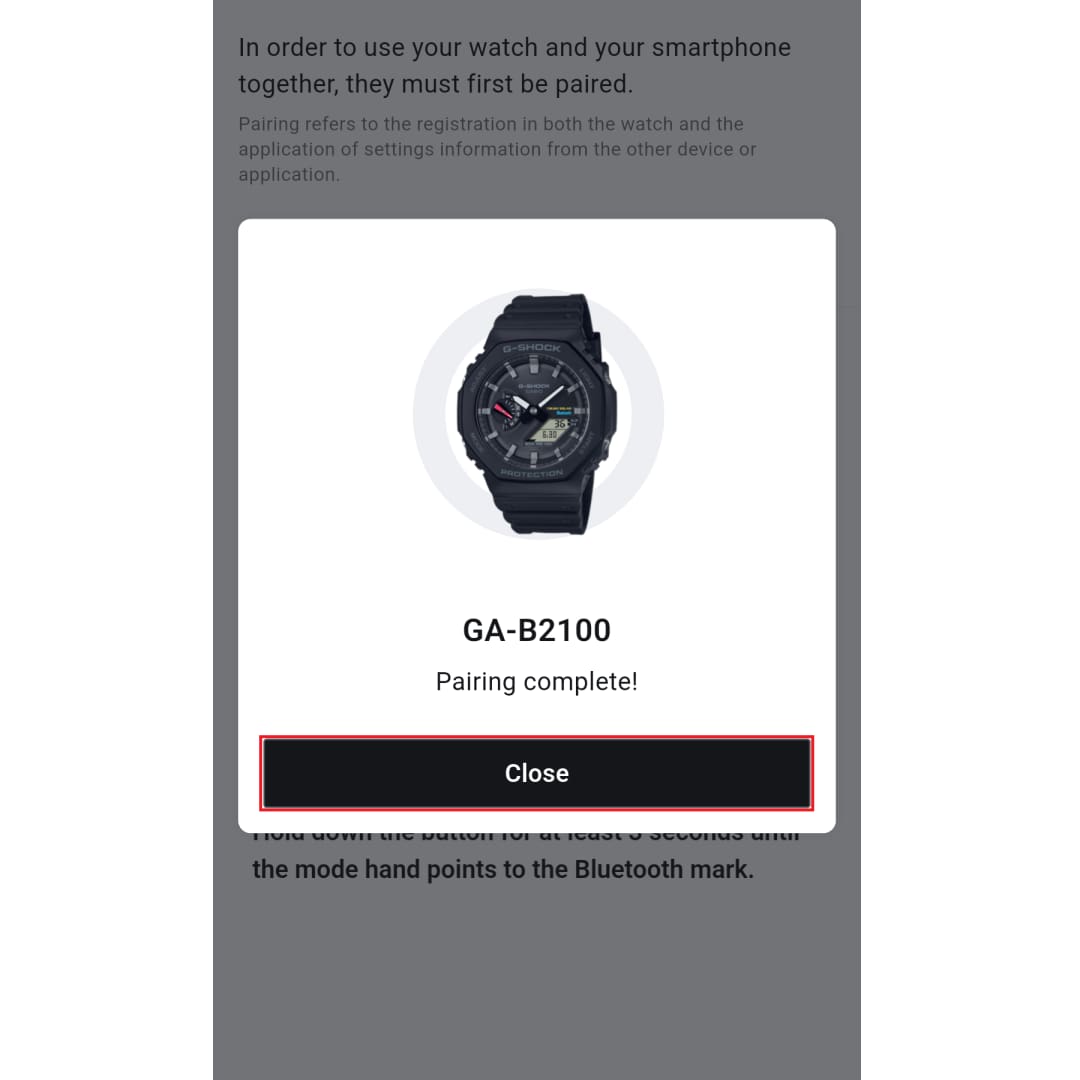
On the My Watch screen, tap "Pairing" and complete the pairing process.
Note: If pairing does not succeed on the first attempt, please try the pairing operation several times.▼You can move the image left and right
How to respond in different situations
● If you have upgraded to a new smartphone model
When connecting to a new smartphone (one that has not been connected before), pairing must be performed again.
Perform the following steps in order.
Note: If you have a previous smartphone nearby, make sure it cannot connect to the watch by turning off Bluetooth or similar measures.
1. Delete pairing information from your watch
Operate the watch itself to delete the pairing information stored within the watch.
• Refer to sections such as "Delete Pairing Information" or "Troubleshooting" in the watch’s user’s guide for detailed operations.
e.g. GA-B2100-1A(5689)
2. Install apps on your new smartphone
3. Perform the pairing operation on your new smartphone
Note: For detailed steps from installing the app to completing pairing, please see here.
Note: You will need to log in again using your current CASIO ID.
● If you have had your watch repaired or replaced
If the watch fails to connect after repair or replacement, delete the pairing information and perform the pairing operation again.
Please click here to view the instructions (STEP 3: Re-pairing):
▶ For iPhone users
▶ For Android users
● If the connection is lost
Connection specifications vary by product, so please check the link below for details.
≪The difference between “Part-Time Connection” and “Automatic Connection”≫
If the issue persists after checking the specifications, please try the steps in “▶ Troubleshooting steps if you cannot connect”
Note: If the above does not resolve the issue
Changing your smartphone settings based on the manufacturer may improve performance and stability, so please give it a try.
If neither method resolves the issue, please contact our support desk.