















App Issues|Login, Update, etc.
▼If you are experiencing issues with logging in, updating the watch software, or other app behavior, please check the following.
Note: Please note that the names and layout of the settings menu may vary depending on your smartphone model, OS version, and app version.
Note: The content on this page is based on the “CASIO WATCHES APP”
If you see a message such as ”Your email address or password is incorrect,” please check your email address and password, then enter the correct information again.
If you are unable to log in due to other issues, please try the following:・Try logging in again at a different time.
・Restart your phone.
・If using Wi-Fi, switch to mobile data.
・Clear your browser cache.
・Change your default browser to another browser (e.g. Chrome, Safari, Firefox)
・Enable JavaScript in your browser (if it has been disabled)
・Allow Cookie in your browser (do not block them)
・Temporarily turn off the automatic screen-off function on your phone and keep the screen on until the login is complete.
・Set the date and time correctly on your smartphone.
If you have changed your email address for two-factor authentication and are unable to receive the verification code via email, please contact us here.
If you are unable to enter the verification code correctly, keep the verification code entry screen open, check the verification code in your smartphone's notification bar or on another device (such as a computer), and then enter it.
If an update notification appears as shown below, you can update the watch's software by following the on-screen instructions.
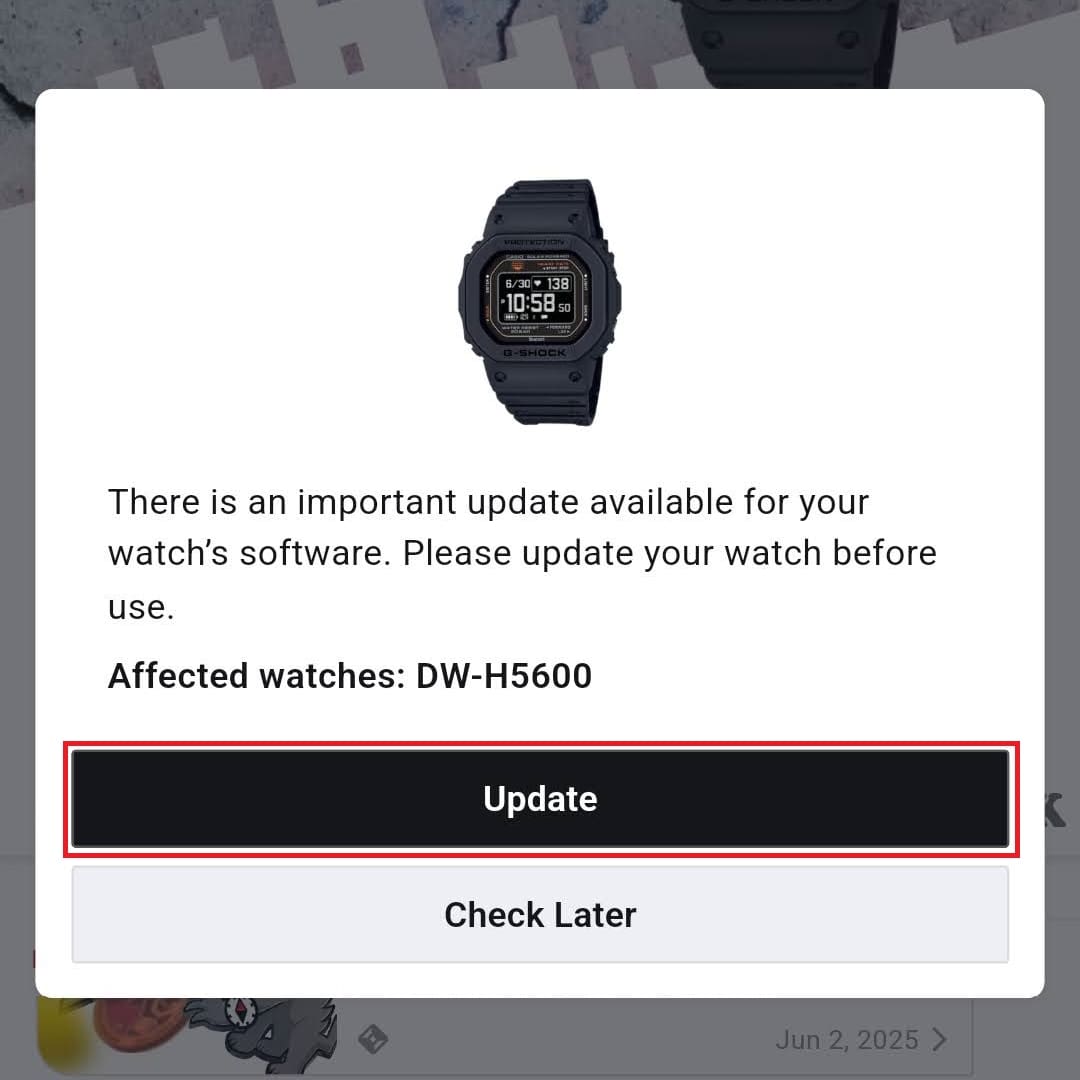
Tap “Update.”
Note: The image is for illustrative purposes only.If you are unable to update the watch software, please try the following.
・Put your watch into the Timekeeping Mode.
・Place your watch near your phone (within about 2 meters).
・To avoid signal interference, move away from nearby Wi-Fi devices and home appliances.
・Charge your watch if it is rechargeable.
- USB-charged watch: Connect the watch to the charging cable and update while charging.
- Solar-powered watch: Update after solar charging until the app's battery level display shows ■ 4 or more (or the watch's charge level indicator shows HIGH).
・For USB-charging watches, leave the watch in the following state between 2:00 AM and 7:00 AM, then try updating again.
- Stationary state (state of being placed in a stable location)
- Time display status
- The timer is in a stopped status
- With sufficient battery remaining
Note: After updating the software, if some watch modes or settings appear grayed out and cannot be selected, the update may have failed.
Please perform the update again from the software update information screen in the CASIO WATCHES app."・If you have numerous smartphone notifications, delete them.
・Turn off your phone's Bluetooth once, then back on.
・Turn off Wi-Fi on your smartphone (turn it back on once the software update is complete).
・Update the CASIO WATCHES app to the latest version.
・Do not launch other apps while the software is updating.
・During software updates, keep the software update screen displayed and leave the smartphone screen illuminated.
・If a USB-charging watch takes more than 30 minutes to update its software, tap the cancel button in the CASIO WATCHES app and perform re-pairing.
(Delete the pairing information from each of the three things: the app, your smartphone, and your watch, pair again and then start the software update.)
Note: If the cancel button is disabled, close the app once.
If the app is behaving erratically—such as freezing, running slowly, or crashing—this is generally a sign that your smartphone's processing power has declined. Please try the following steps.
・Delete unnecessary apps and data to free up storage space on your smartphone
・If you are using multiple apps at the same time, close the ones you do not need
・Restart your smartphone
Note: If the above does not resolve the issue
・Depending on your smartphone settings and other factors, synchronization with the watch may be unstable.
Please try following the instructions in the “Troubleshooting Connection Issues” section or adjusting the settings on your smartphone (specific to your manufacturer), as this may improve performance and stability.
If neither of these methods resolves the issue, please contact our support desk.