





















App Issues|Time Adjustment
▼If you are experiencing difficulty setting the time, please check the following.
Note: Please note that the names and layout of the settings menu may vary depending on your smartphone model, OS version, and app version.
Note: The content on this page is based on the “CASIO WATCHES APP”.
Strong magnetism or impact can cause the hands or date to shift from their home positions. Click here for details.
If a home position is misaligned, the watch will not display the correct time or day even when connected to you phone via Bluetooth.
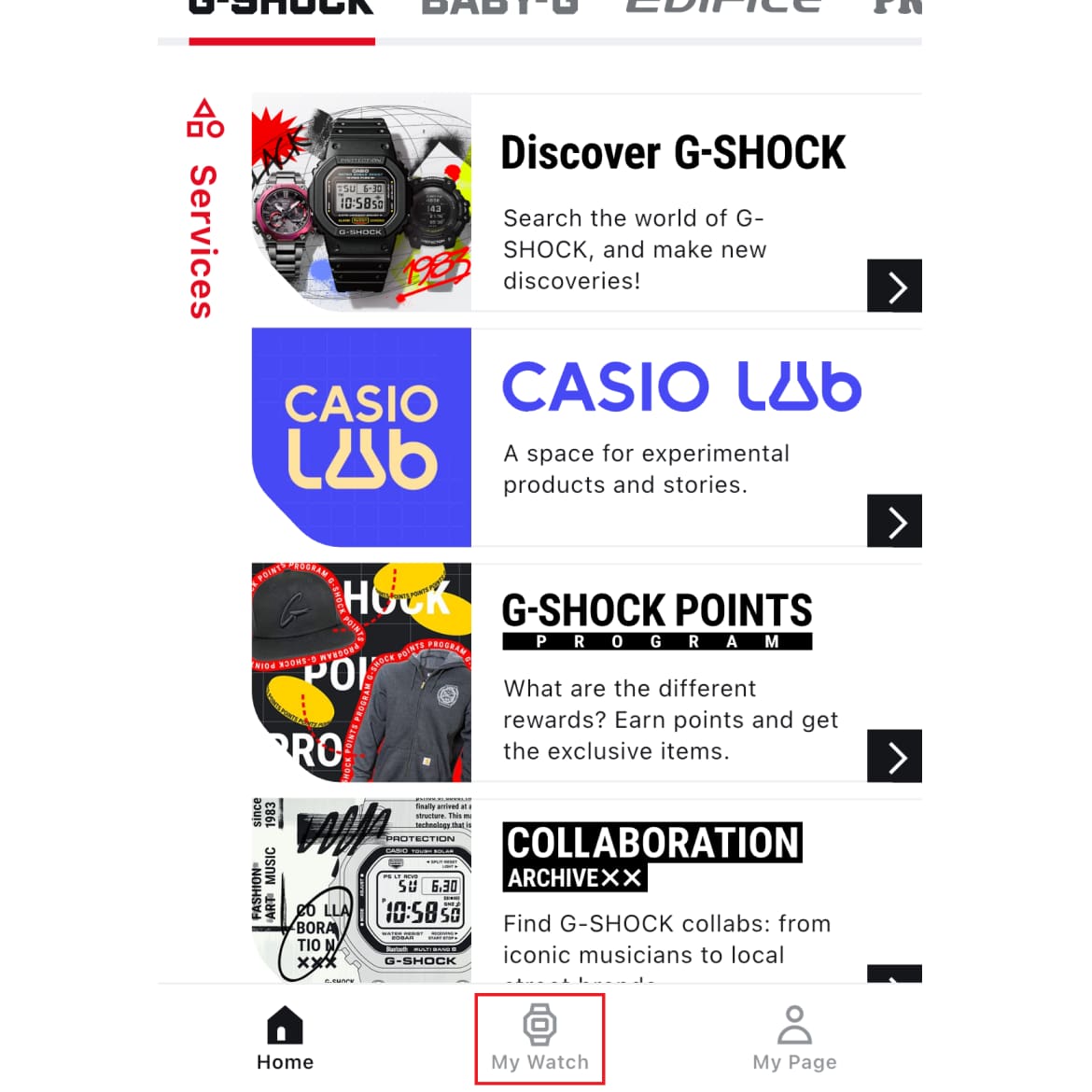
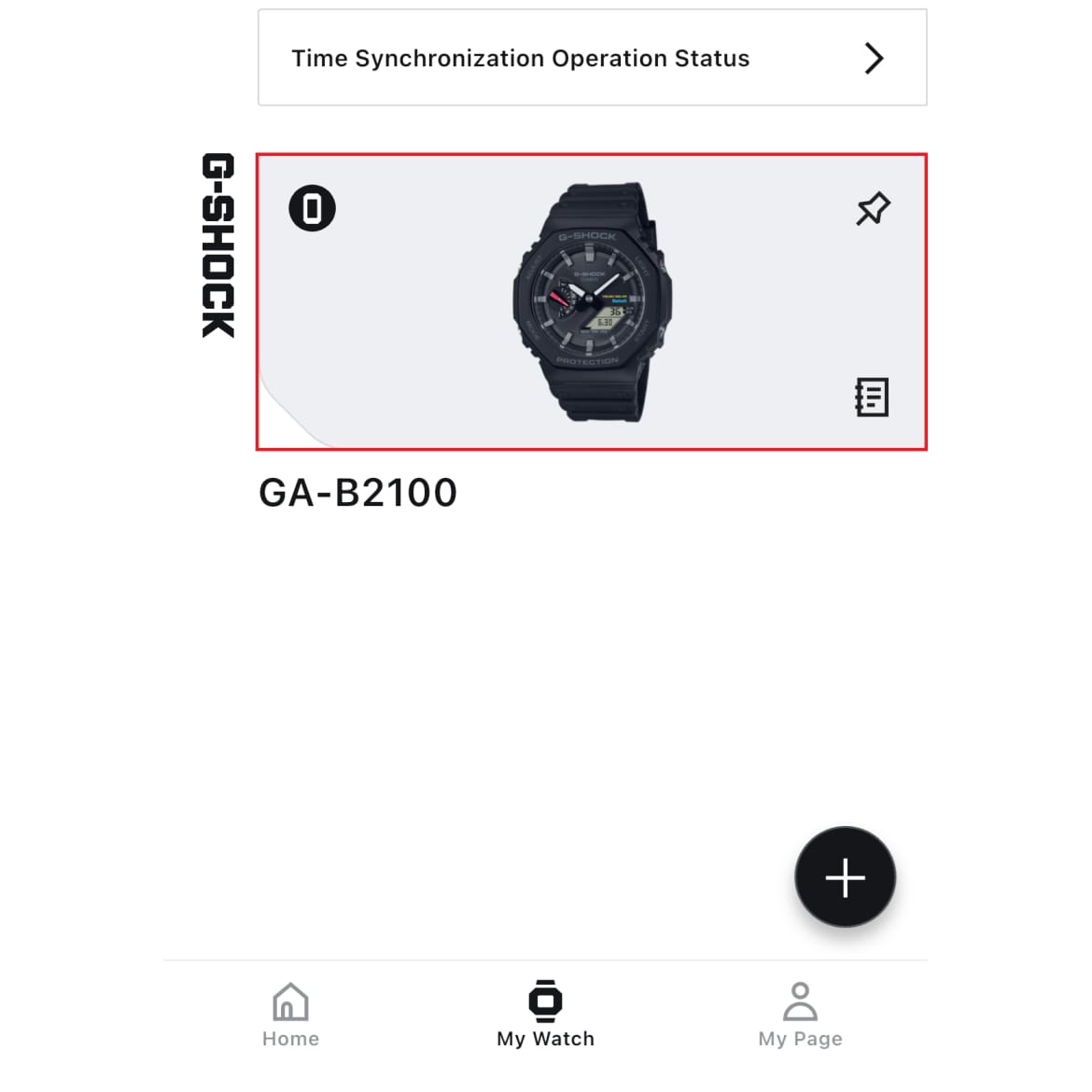
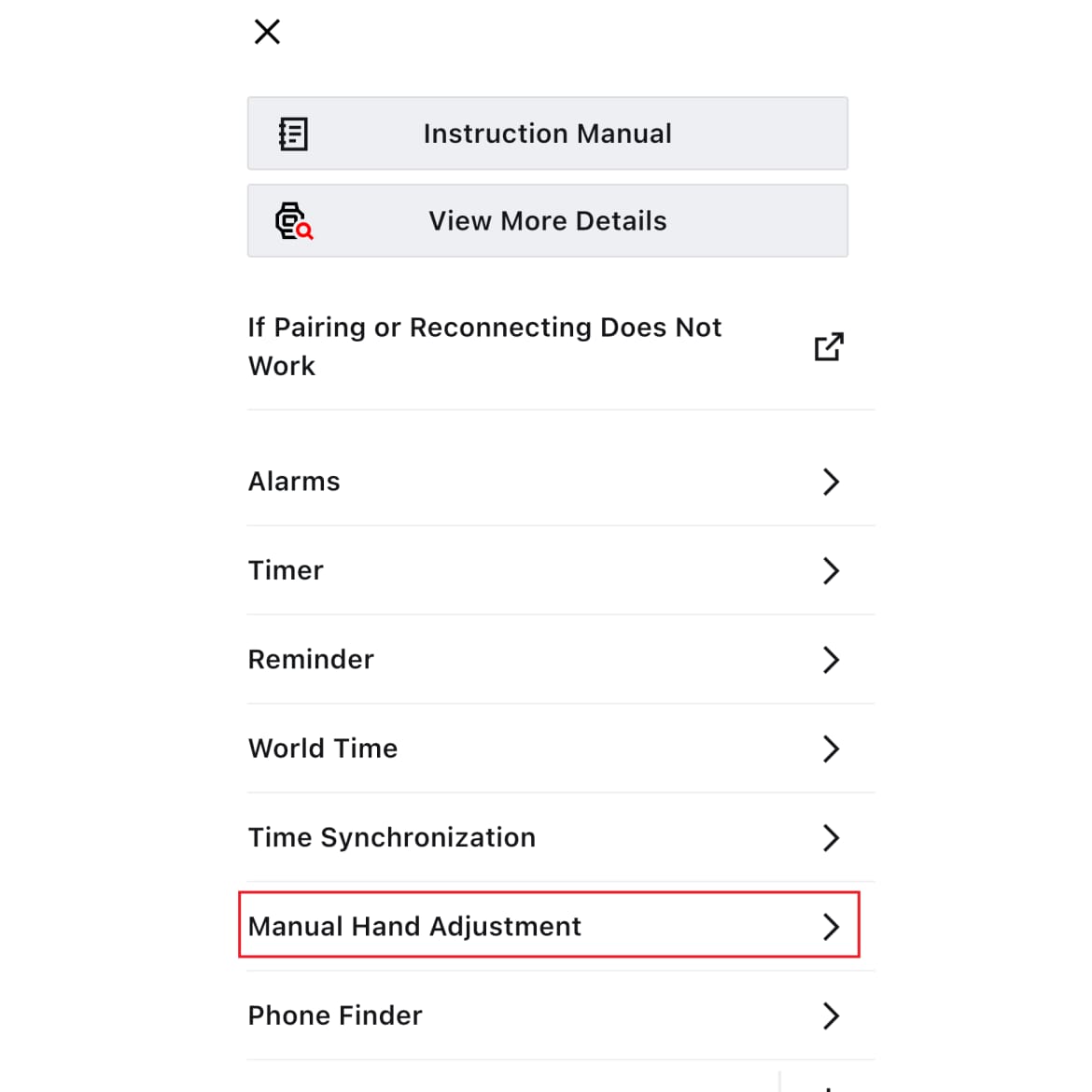
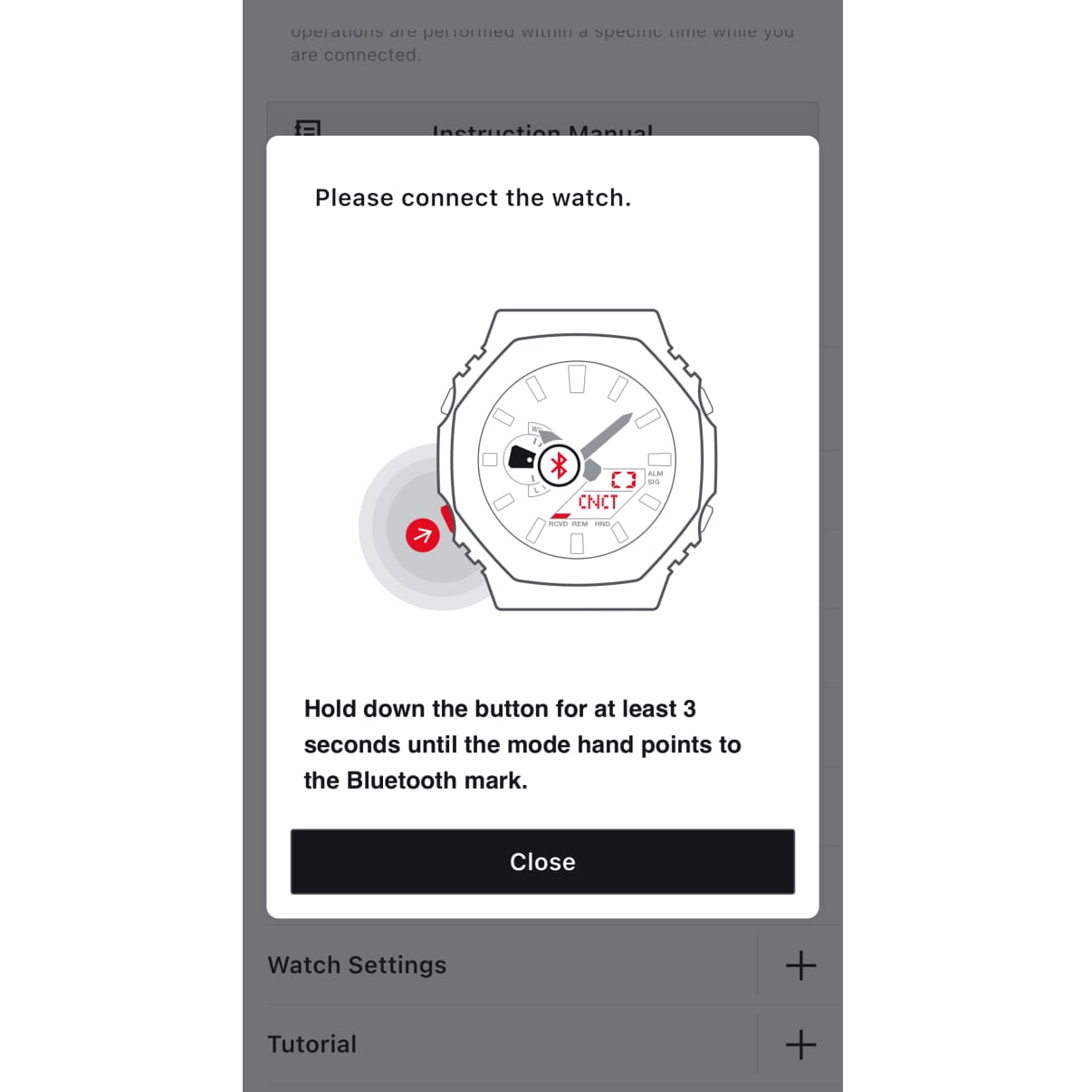
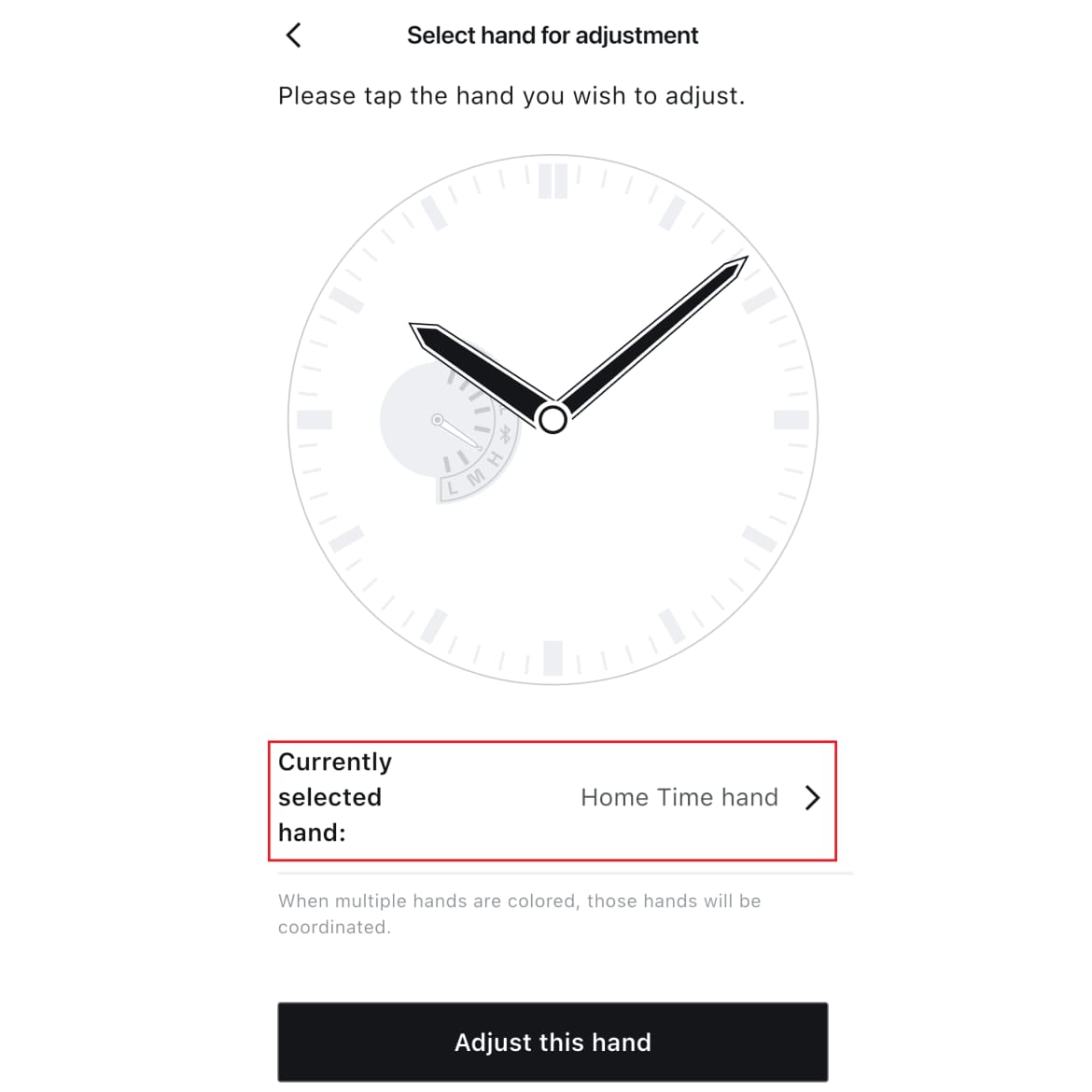
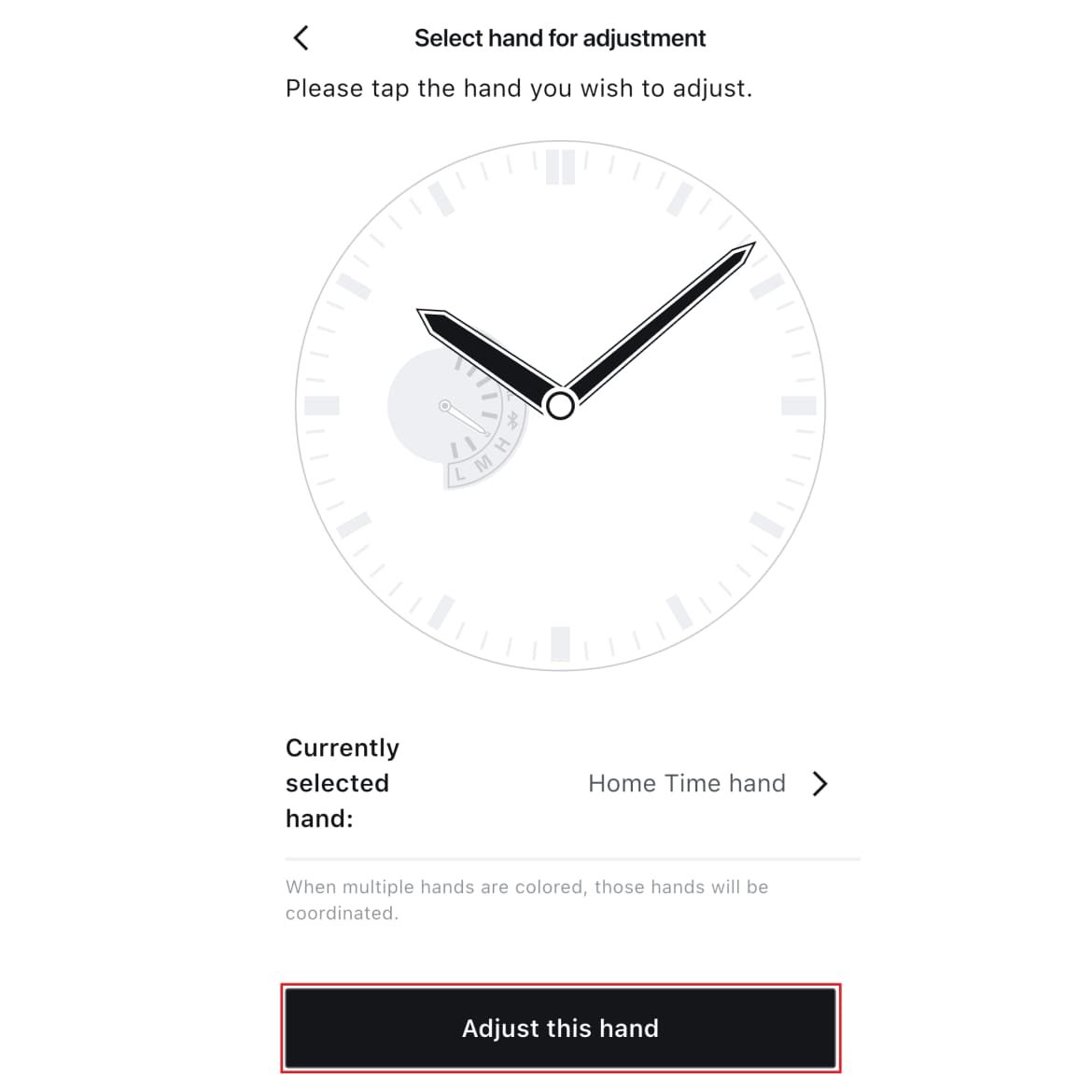
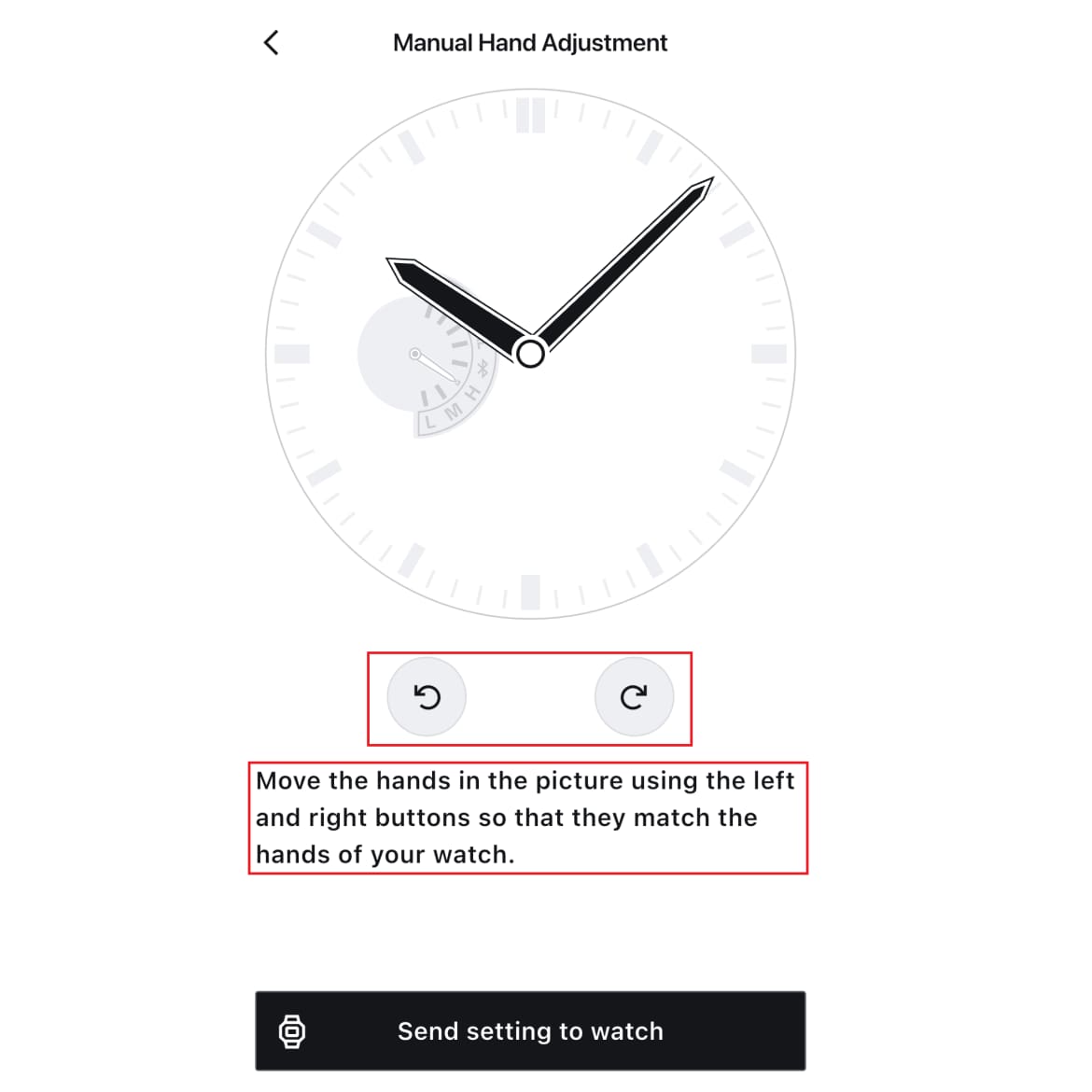
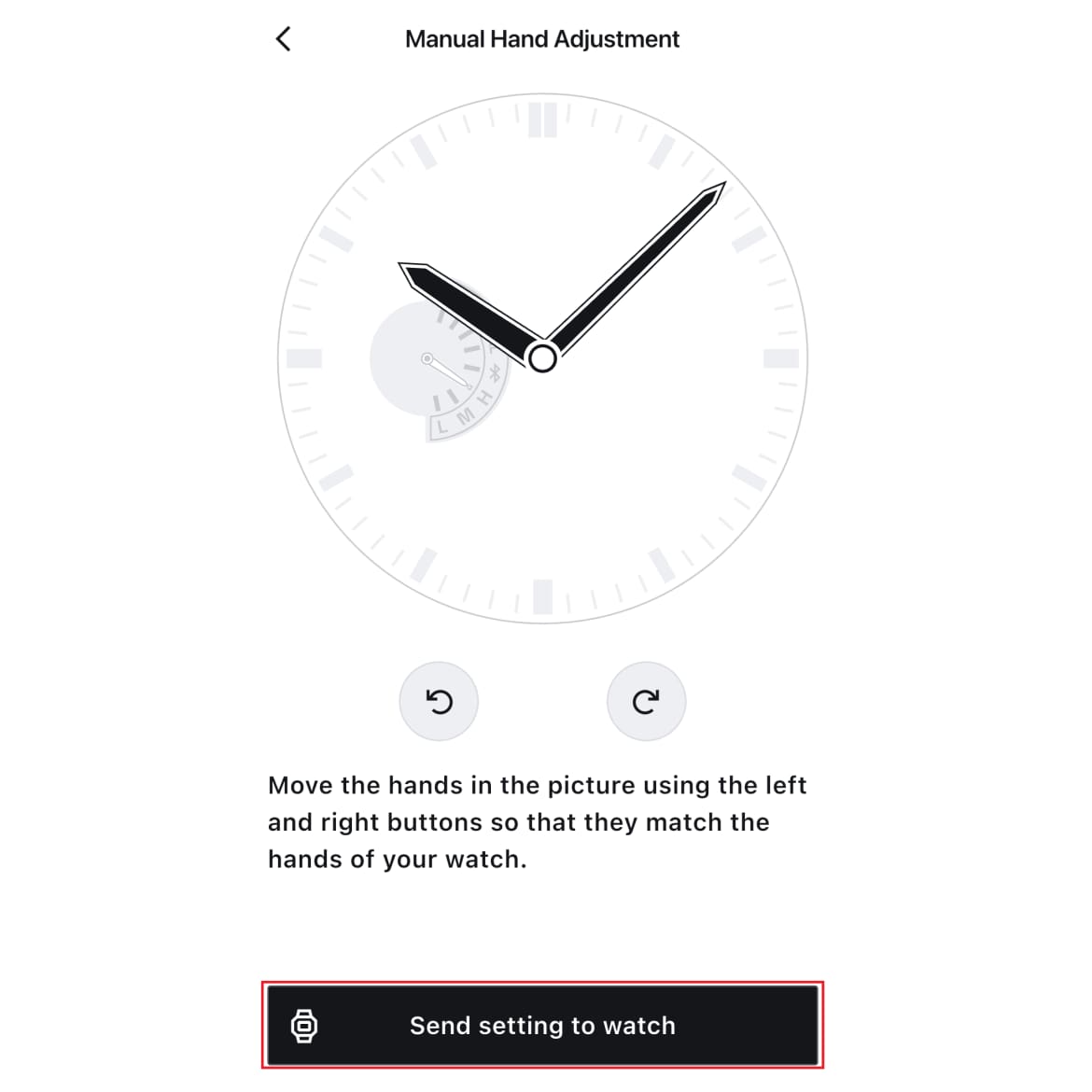
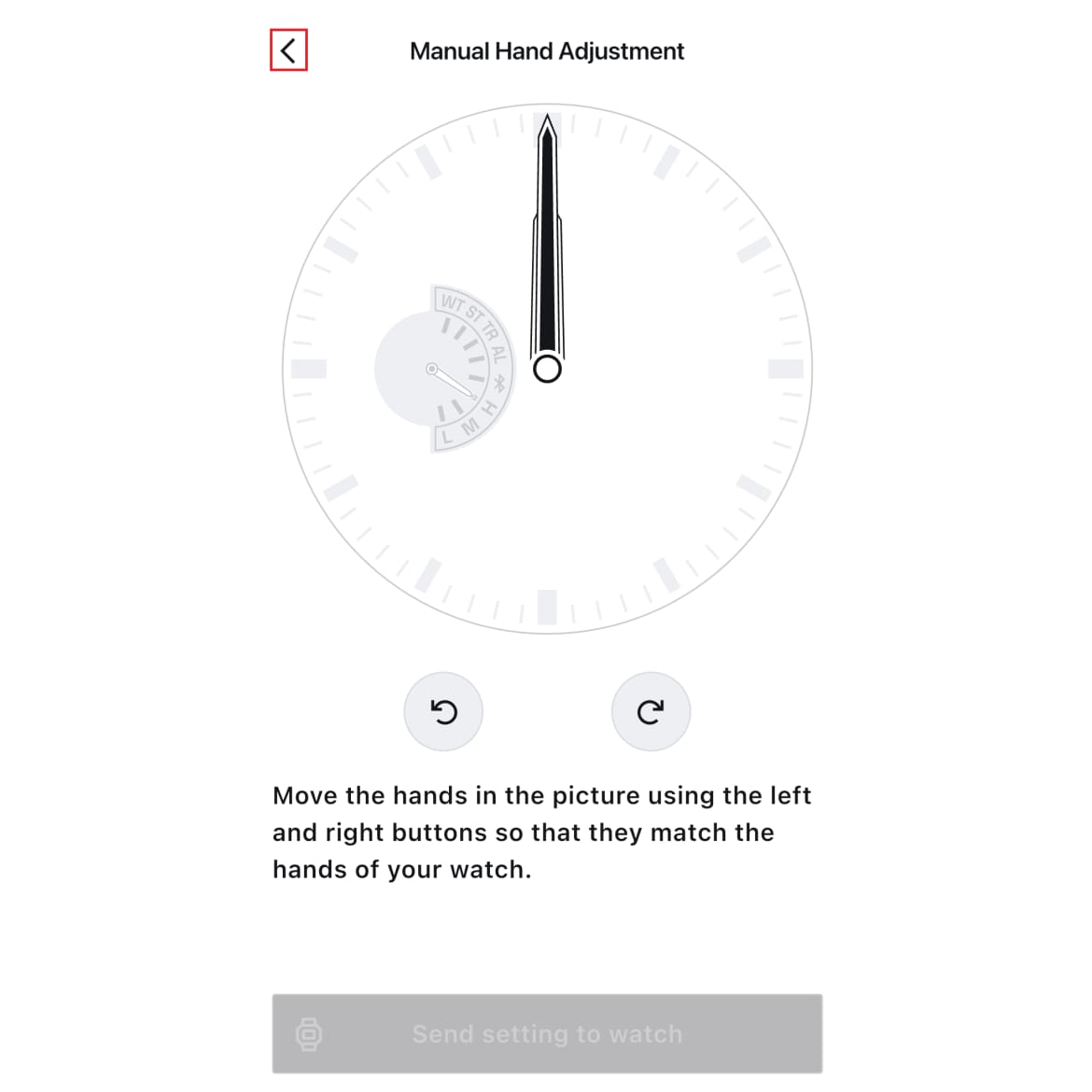
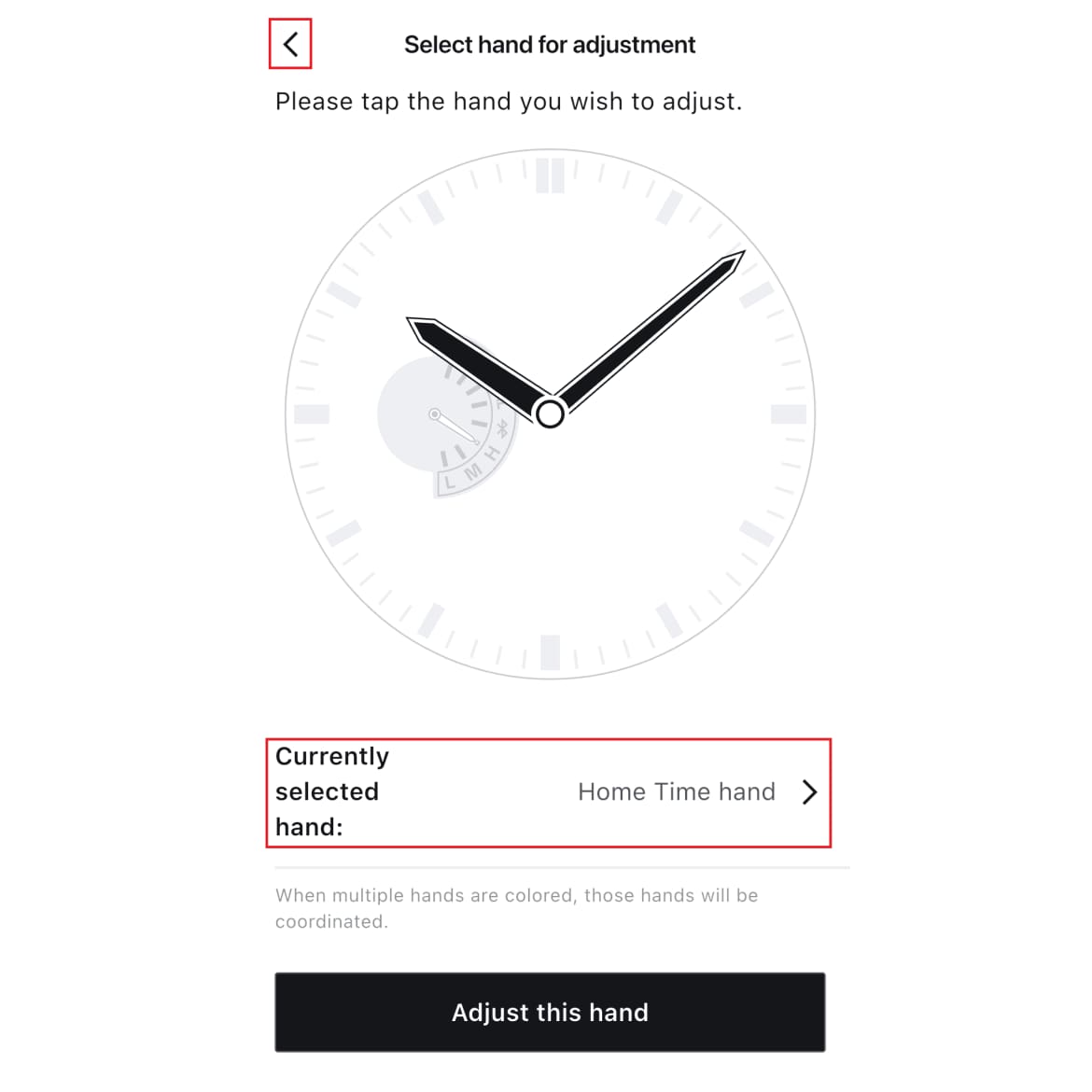
Connect your watch to the app and use the "Manually Correct Hands" menu to adjust the reference position.Hand Correction Using the CASIO WATCHES APP
<Procedure>
▼You can move the image left and right
If auto time adjustment using a smartphone fails, check the following.
Note: The timing of auto time adjustment varies by watch model. Refer to sections such as "Using the Watch with a Smartphone" > "Adjusting Watch Time Automatically” in your watch’s user’s guide.
e.g. GA-B2100-1A(5689)
Note: Some products automatically synchronize time up to four times a day, but depending on the communication environment or the state of the smartphone, synchronization may not succeed every time.👉Check the status of the watch and the app
・Put your watch into the Timekeeping Mode.
・At the scheduled auto time adjustment, keep your watch close to (within about 2 meters) your smartphone.
・To avoid signal interference, move away from nearby Wi-Fi devices and home appliances.
・It has been 24 hours since the operation of changing the city's time or manually adjusting the time.
・If your watch and smartphone have not been connected for a while, connect them once.
・The CASIO WATCHES APP has not been closed (it is running in the background)👉Check the settings for the “CASIO WATCHES APP” (only for watches where this setting can be turned on or off)
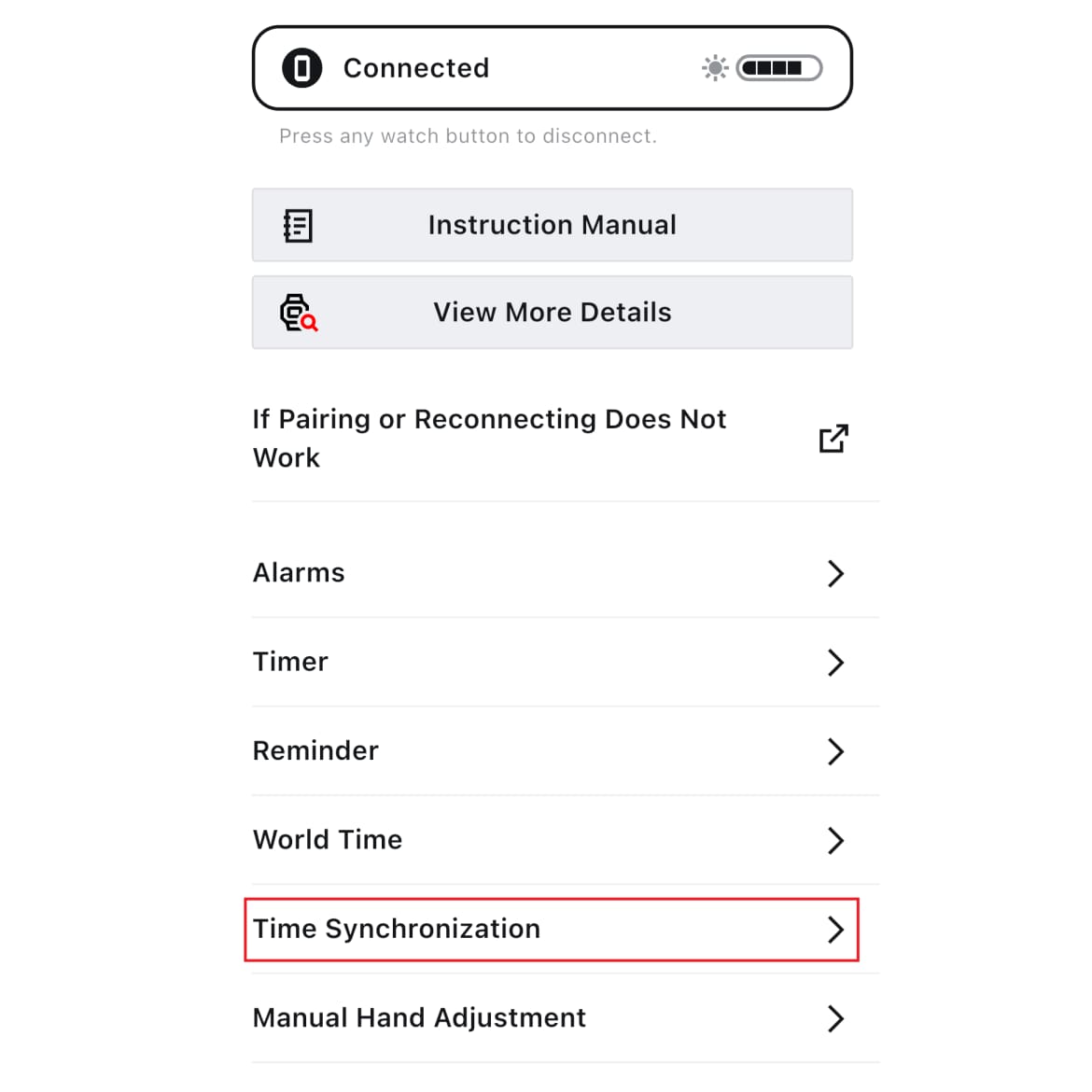
・On the My Watch screen, select your watch and make sure that "Automatic Time Adjustment" is ON.
(Note: Please refer to the instructions below.)<Procedure>
▼You can move the image left and right
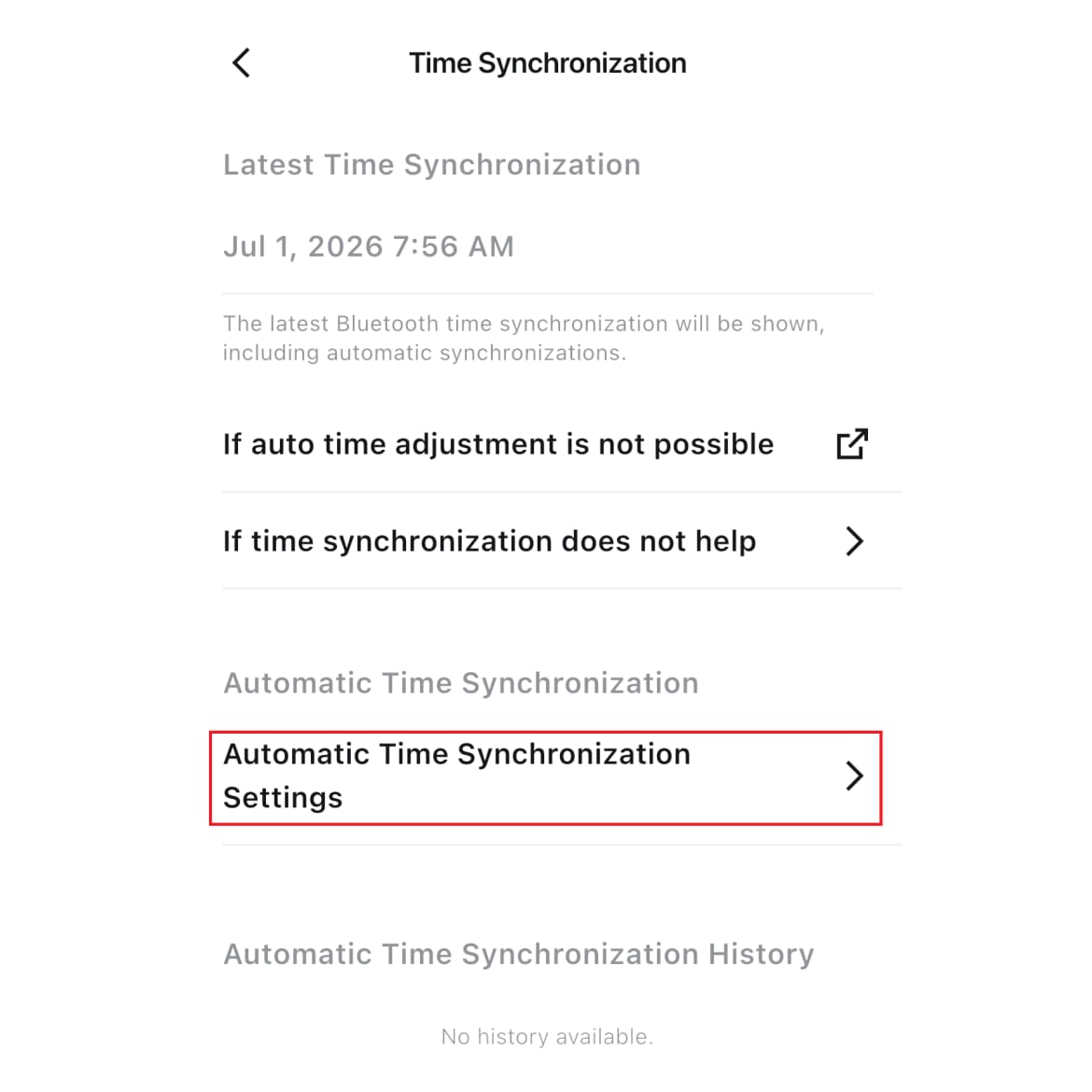
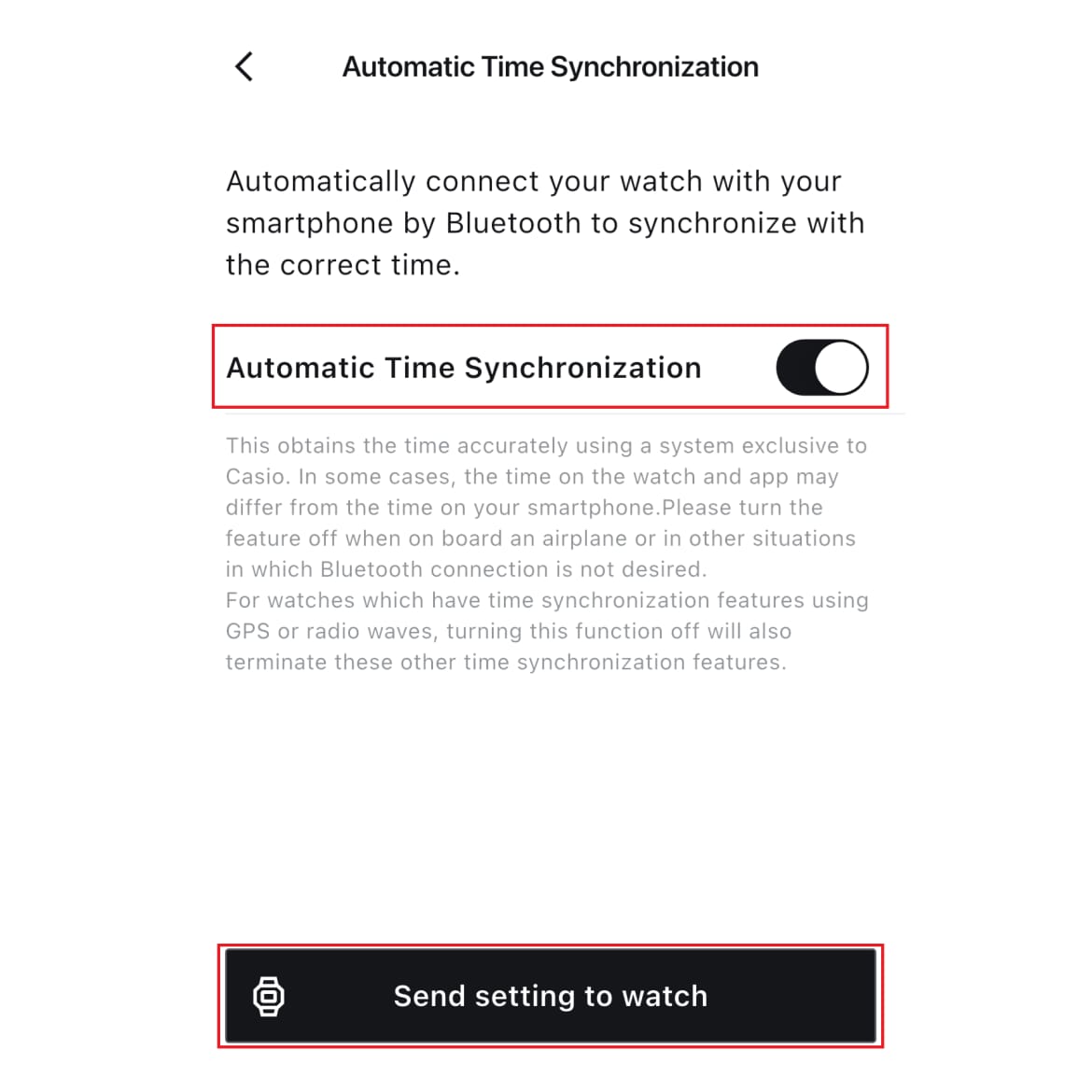
The procedure for setting the time for each product is clearly explained on the “Time Setting” page below.
In addition, the instruction manuals for each product include instructions on how to “set the time.”
Note: If the above does not resolve the issue
・Depending on your smartphone settings and other factors, synchronization with the watch may be unstable.
Please try following the instructions in the “Troubleshooting Connection Issues” section or adjusting the settings on your smartphone (specific to your manufacturer), as this may improve performance and stability.
If neither of these methods resolves the issue, please contact our support desk.