





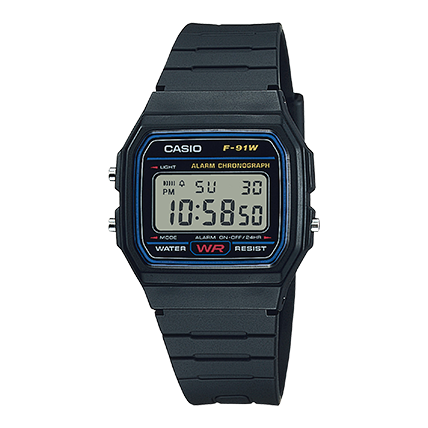







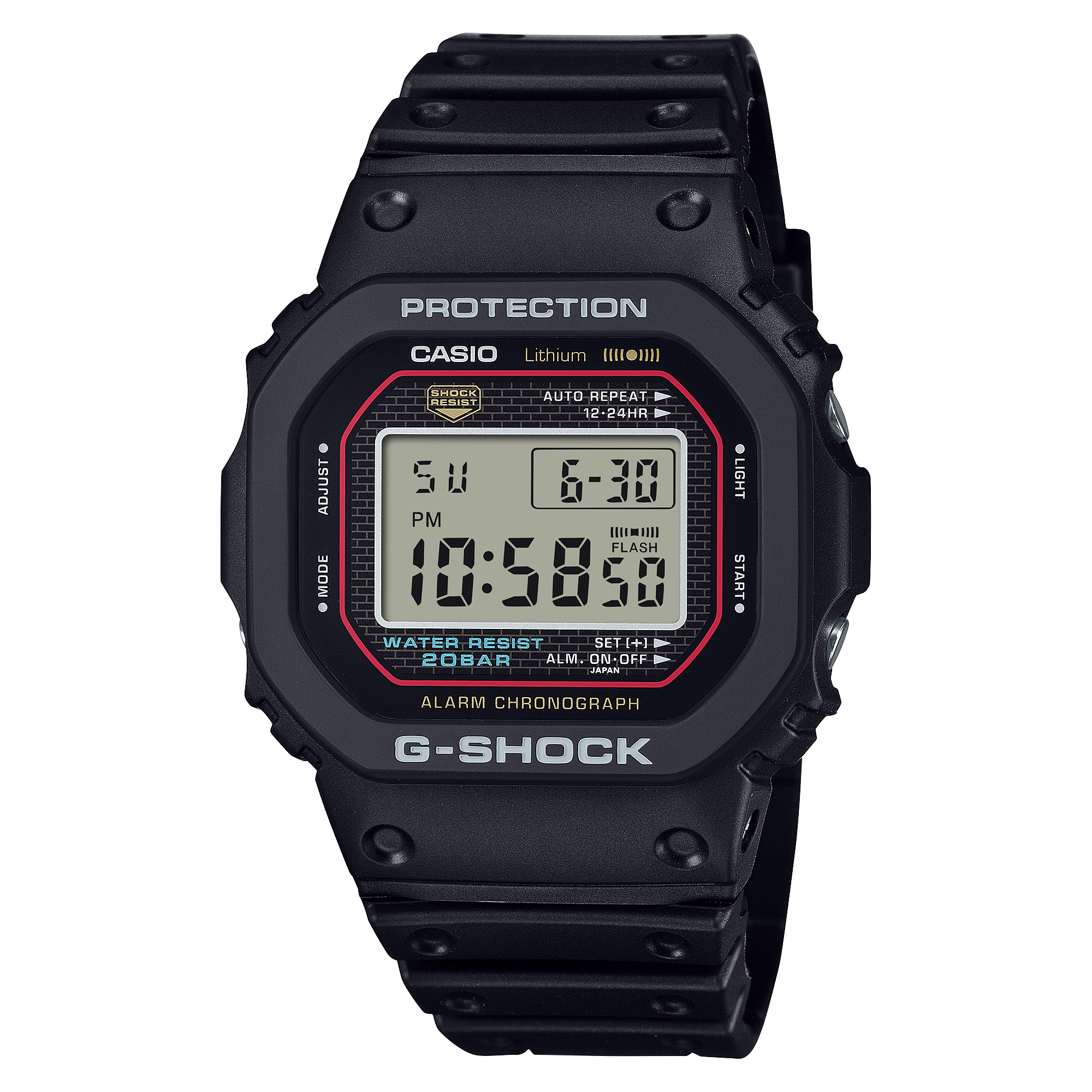

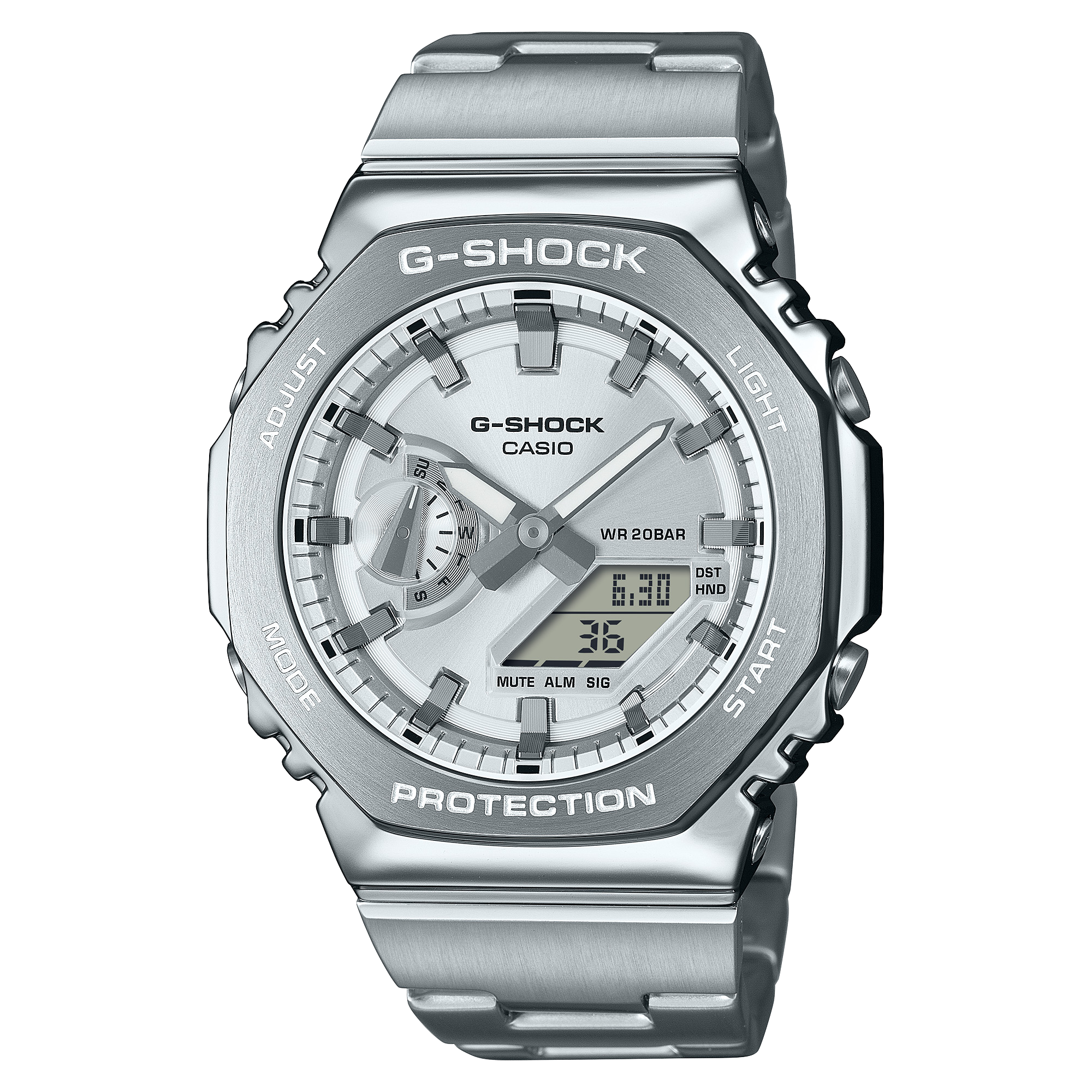


Guide to connecting to an [Android]
Note: Please note that the names and layout of the settings menu may vary depending on your smartphone model, OS version, and app version.
▶STEP 1: Install the app
① Use the link below (or scan the QR code) to access the app store.


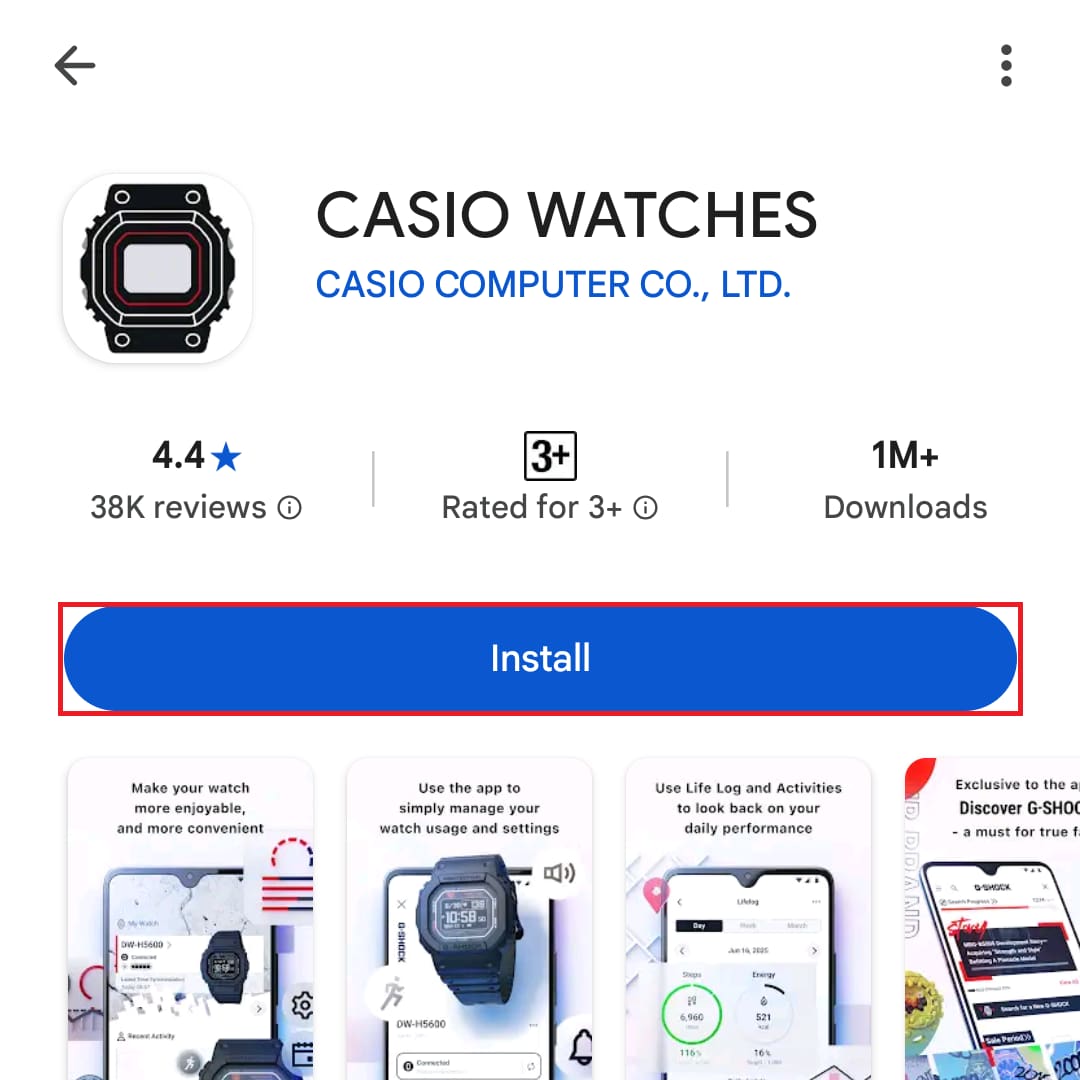
② Tap "Install" to download the app.
▶STEP 2: Launch the app and register a CASIO ID
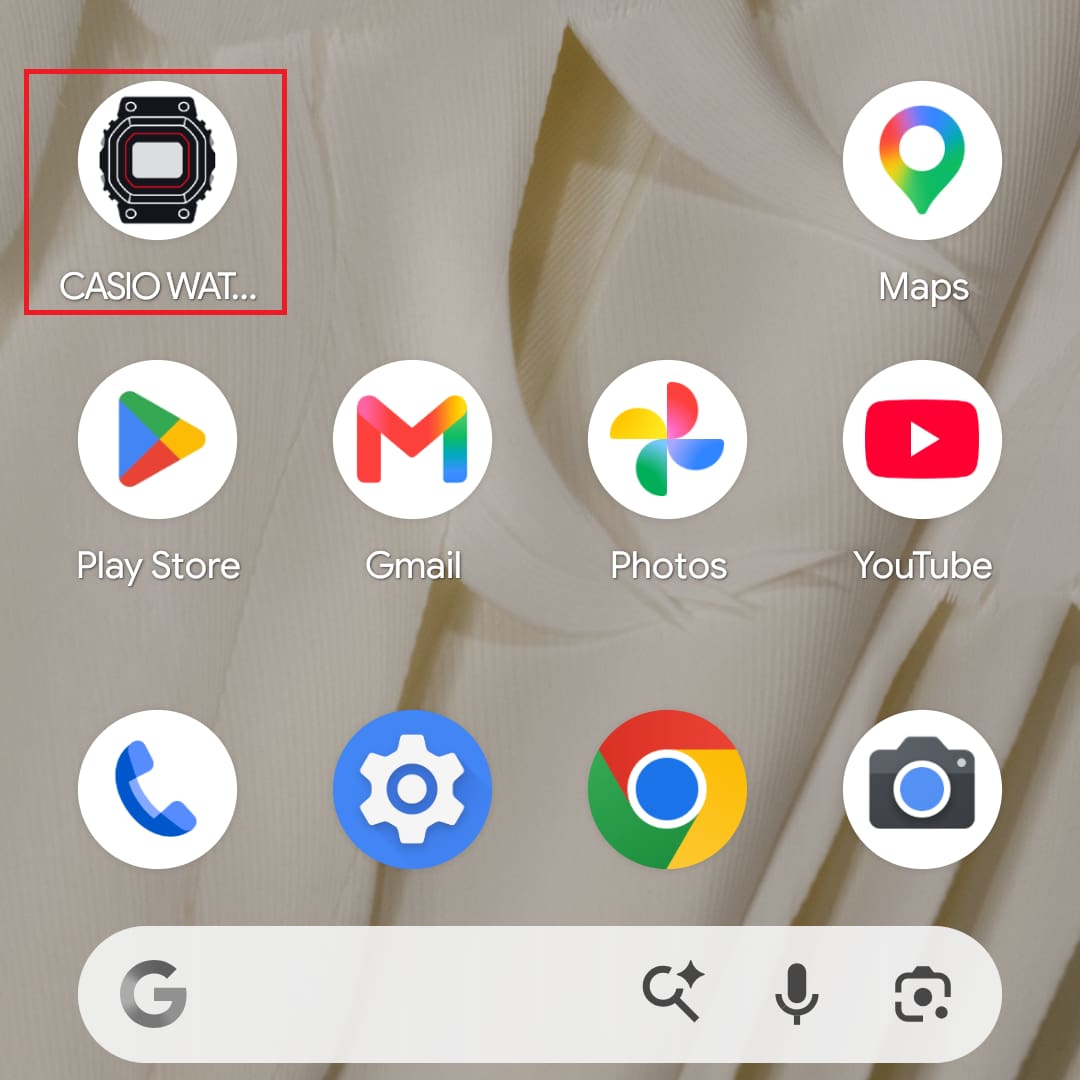
① Launch the app
When launching the app for the first time
▼You can move the image left and right
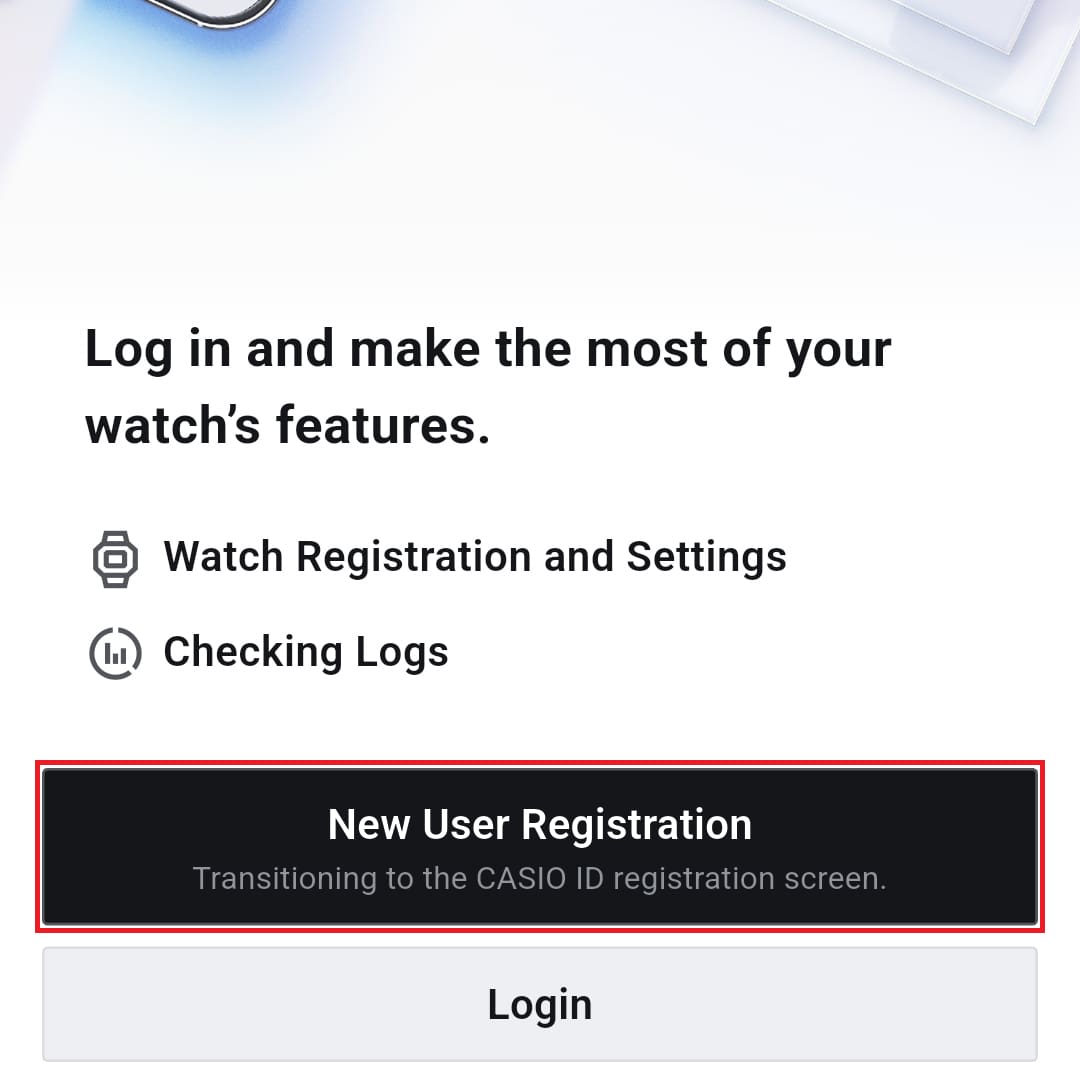
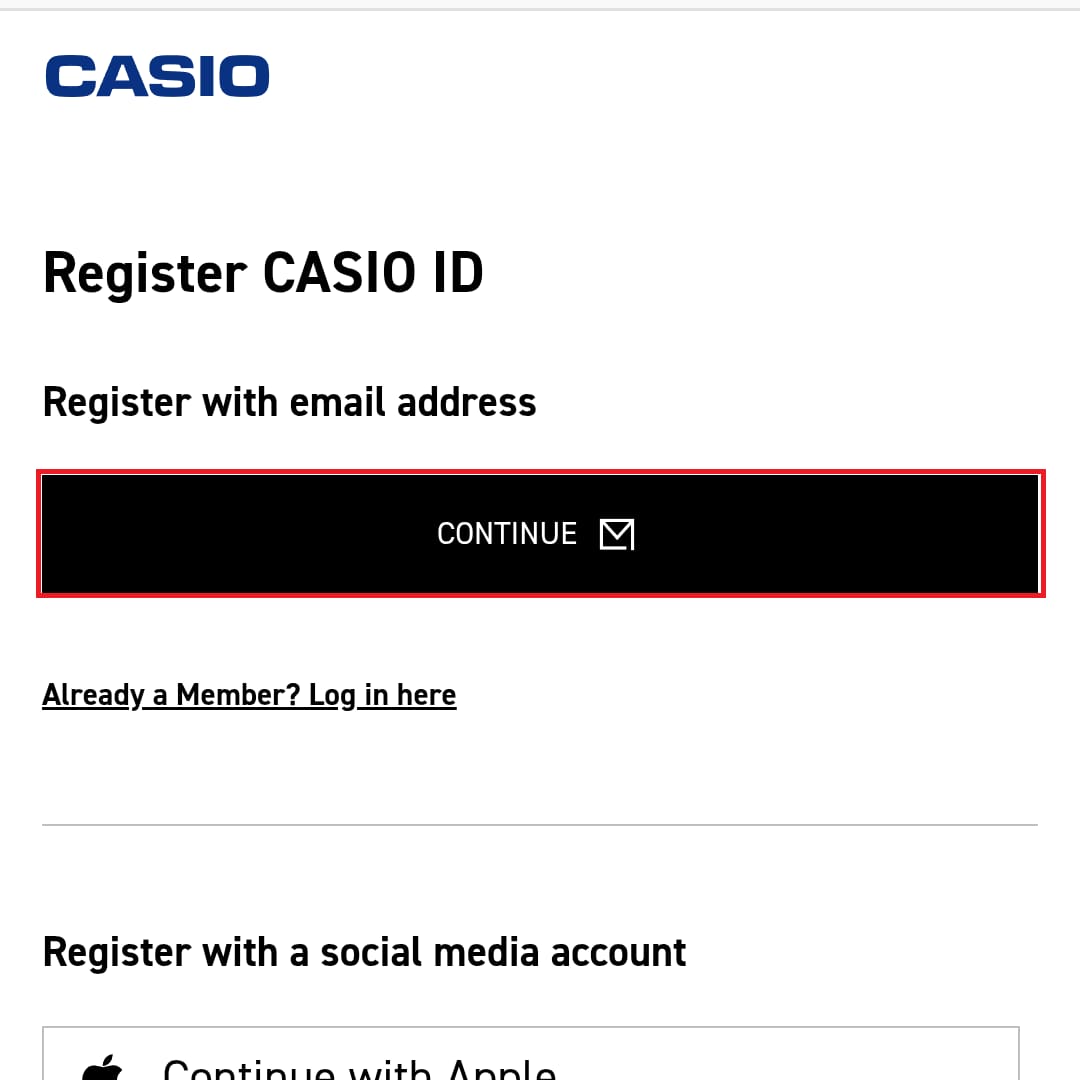
②Register a new CASIO ID
Logging in with a CASIO ID allows you to register your watch and pair it with the app.
Note: Even if you select “Skip,” you can still log in later.
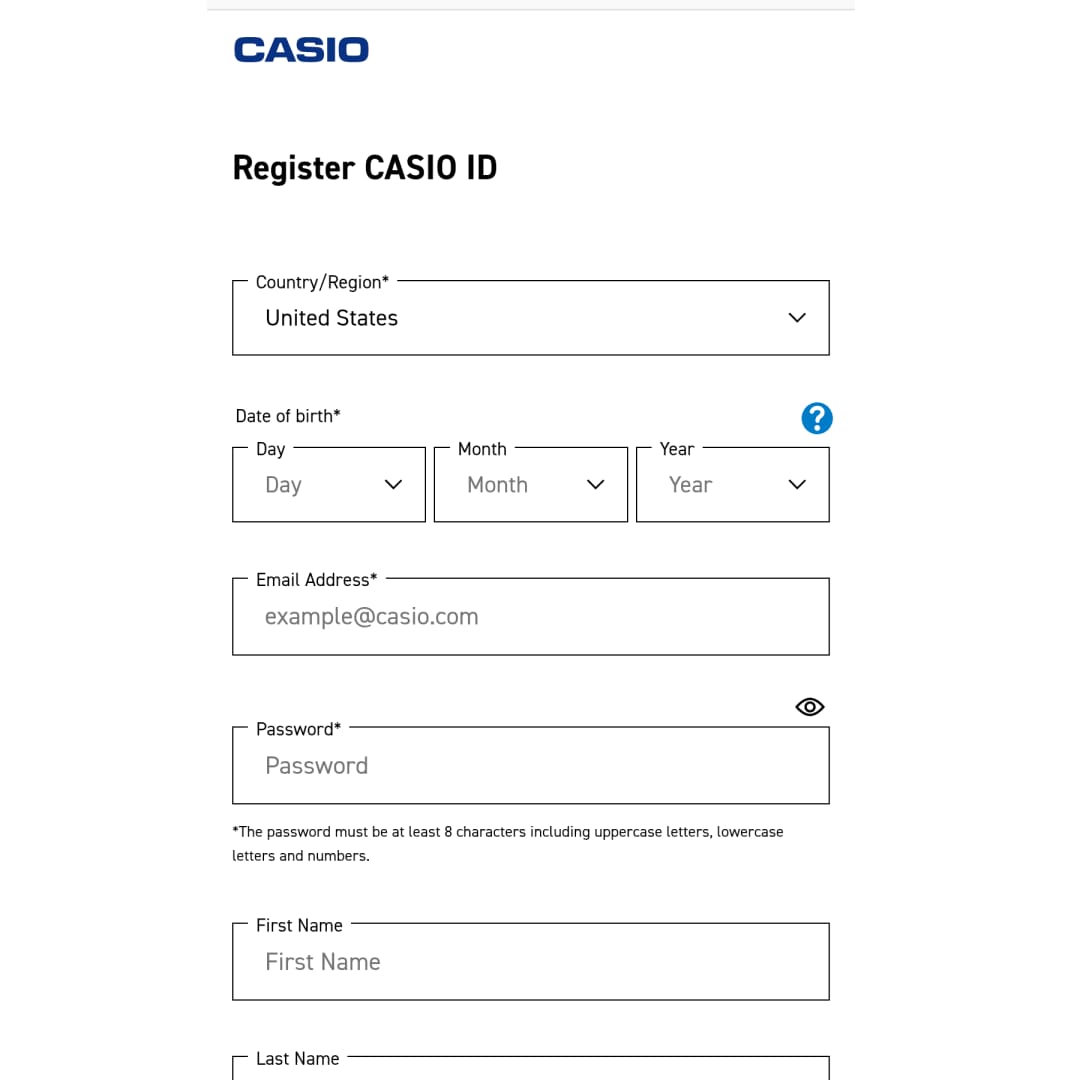
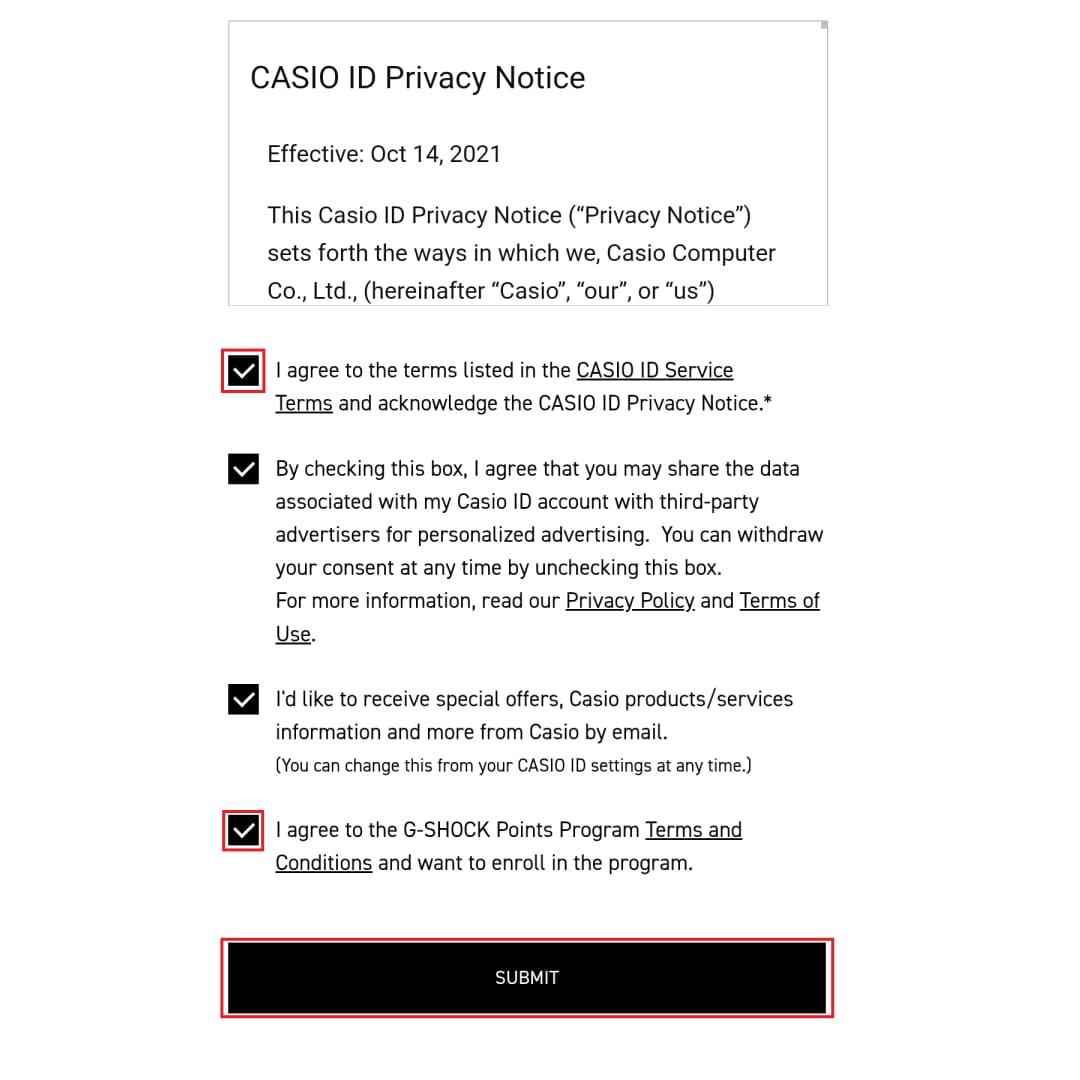
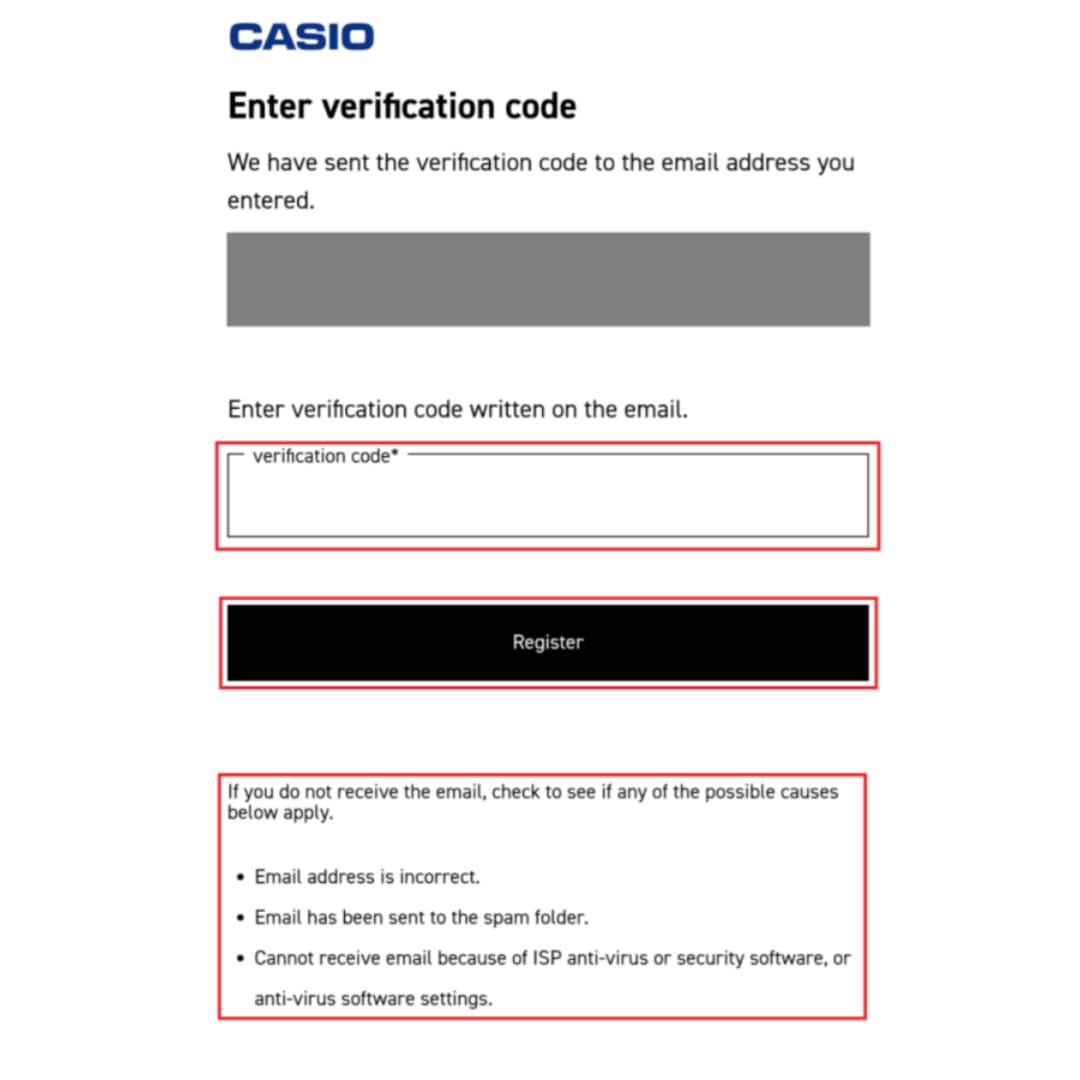
Enter the required information, review the terms, and complete the registration.
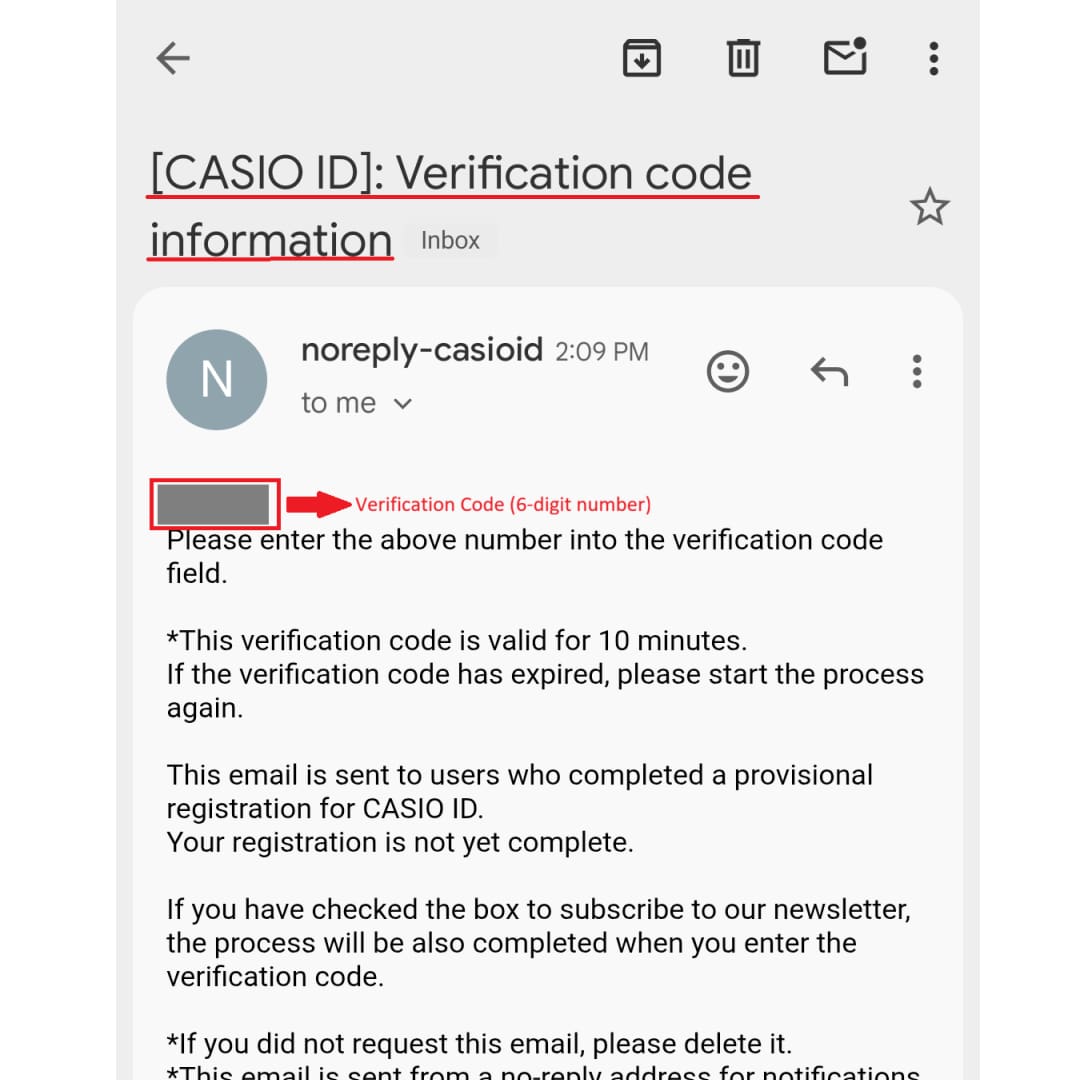
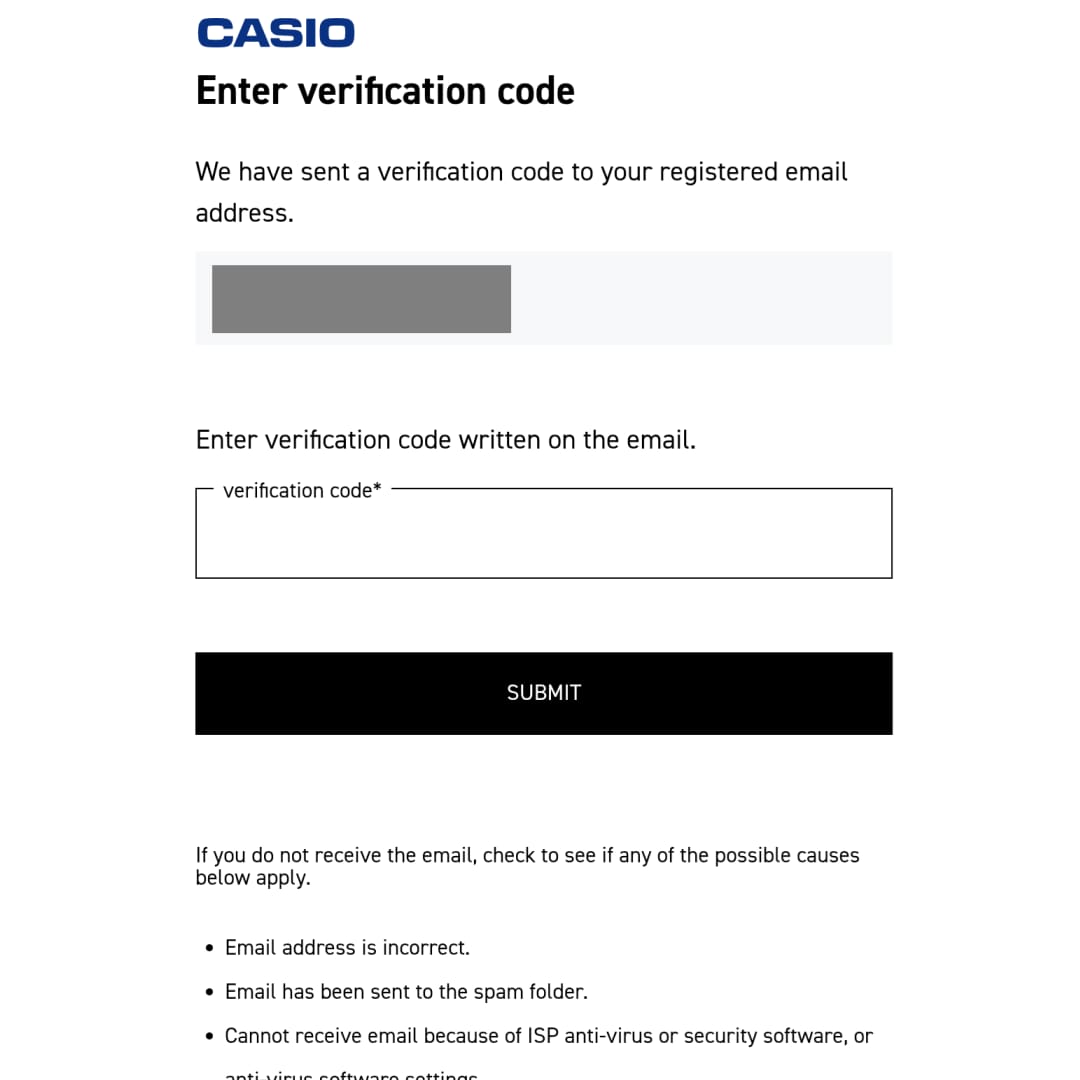
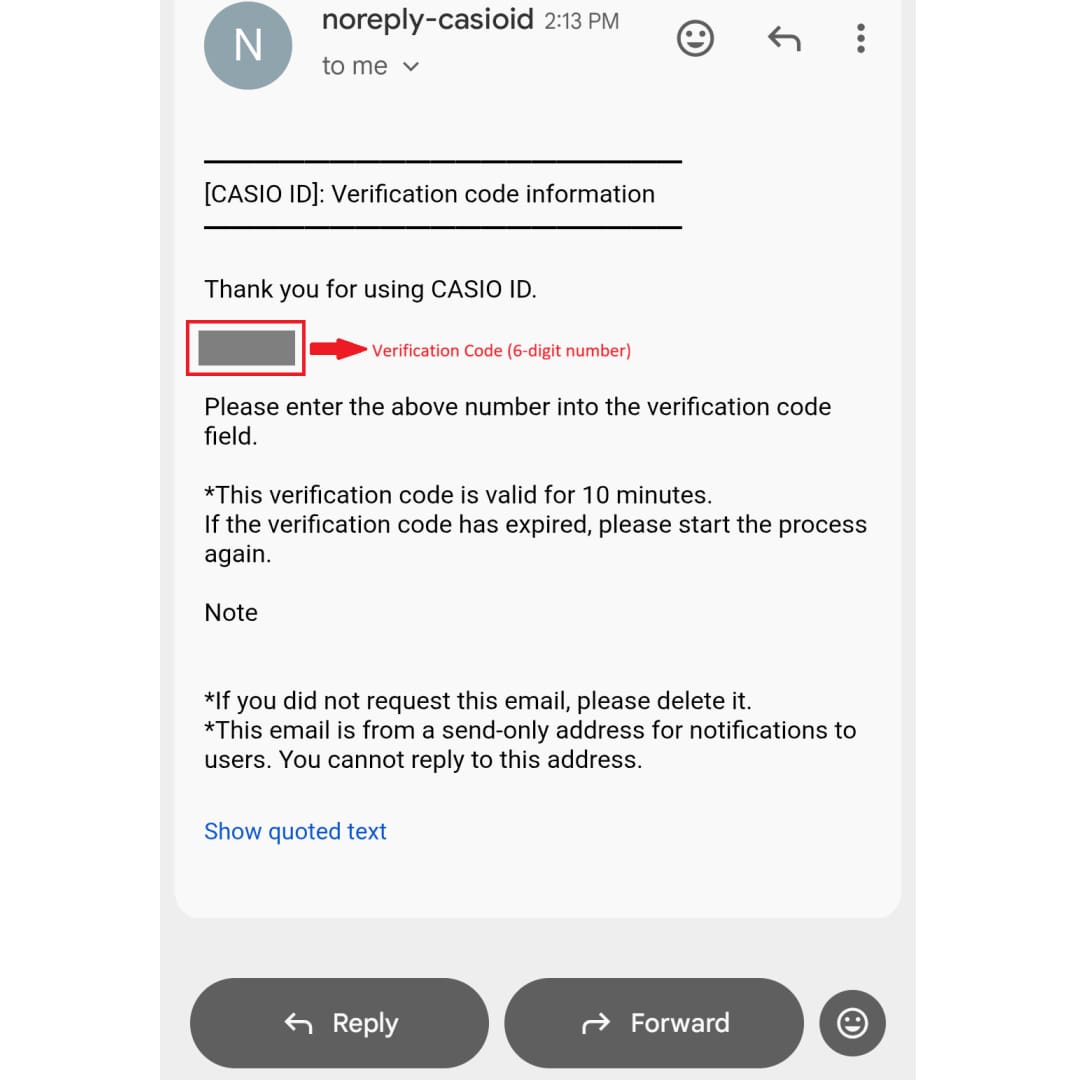
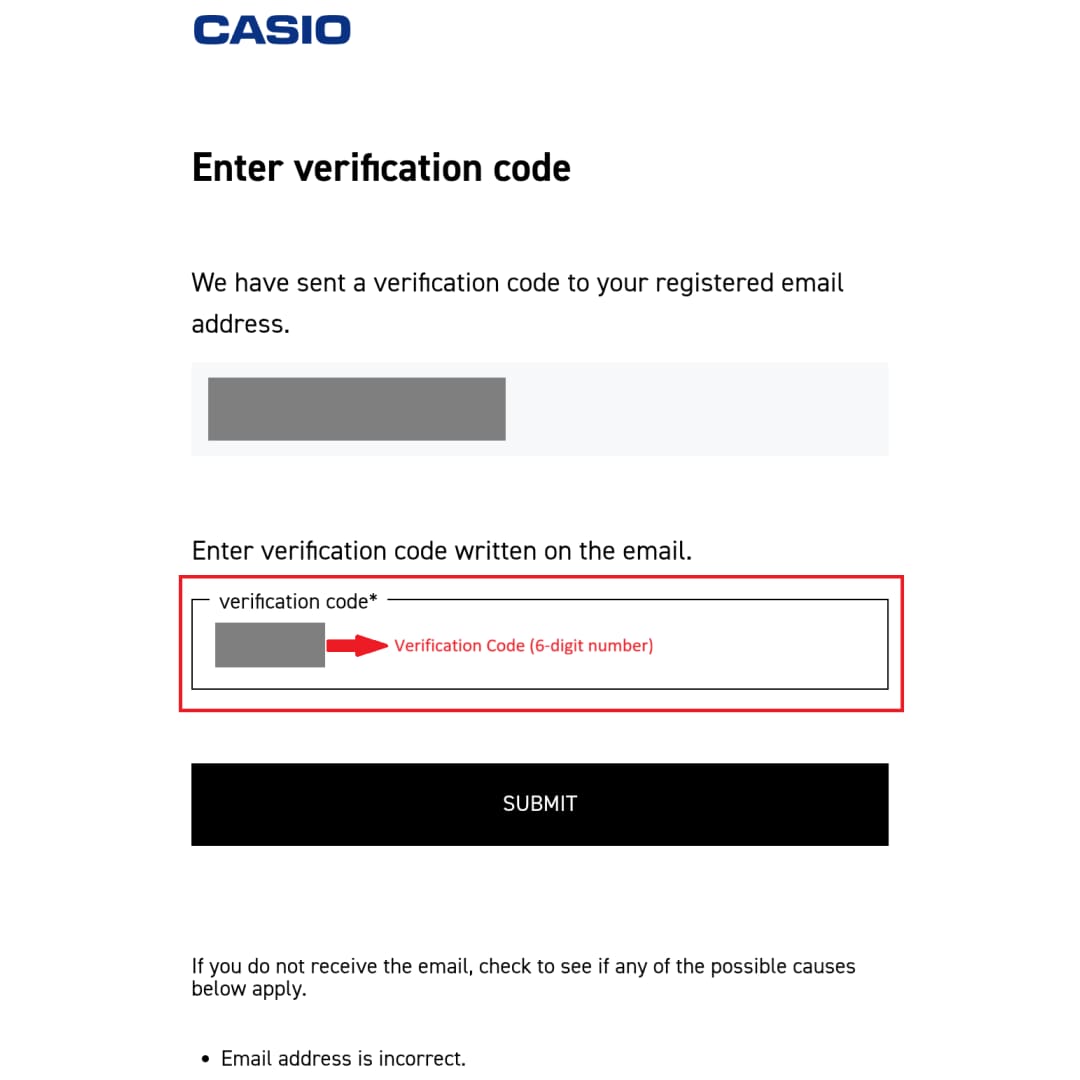
You will receive a verification code via email. Enter the code to complete registration.
Note: Check your spam folder, as the verification email may be filtered there.
▼You can move the image left and right
▶STEP 3: Log in and agree to the terms of service
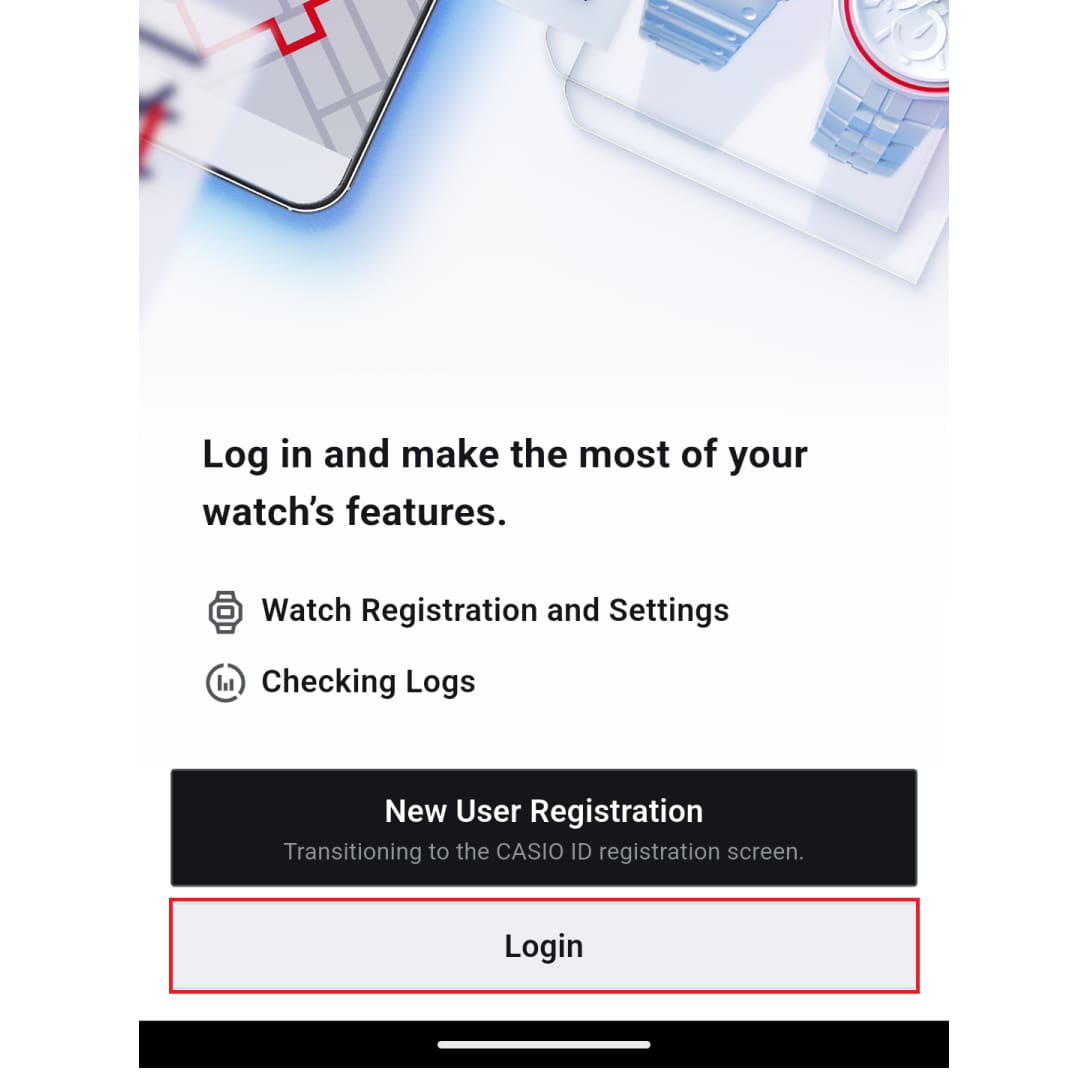
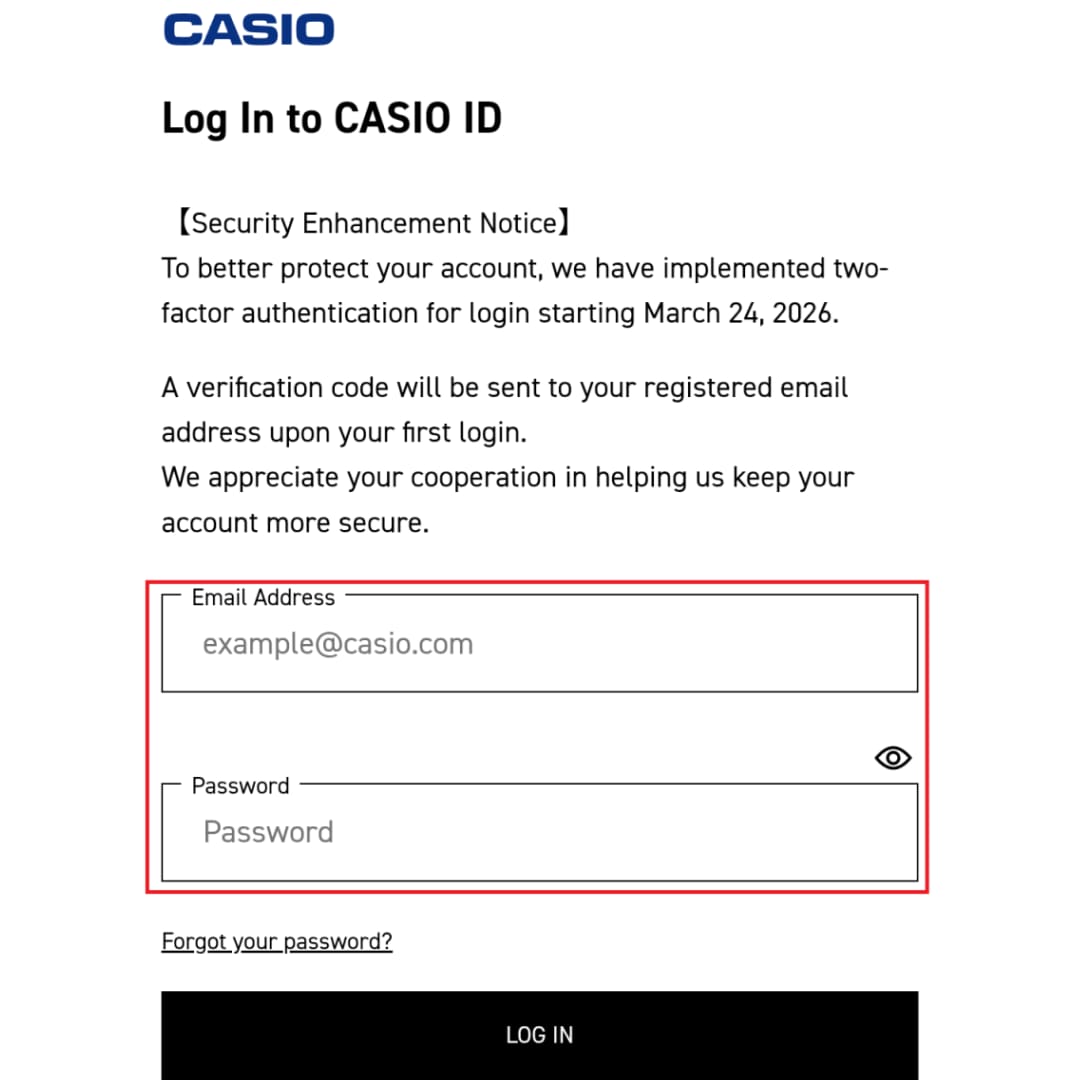
After registering your CASIO ID, enter your registered ID and password to log in.
If two-factor authentication is required, please follow the on-screen instructions.
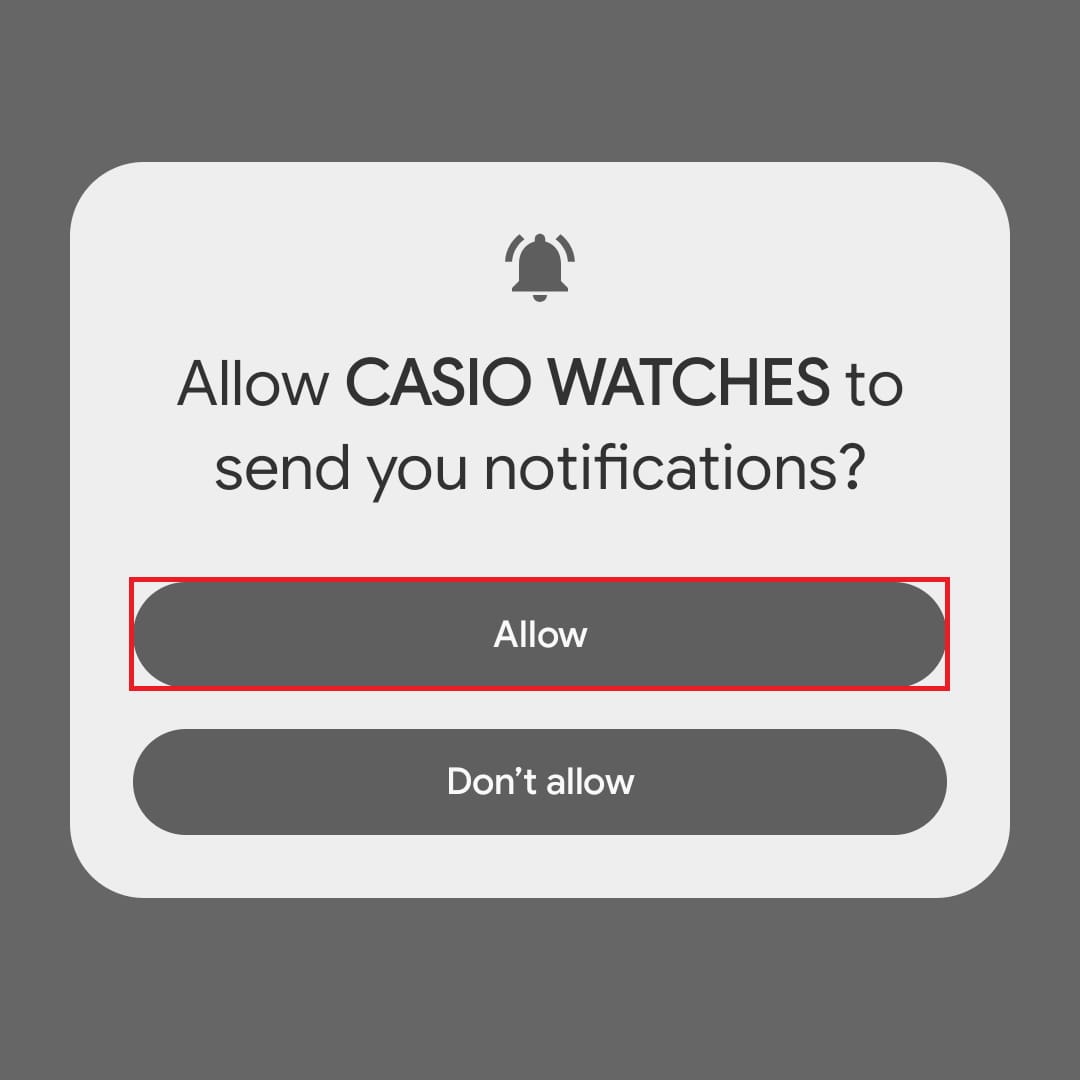
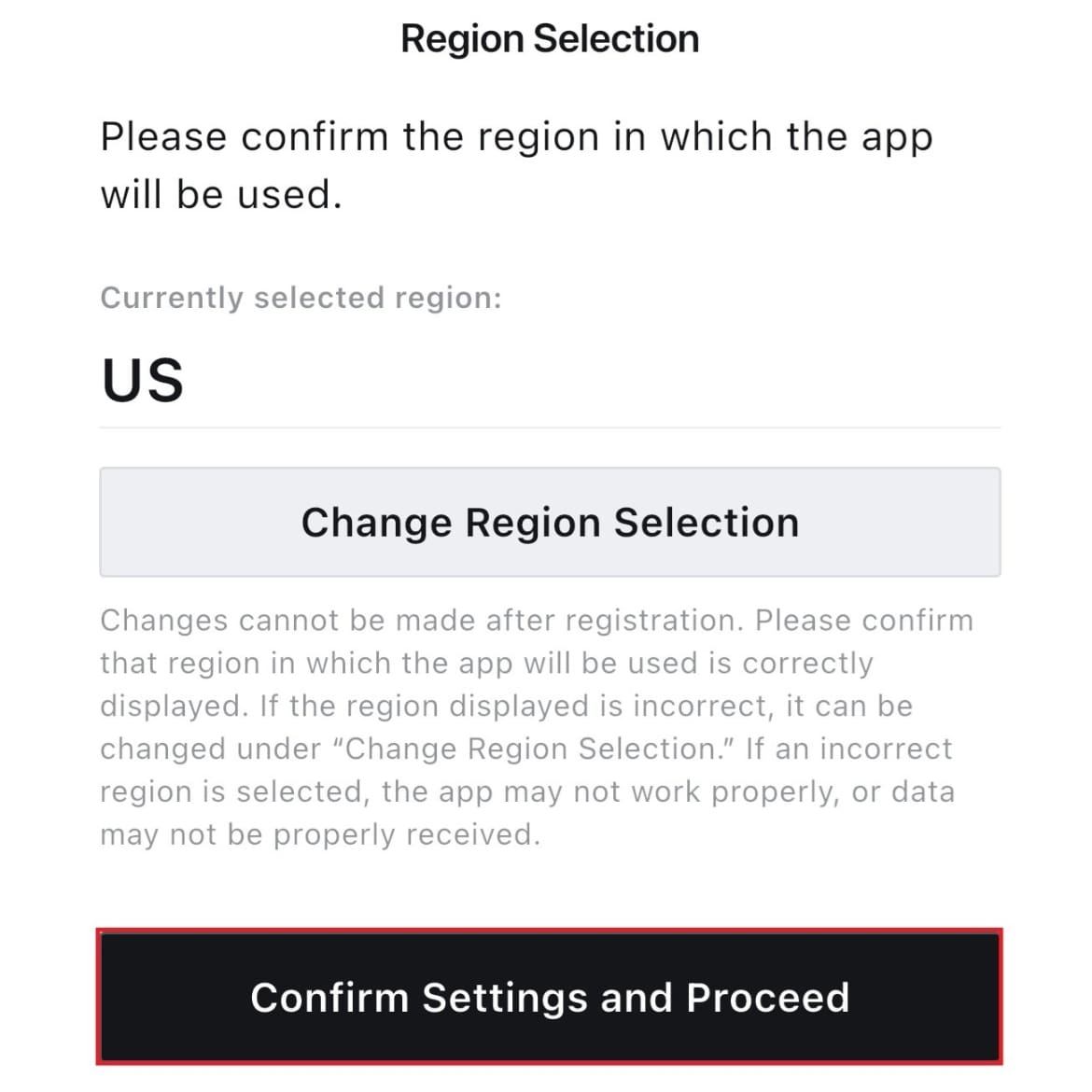
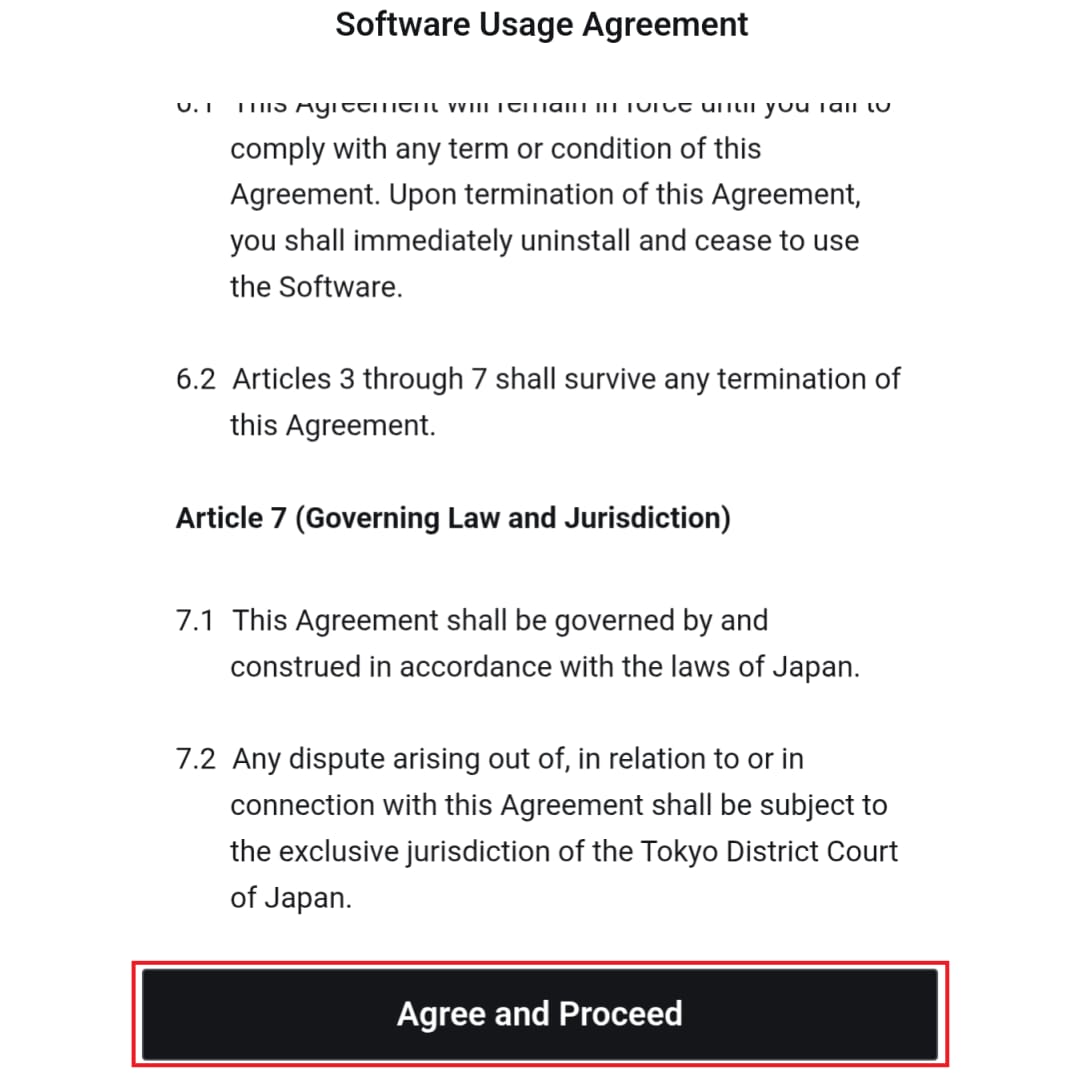
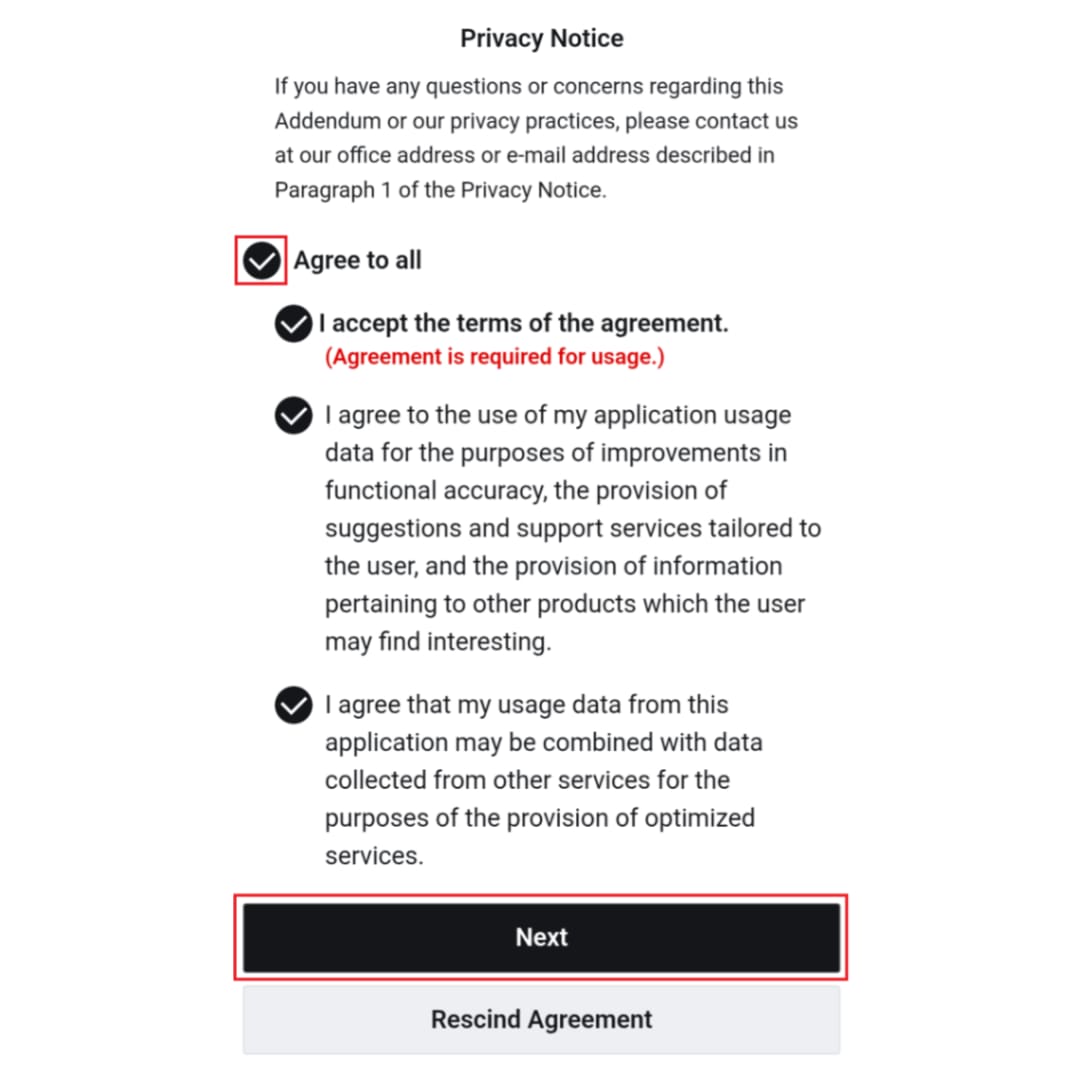
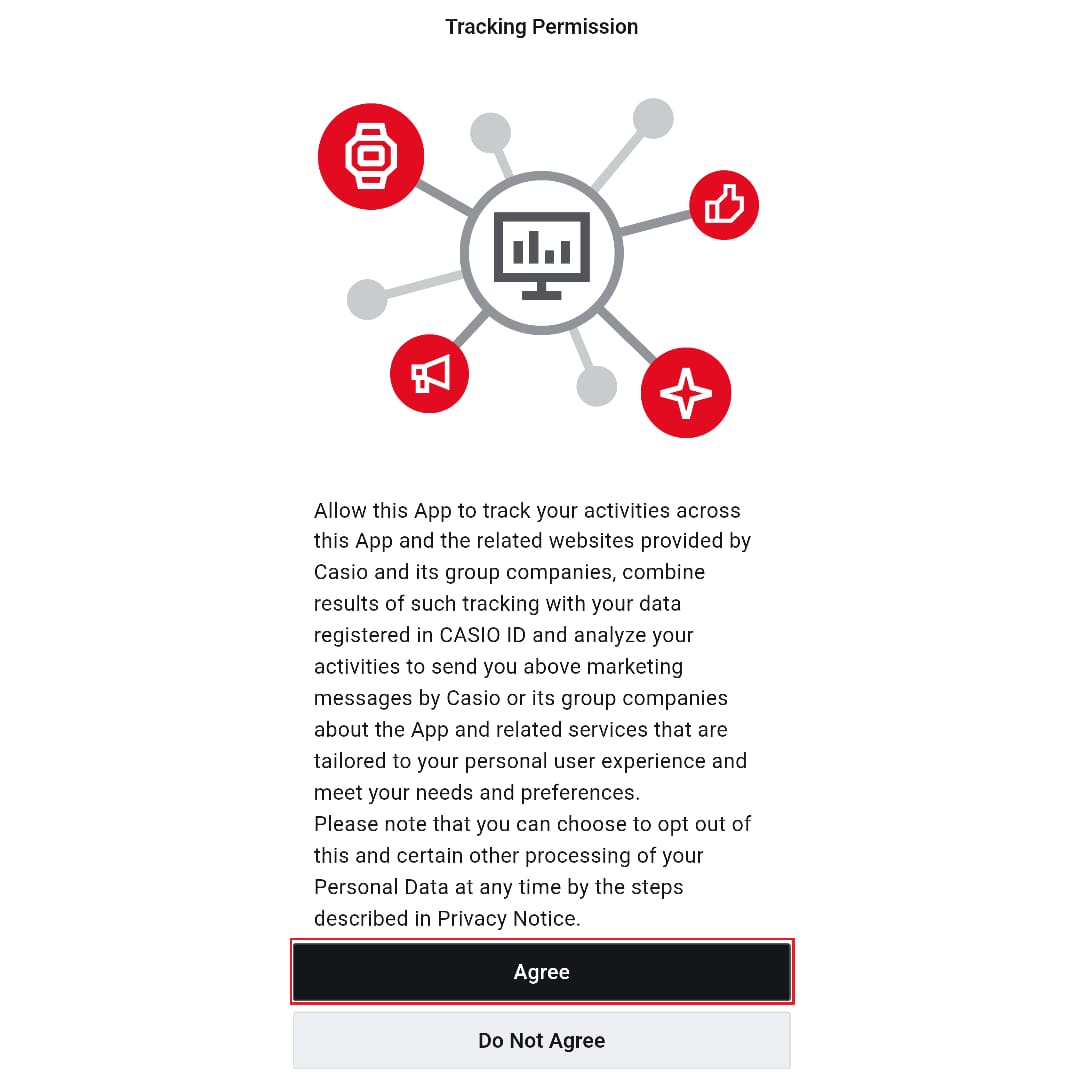
Also, when you launch the app for the first time, the terms of service and settings screens for notifications and tracking will appear.
These settings are necessary to use the app, so please allow all of them if you have no particular issues.
▼You can move the image left and right
▶STEP 4: Register the watch and pair it
Register your watch in the app and pair it with your phone.
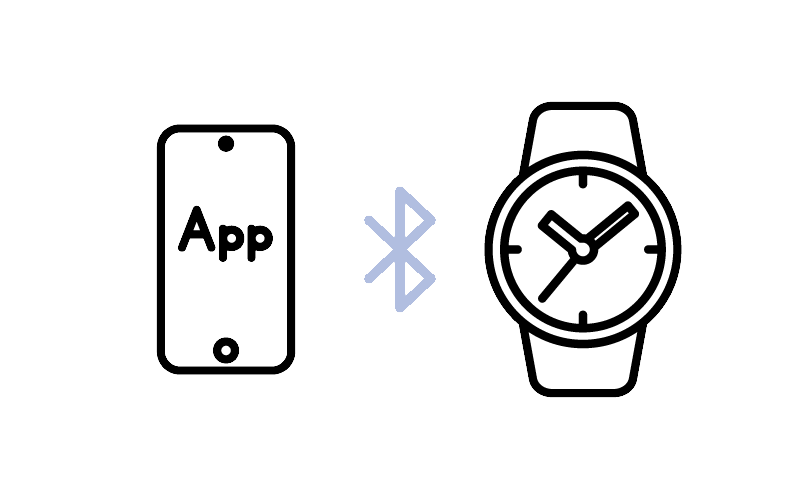
Pairing refers to the process of registering the Bluetooth device information between the watch and the phone.
Once pairing is complete, the watch will automatically connect to the phone without requiring repeated pairing operations.
<1>
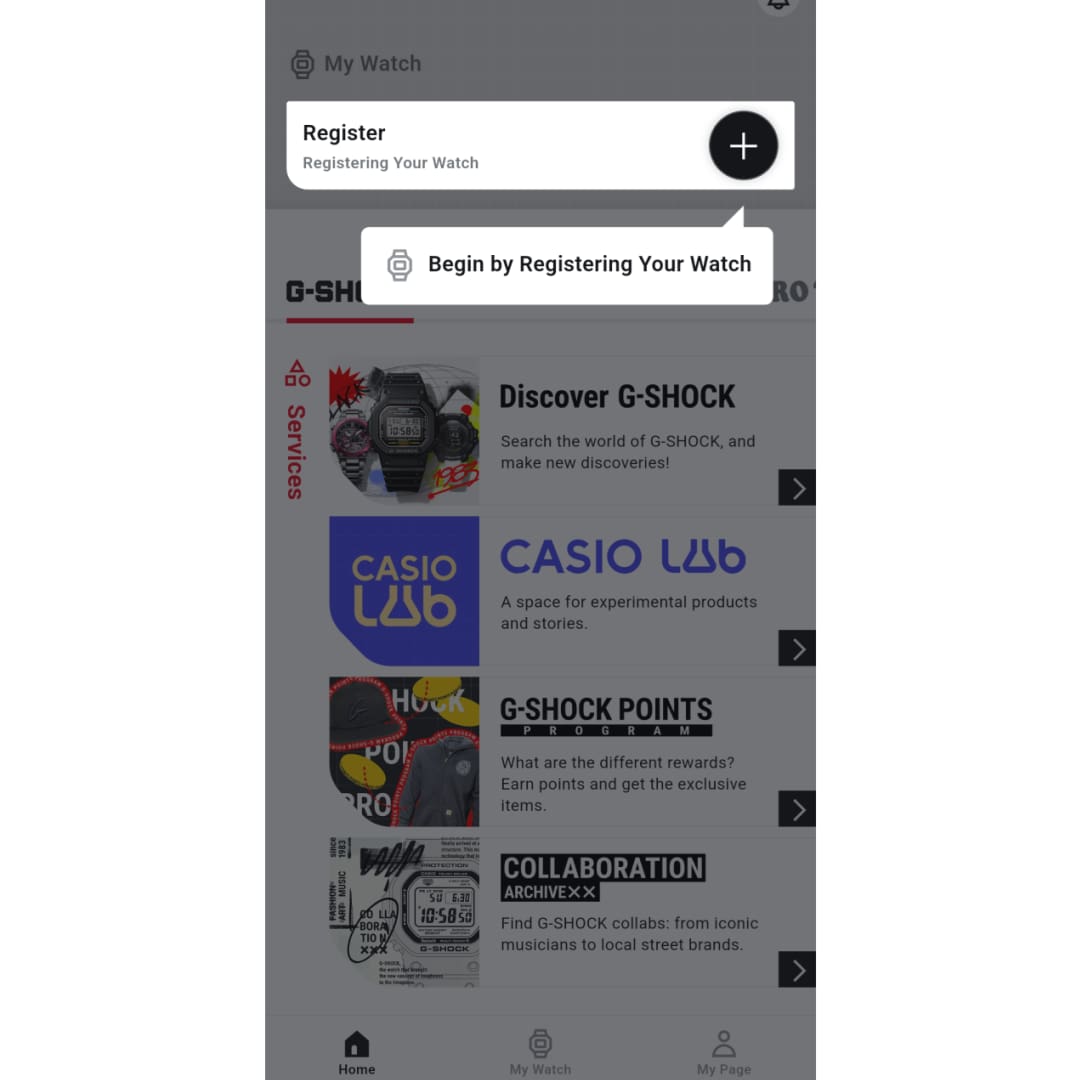
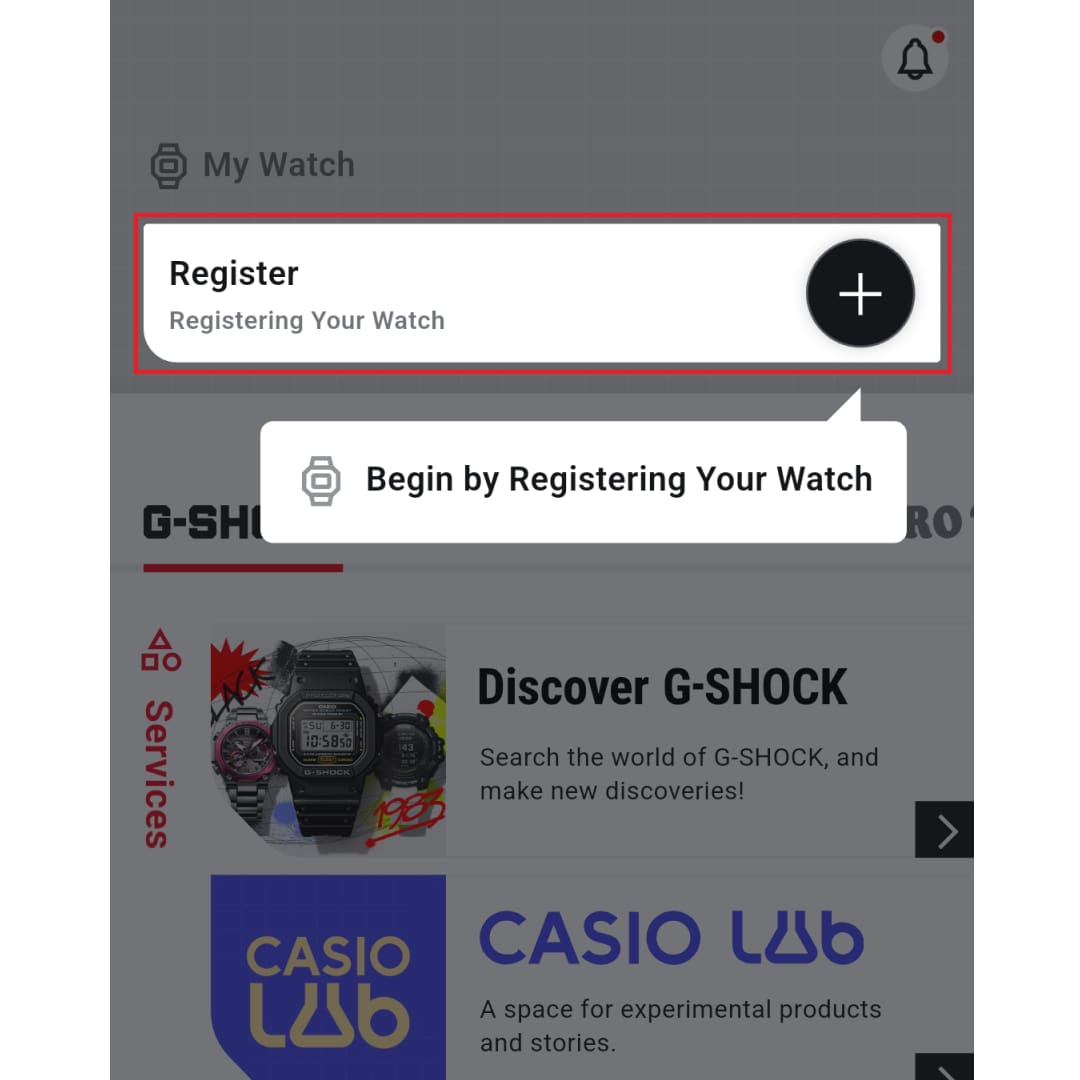
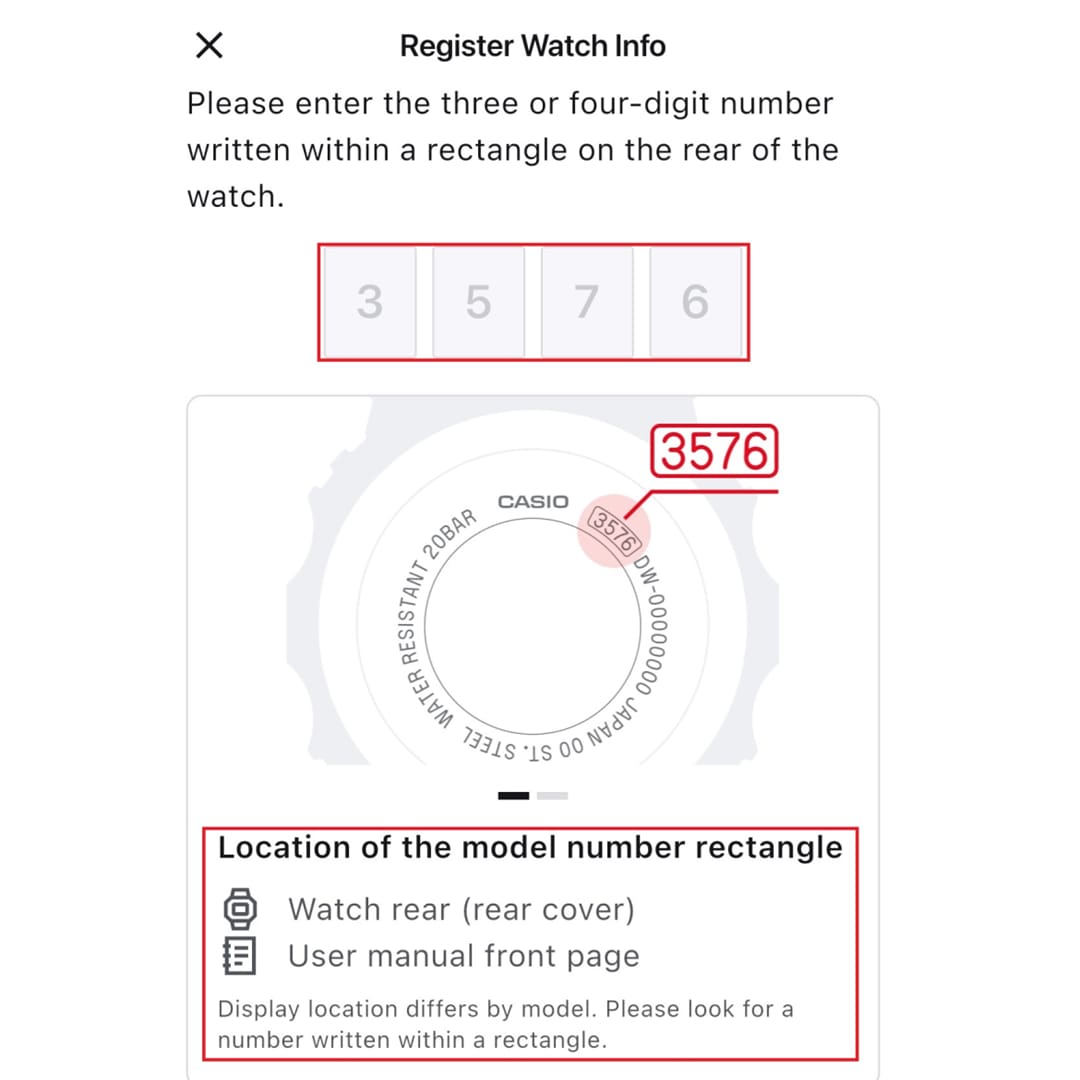
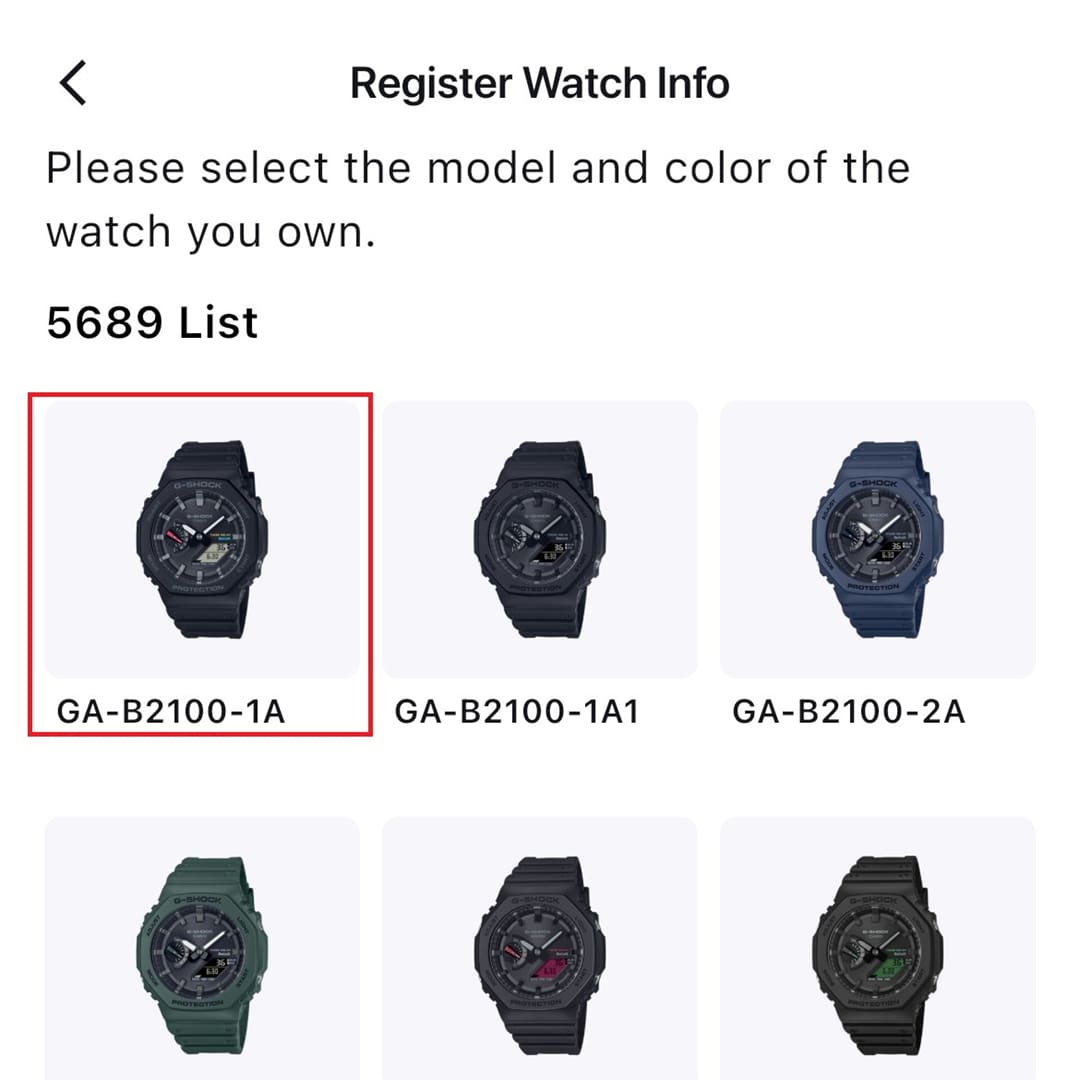
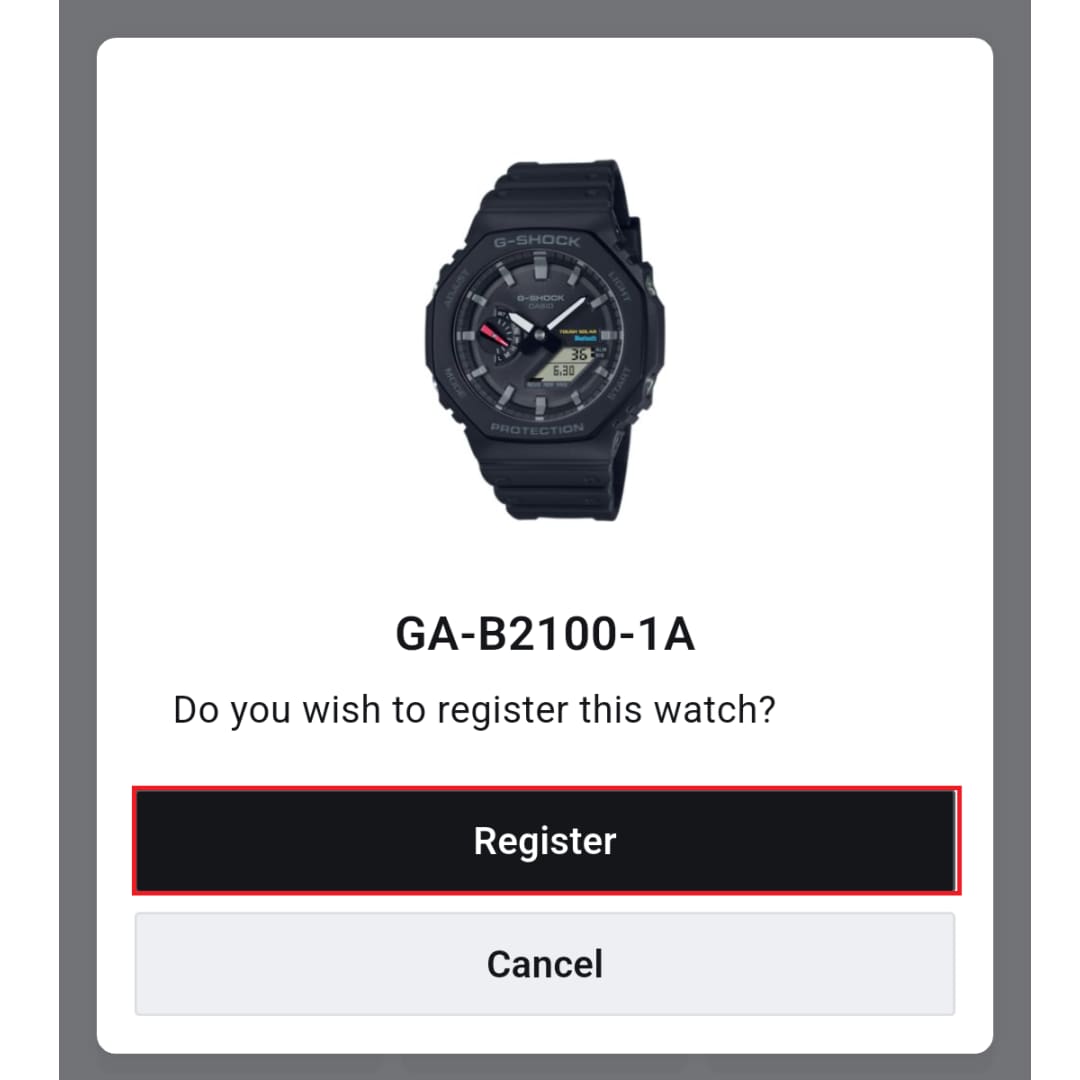
Register watch Information
Register a watch in the app
▼You can move the image left and right
<2>
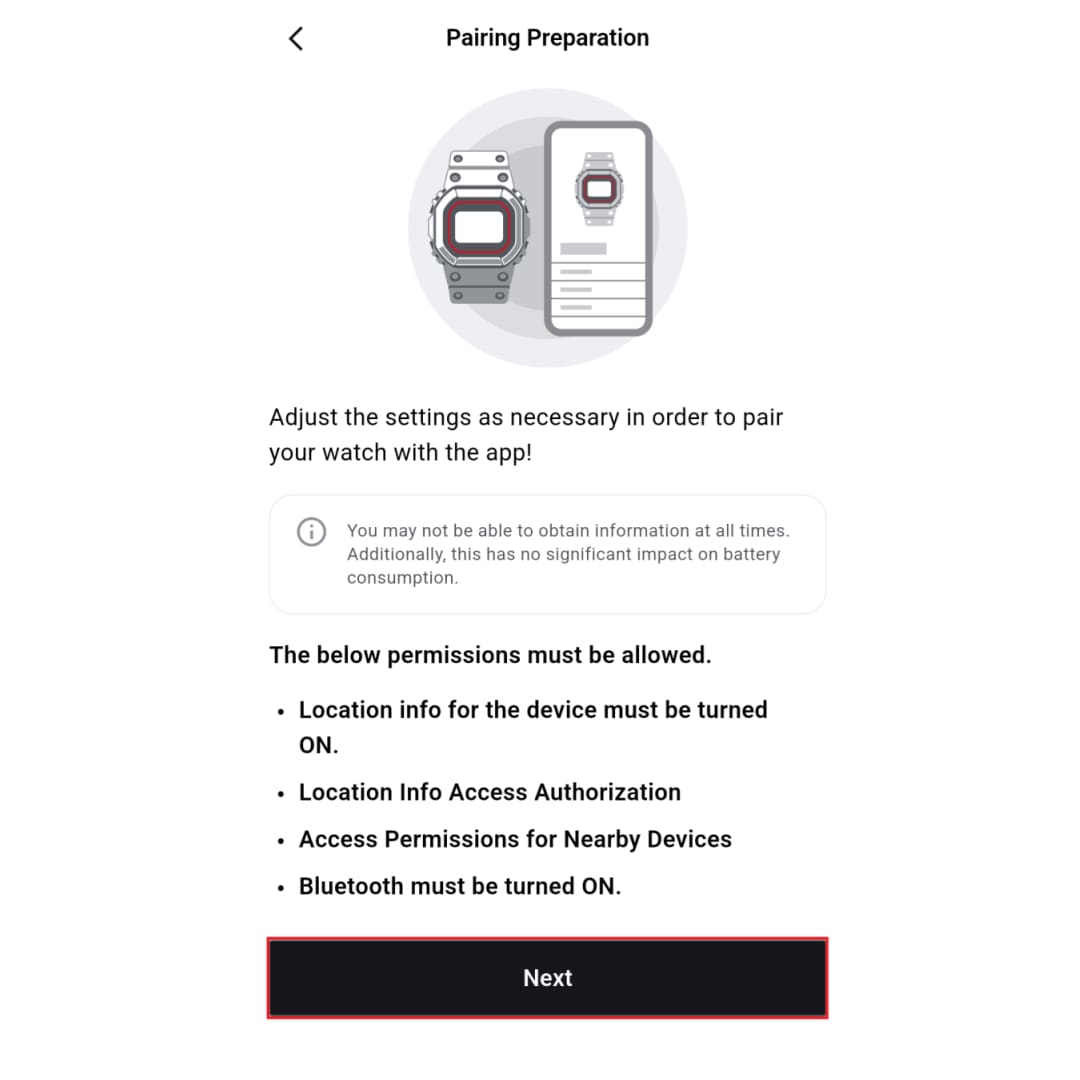
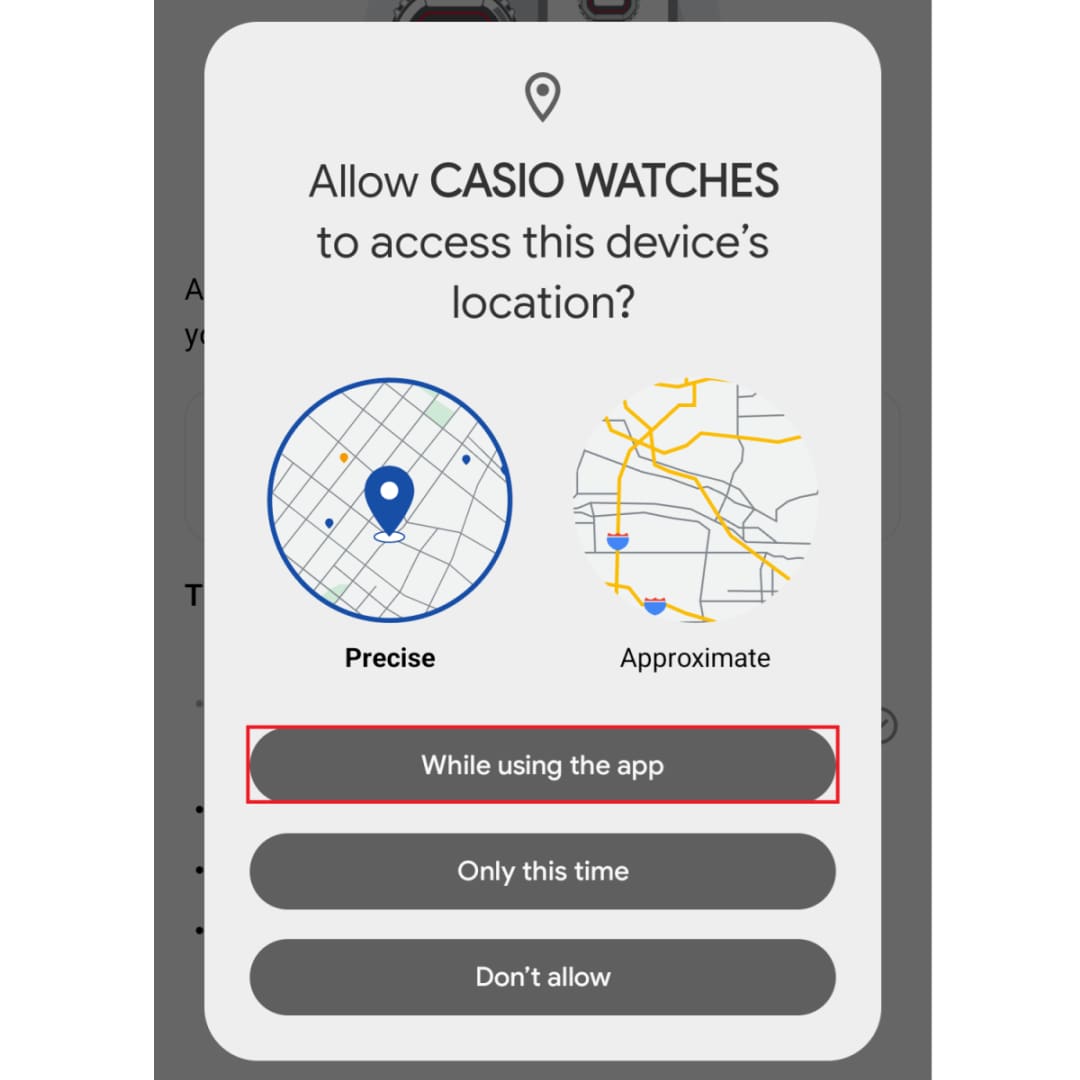
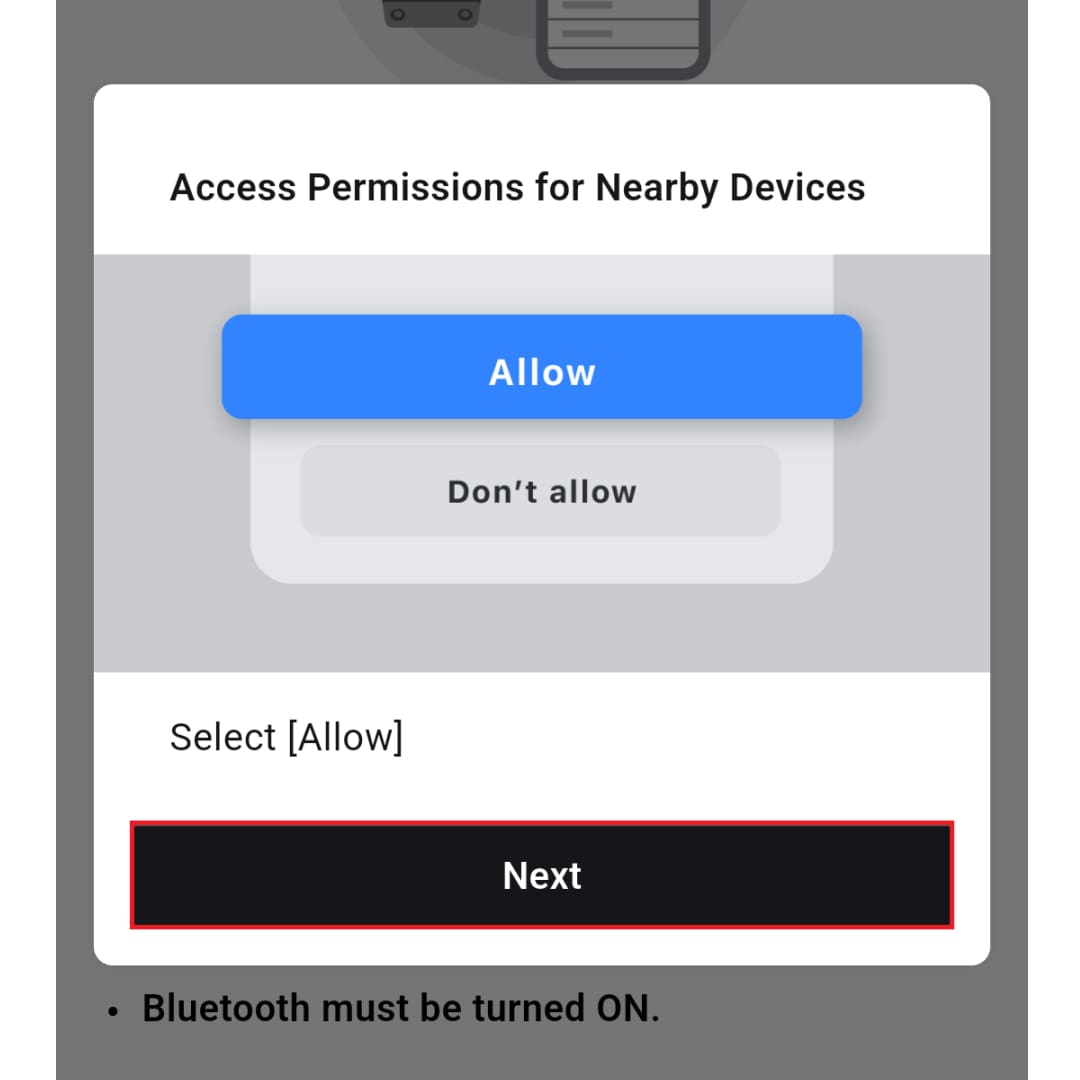
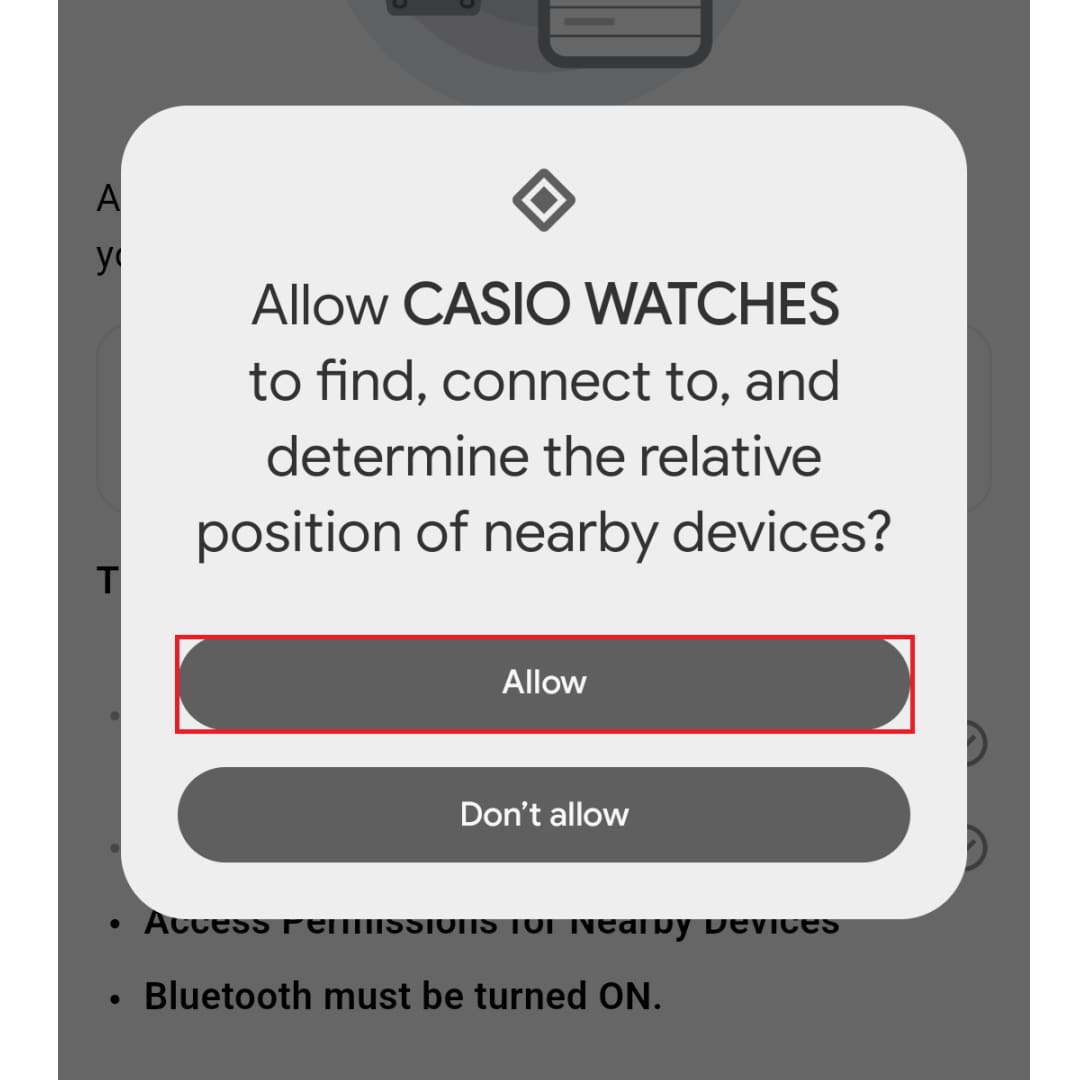
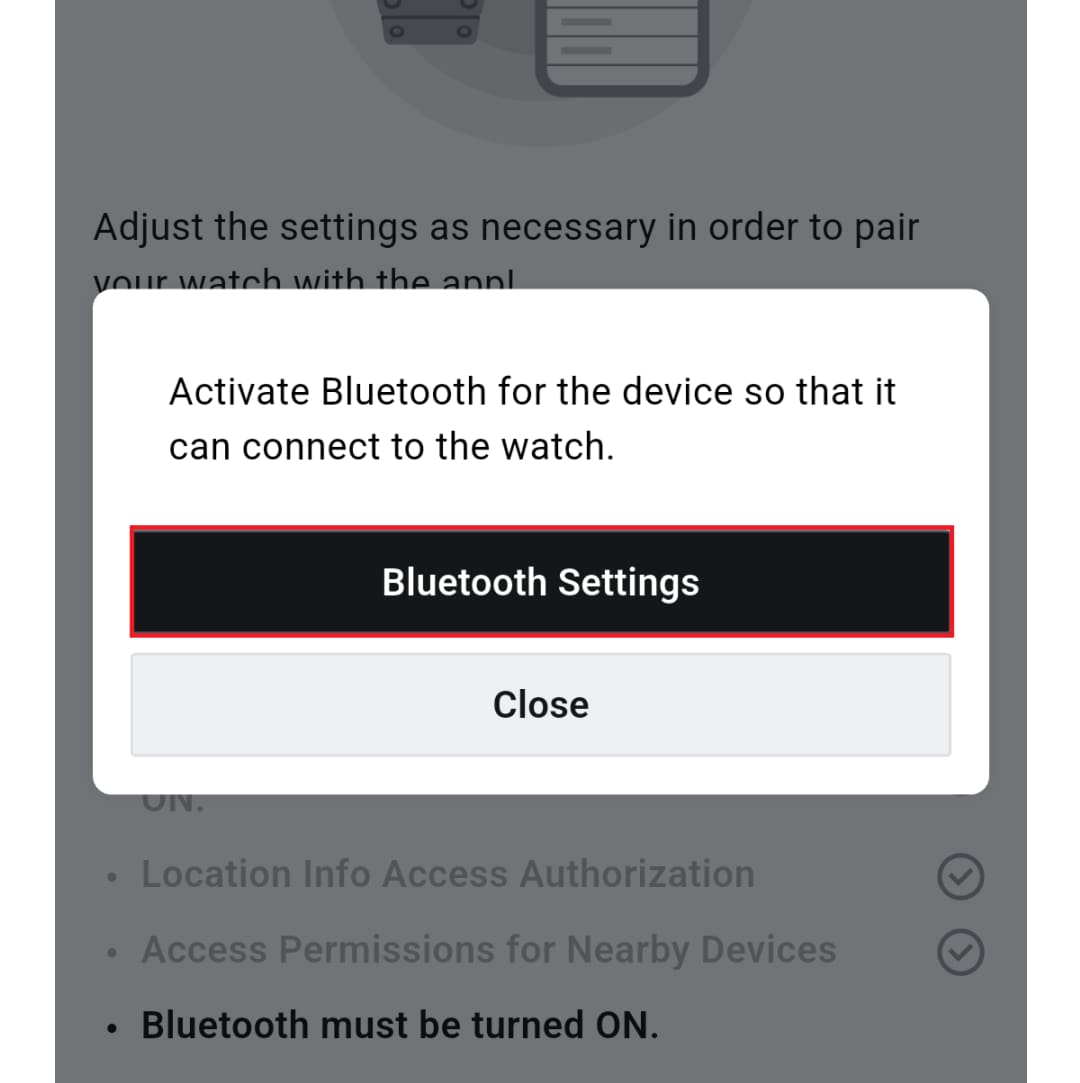
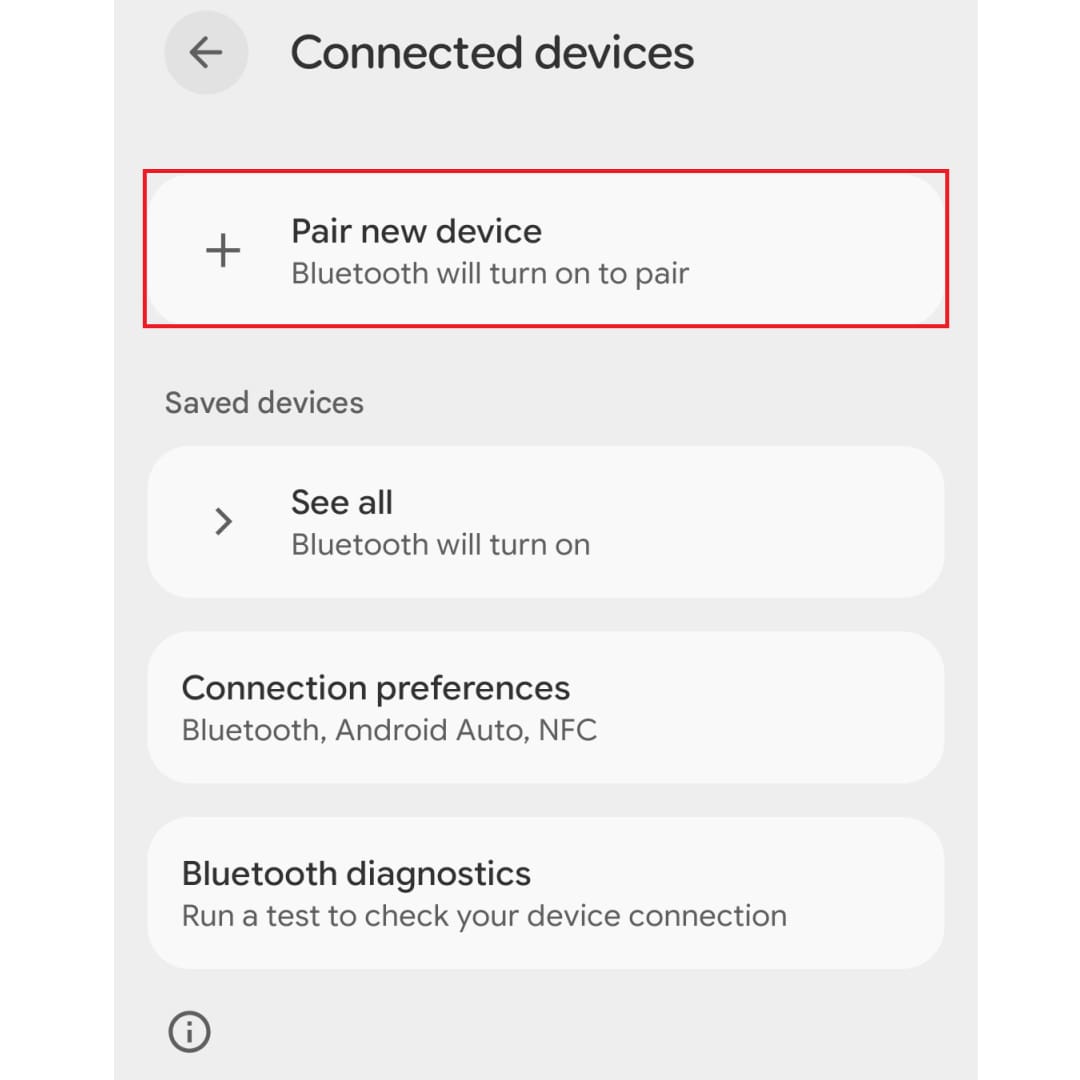
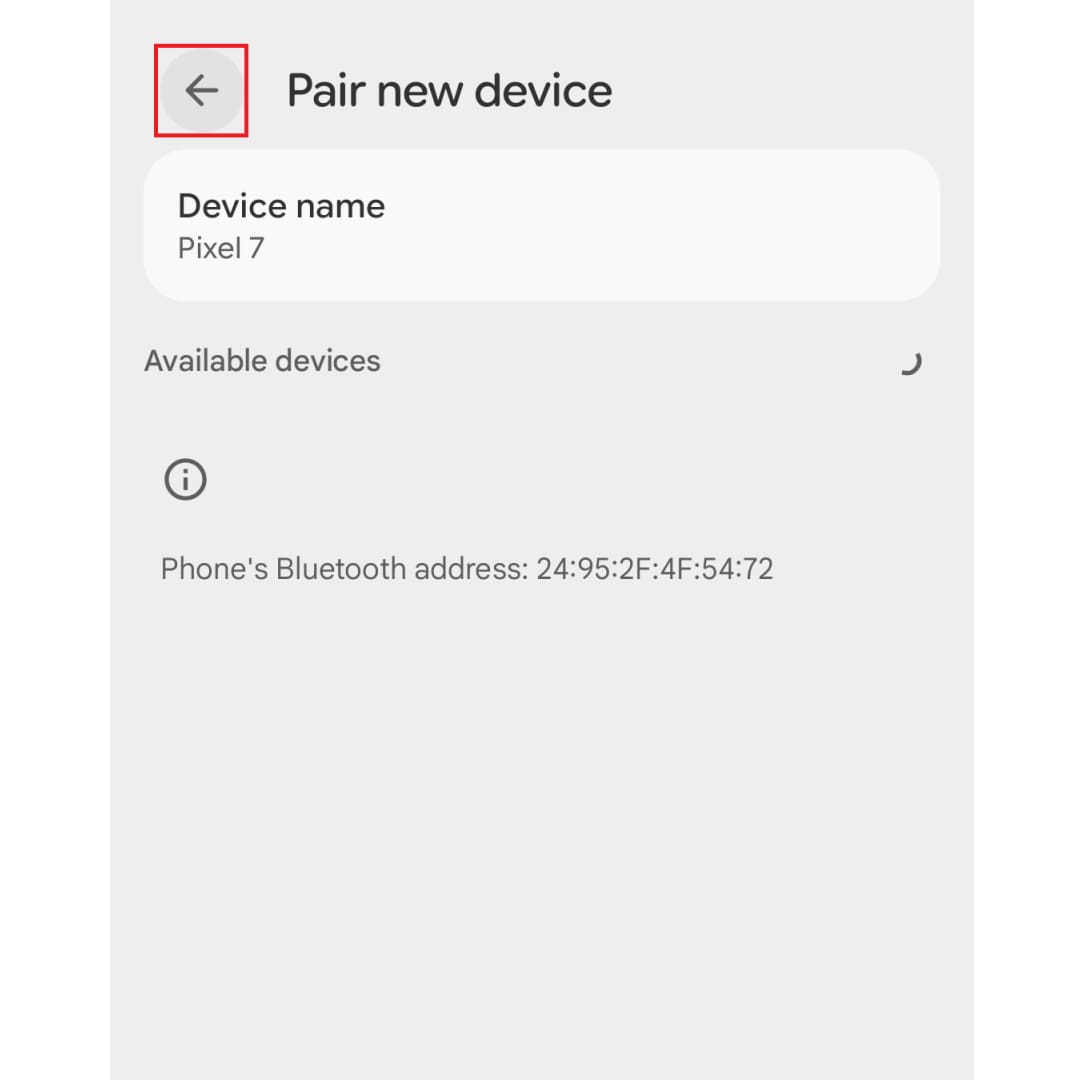
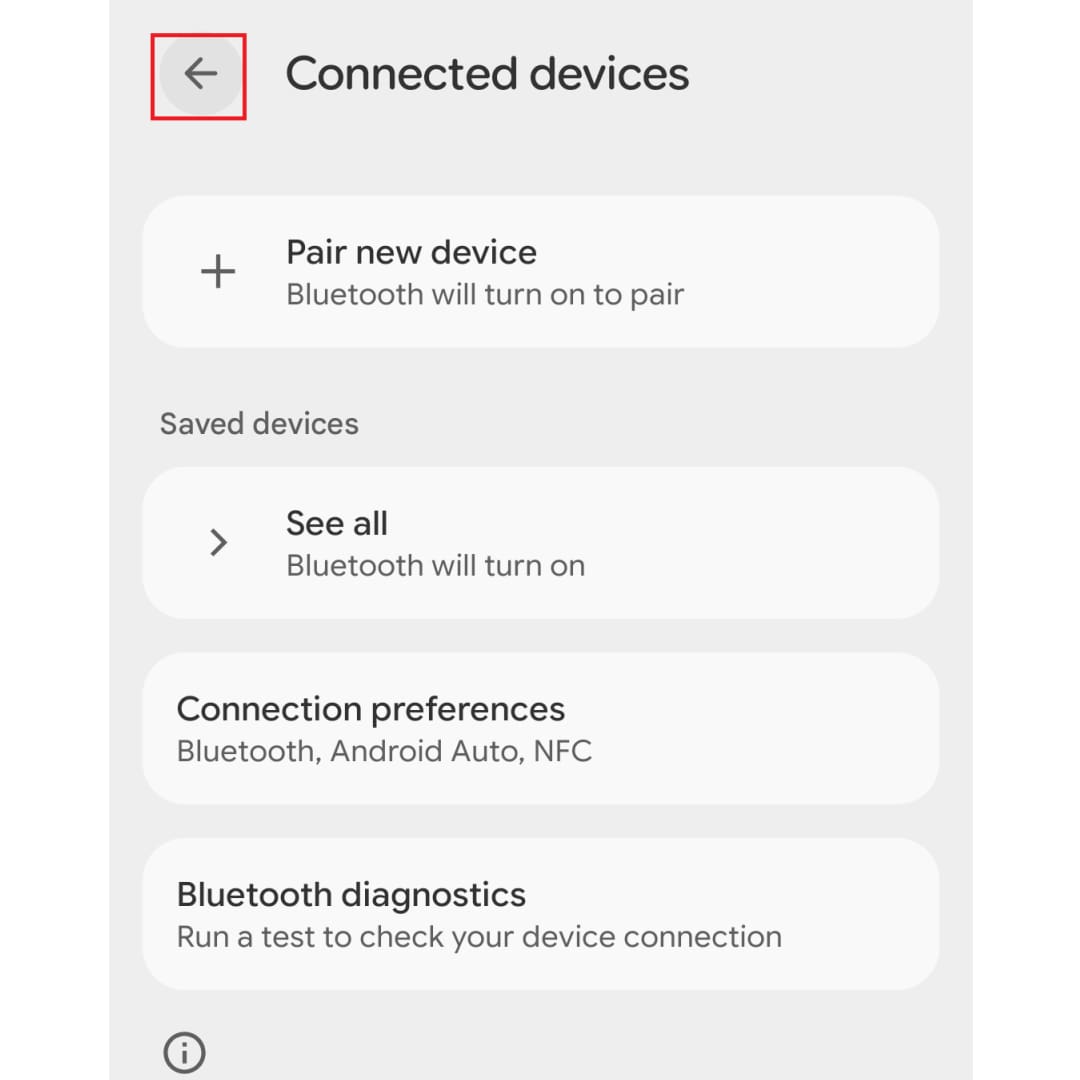
Granting permissions
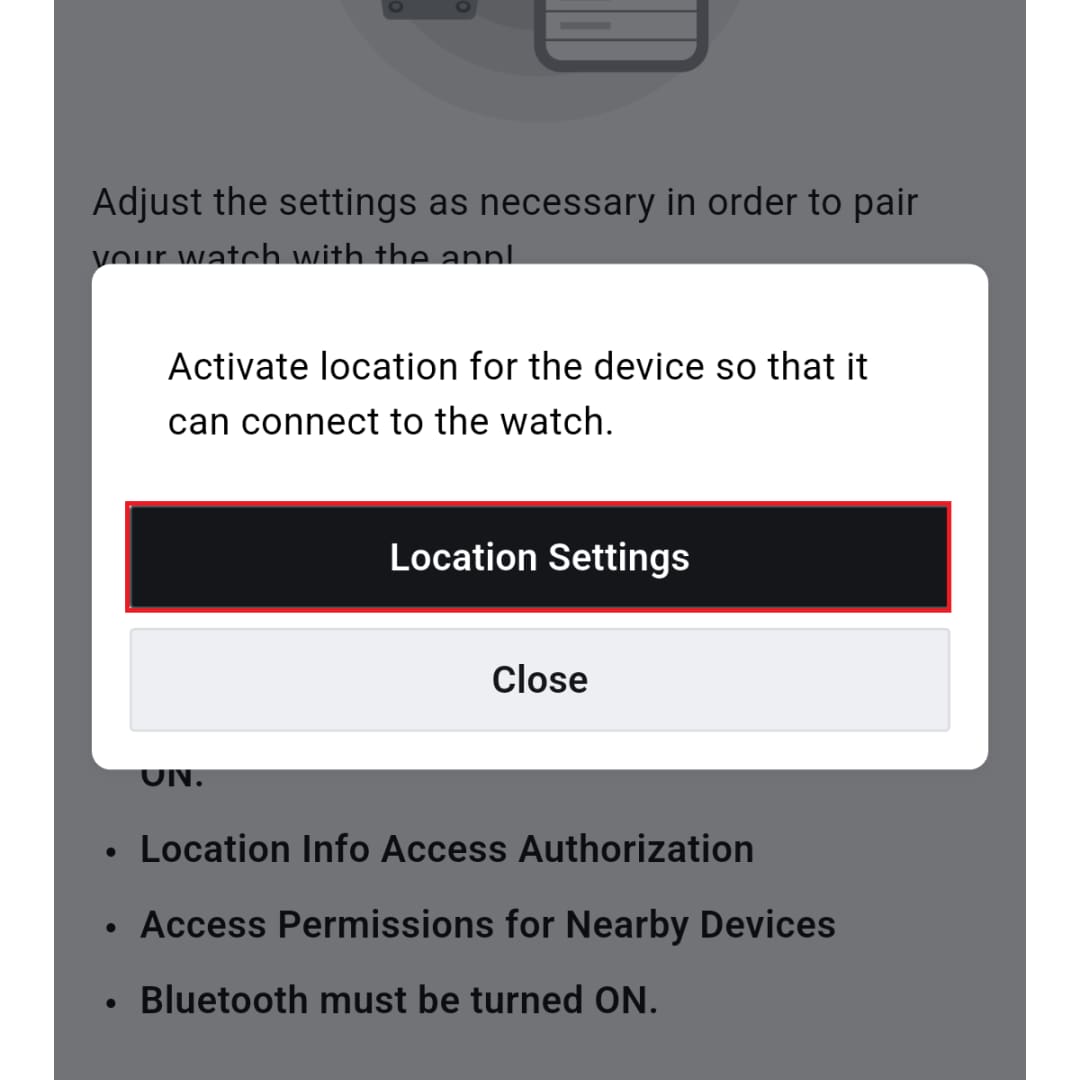
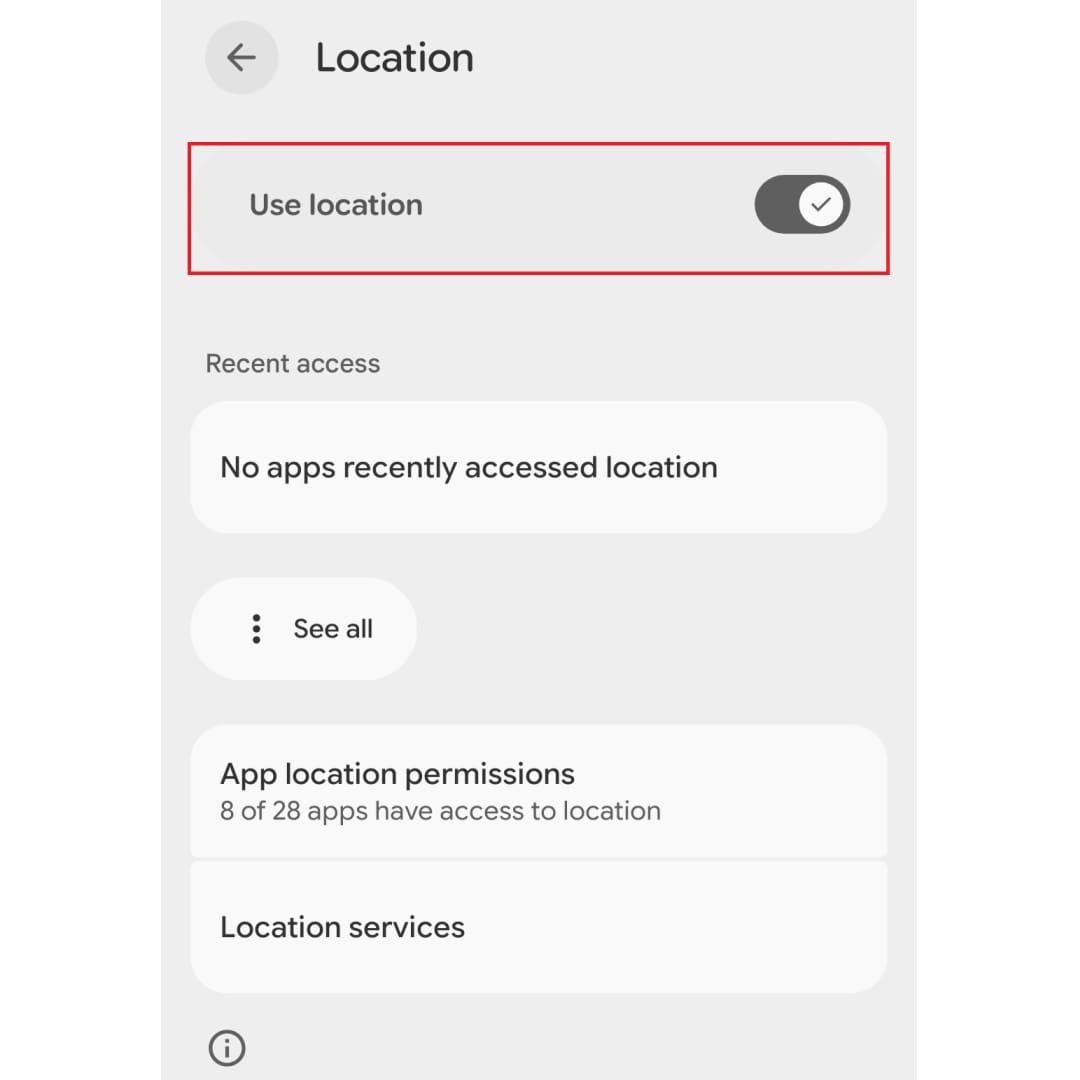
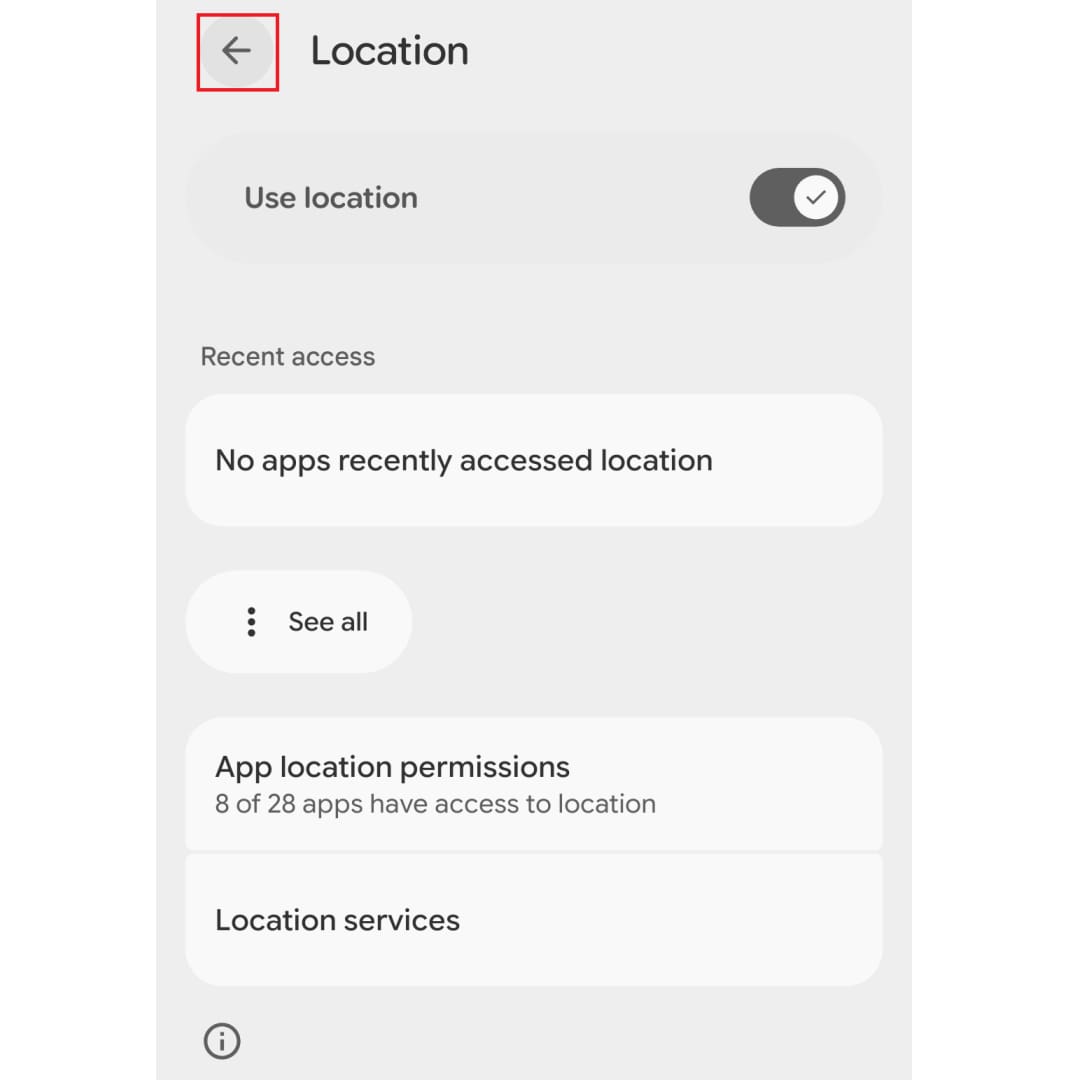
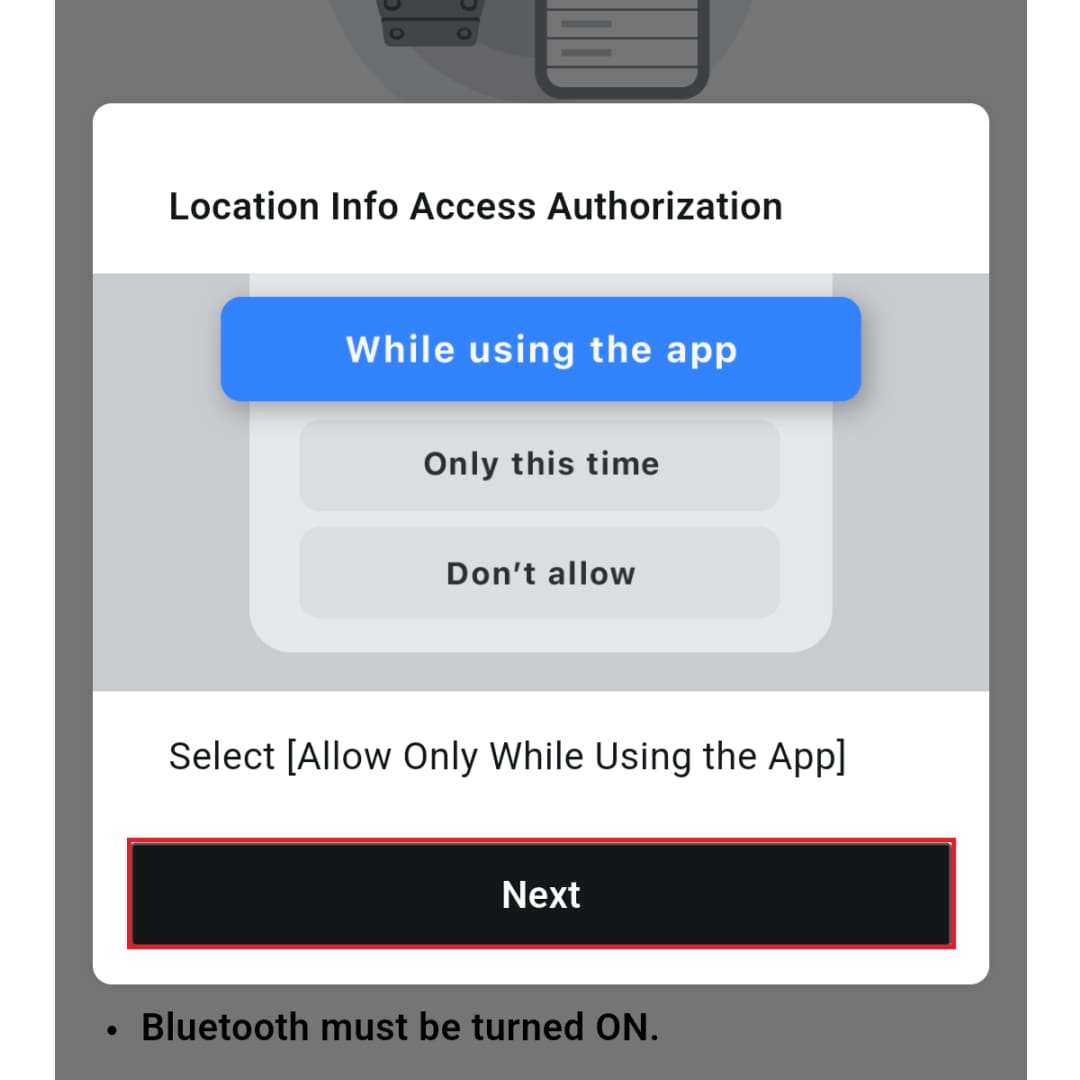
Follow the on-screen instructions to enable the settings and permissions required for pairing.
※Note: Location permissions are required for Bluetooth connection. This does not track or identify your location.
These settings are necessary for a stable connection, so please configure them as shown in the image if you have no particular issues.
Note: If the settings screen does not appear as shown in the image, please check the actual content displayed and configure the settings accordingly.
▼You can move the image left and right
<3>
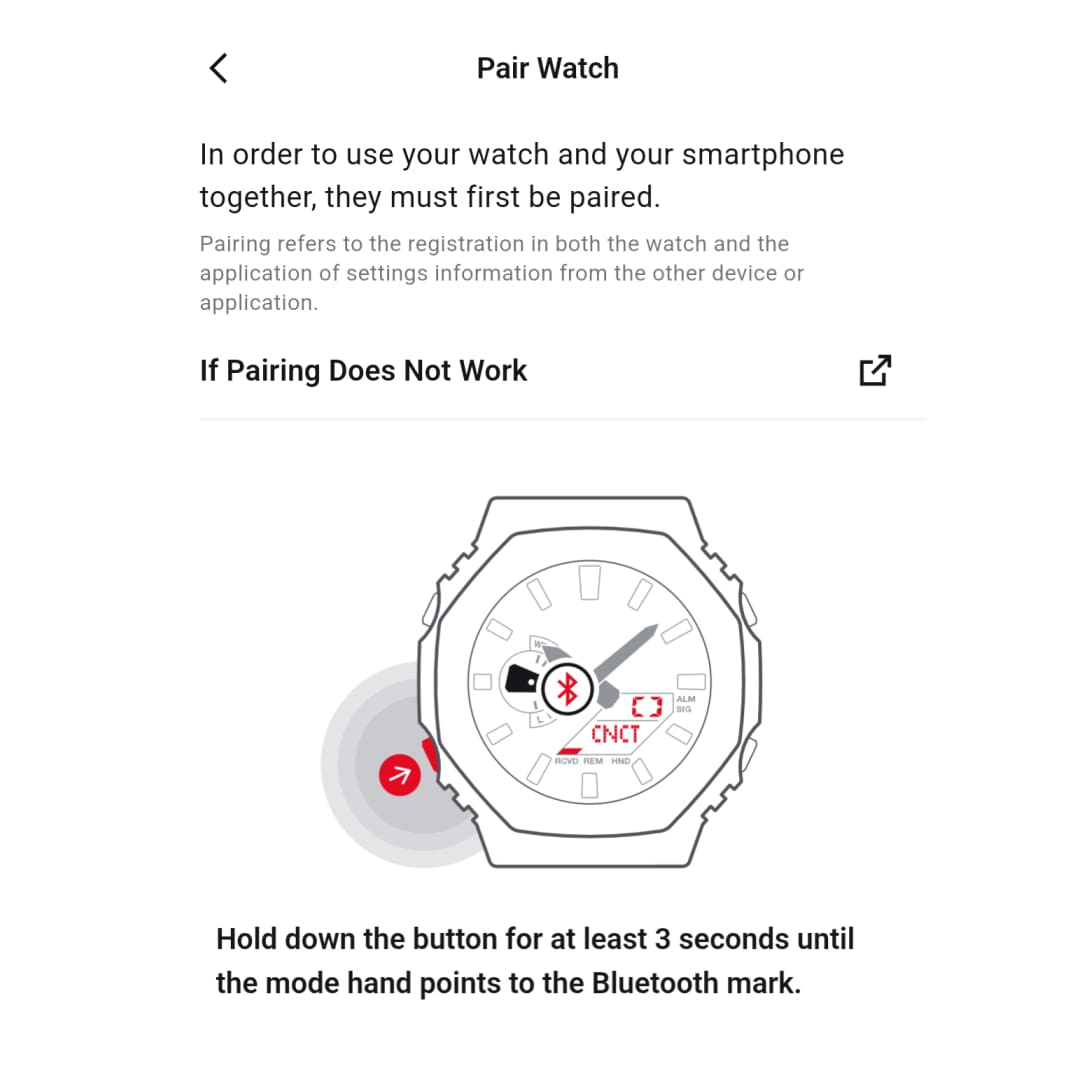
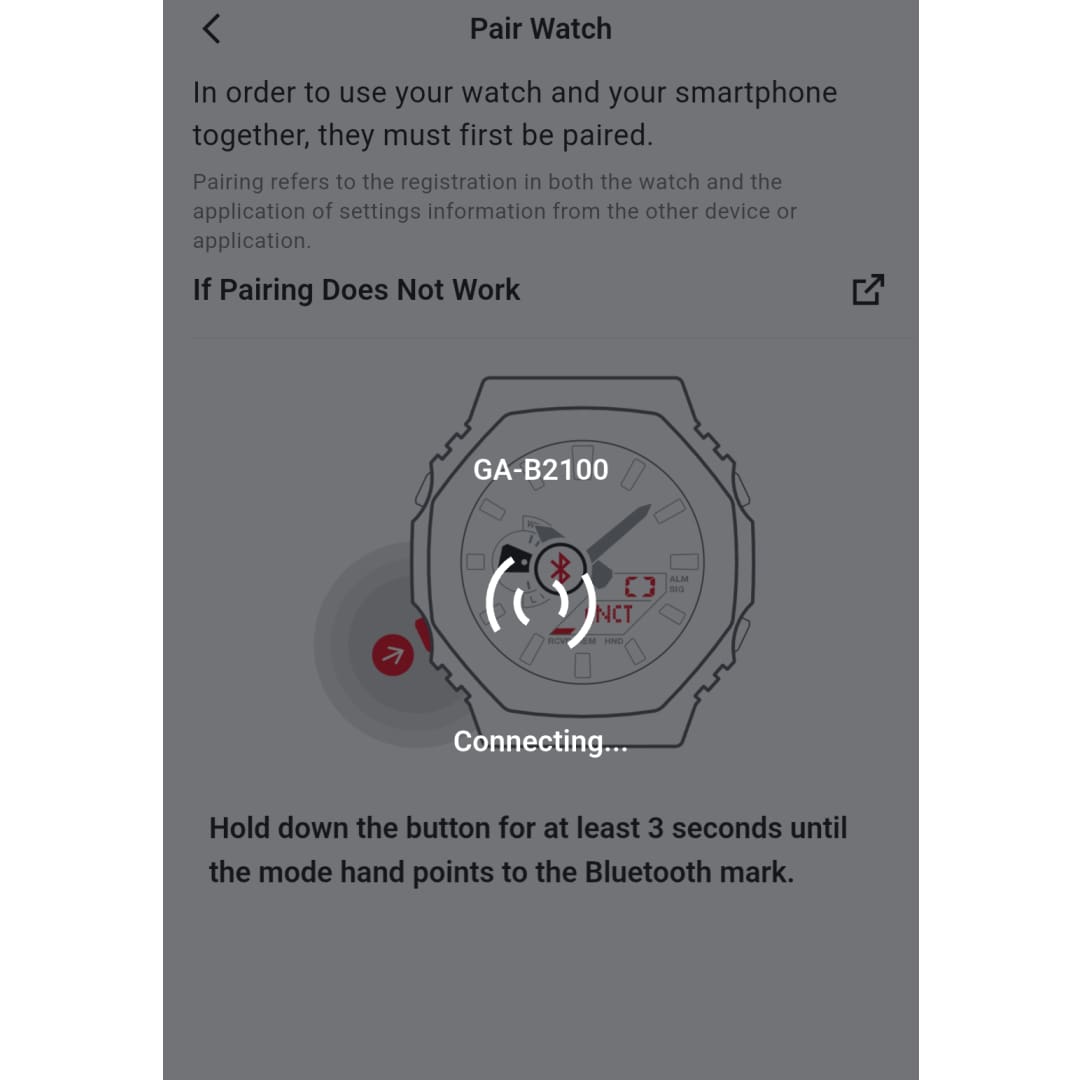
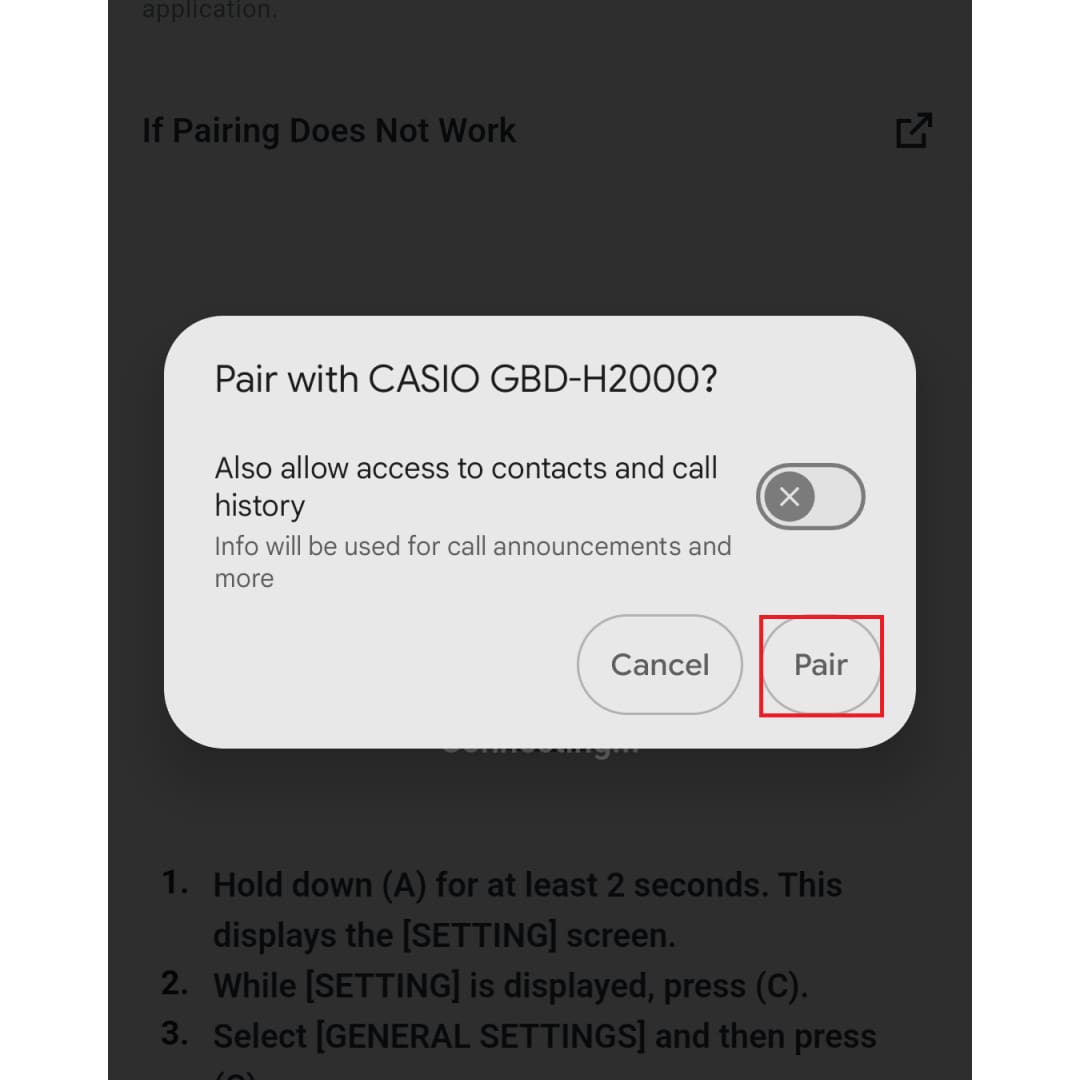
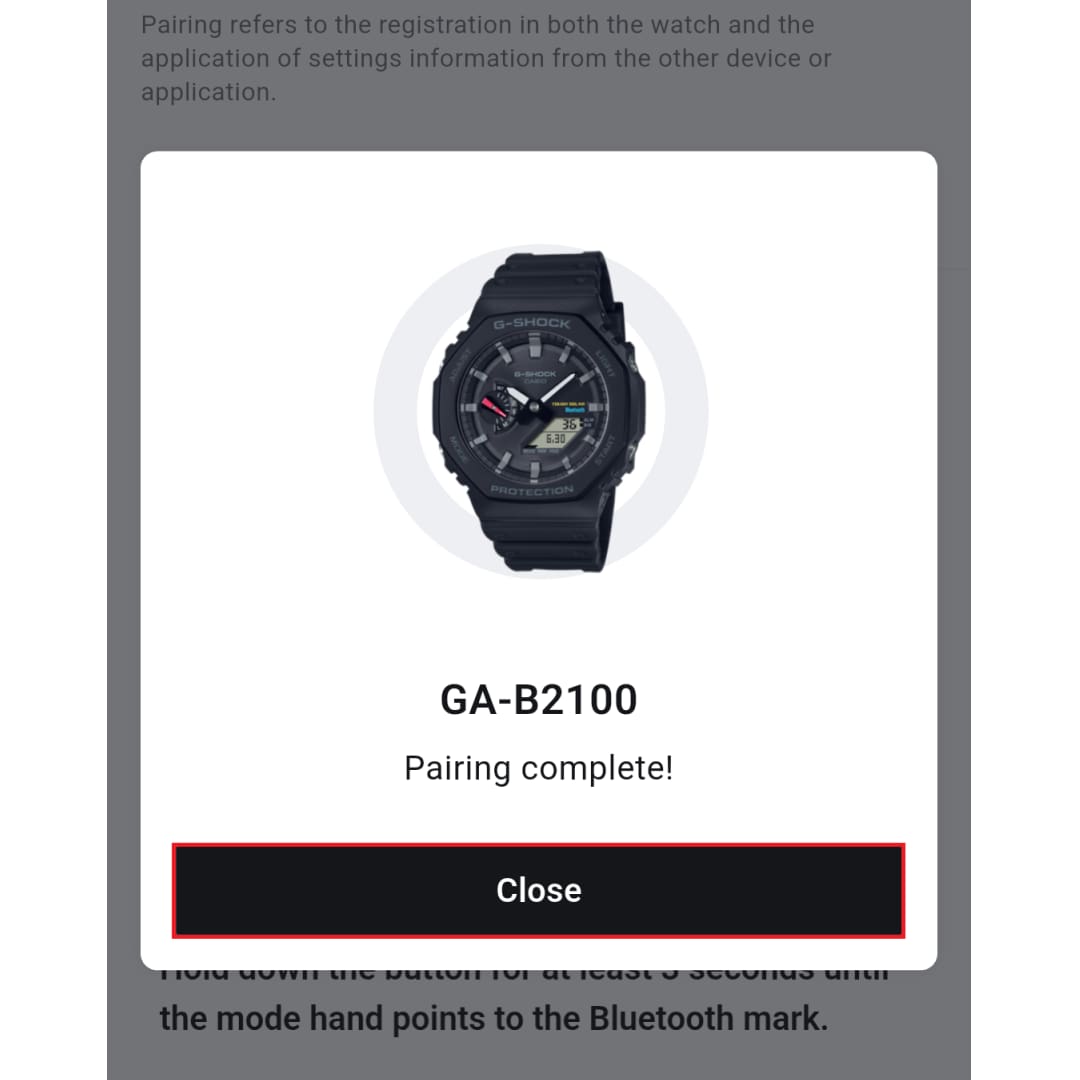
Pairing your watch with the app
Note: If pairing is not successful, try the pairing process again.
Once you see a message indicating that pairing was successful, the setup is complete.
▼You can move the image left and right
<4>
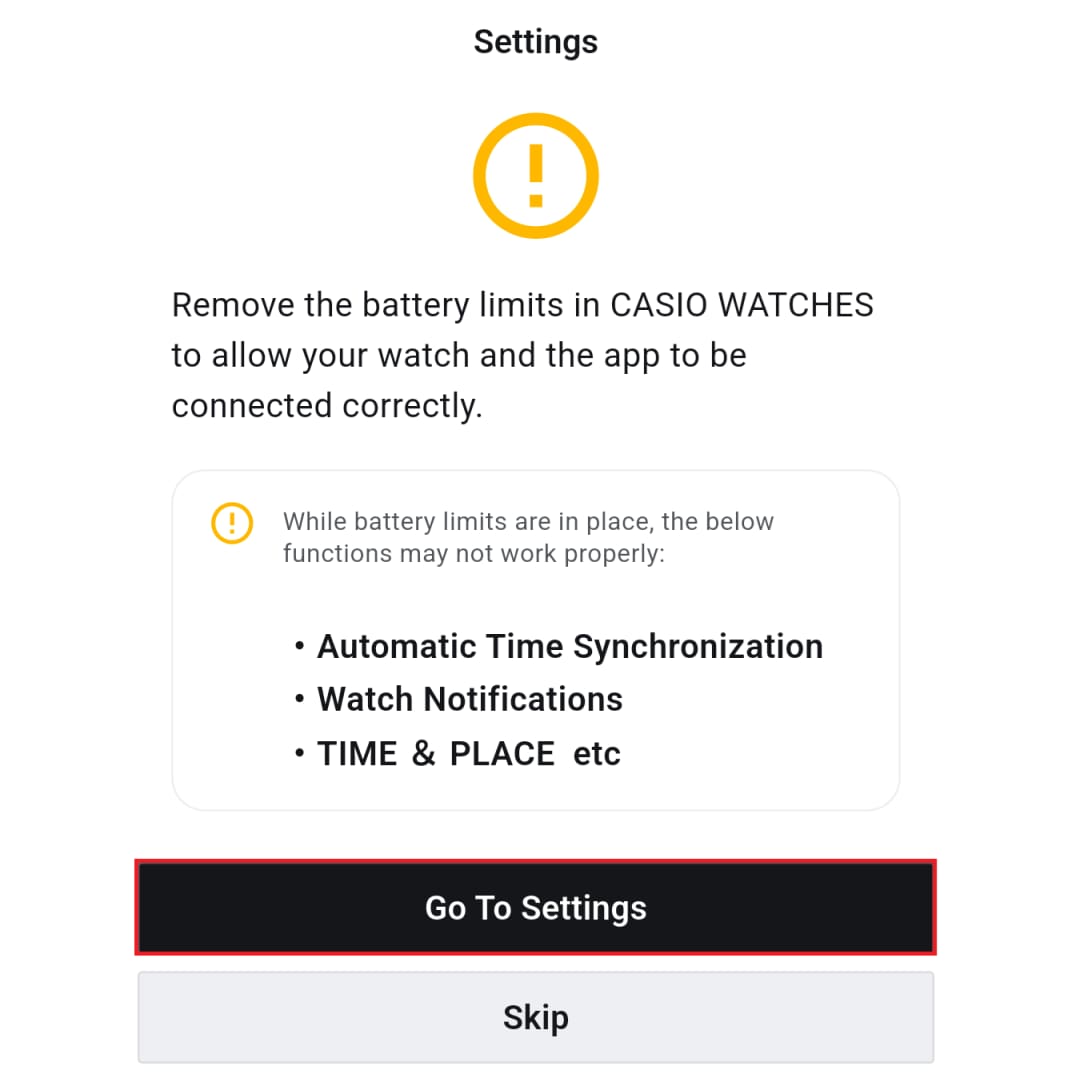
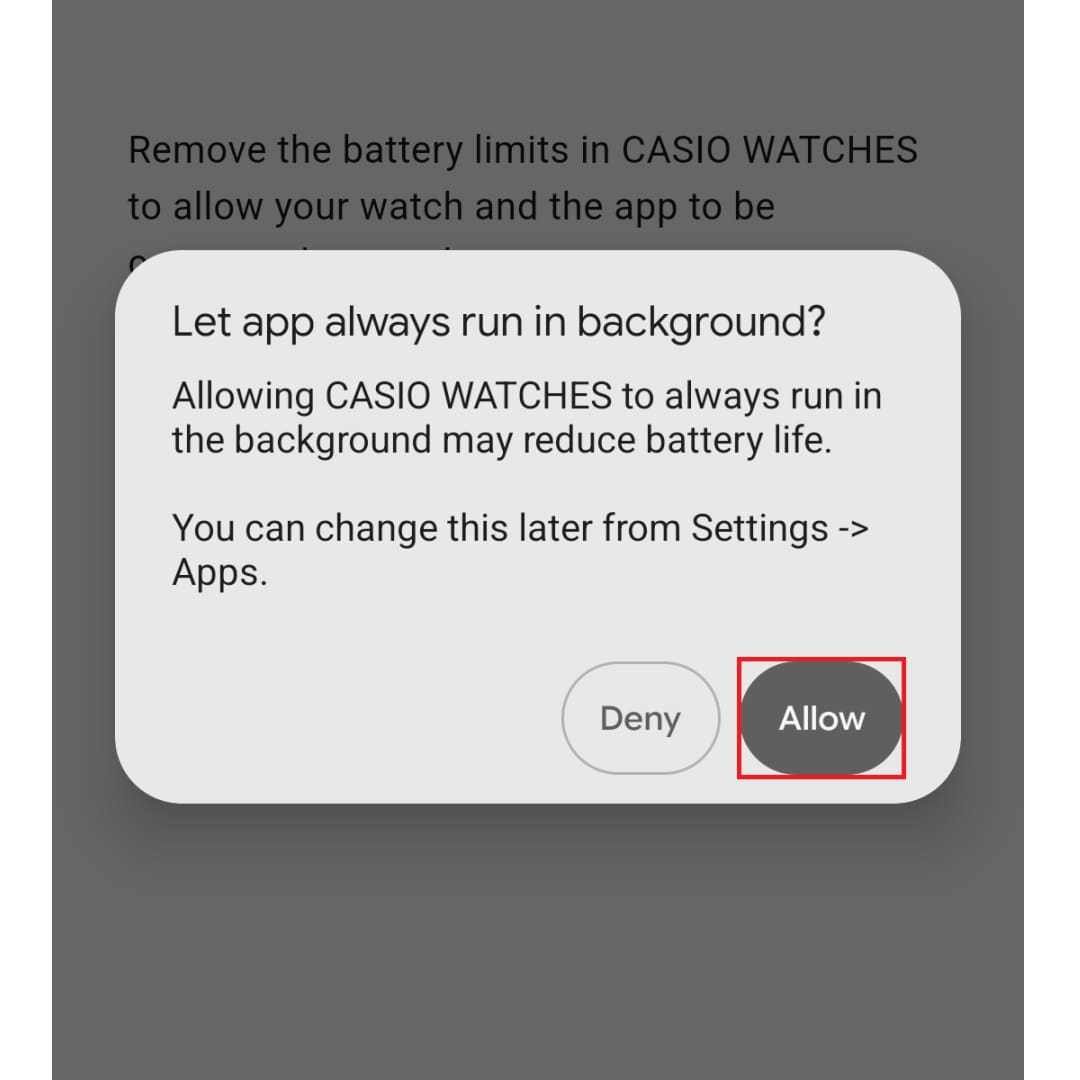
Allowing battery usage
To ensure stable connection with your watch and smooth app operation, disabling battery usage restrictions is recommended.
▼You can move the image left and right
How to use after pairing is complete
Once pairing is complete, your watch will automatically connect to the smartphone without requiring the pairing operation each time.
While your watch and the app are connected, you can configure alarms and other settings directly from the app.
Connection specifications vary by watch model. For details, refer to the link below.
≪Differences between "Part-Time Connection" and "Automatic Connection"≫
Note: Apple and iPhone are trademarks of Apple Inc., registered in the U.S. and other countries.
Note: Android, Google, and Google Pixel are trademarks of Google LLC.
Note: All other company and product names are trademarks or registered trademarks of their respective owners.