













FAQ | Label Printers, Disc Title Printer and Stamp Maker
Category : Features and usage Functions
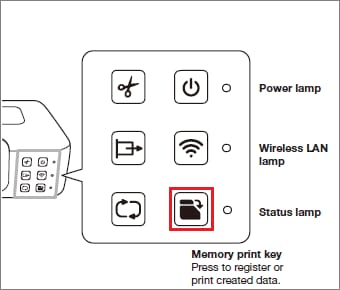
What is the (Memory print key)?
With Memory Print, you can store label data in printer memory and print it when needed.
You can perform Memory Printing even when the printer is not connected to a computer or phone.
To store Memory Print data
1. Print the label whose data you want to store.
2. After printing is complete, hold down Memory Print key for at least three seconds.
Release the key when the status lamp lights green.
· The status lamp will remain lit for about one second, indicating that the Memory Print data was saved.
· Memory Print data is not cleared if you turn off printer power or print a different label.
Important!
· Data for only one label can be stored in printer memory.
· Memory Print data will be viewable by third parties if your printer is ever stolen, if you dispose of the printer, or if the printer is transferred to a third party by any other means. Because of this, you should not leave personal information stored in printer memory.
To print Memory Print data
1. Press Memory Print key.
· During printing, the status lamp flashes green.
To delete Memory Print data
1. Turn printer power off and then back on again.
2. Hold down Memory Print key for at least three seconds.
· The status lamp will remain lit for about one second, indicating that the Memory Print data was deleted.
You can perform Memory Printing even when the printer is not connected to a computer or phone.
To store Memory Print data
1. Print the label whose data you want to store.
2. After printing is complete, hold down Memory Print key for at least three seconds.
Release the key when the status lamp lights green.
· The status lamp will remain lit for about one second, indicating that the Memory Print data was saved.
· Memory Print data is not cleared if you turn off printer power or print a different label.
Important!
· Data for only one label can be stored in printer memory.
· Memory Print data will be viewable by third parties if your printer is ever stolen, if you dispose of the printer, or if the printer is transferred to a third party by any other means. Because of this, you should not leave personal information stored in printer memory.
To print Memory Print data
1. Press Memory Print key.
· During printing, the status lamp flashes green.
To delete Memory Print data
1. Turn printer power off and then back on again.
2. Hold down Memory Print key for at least three seconds.
· The status lamp will remain lit for about one second, indicating that the Memory Print data was deleted.


